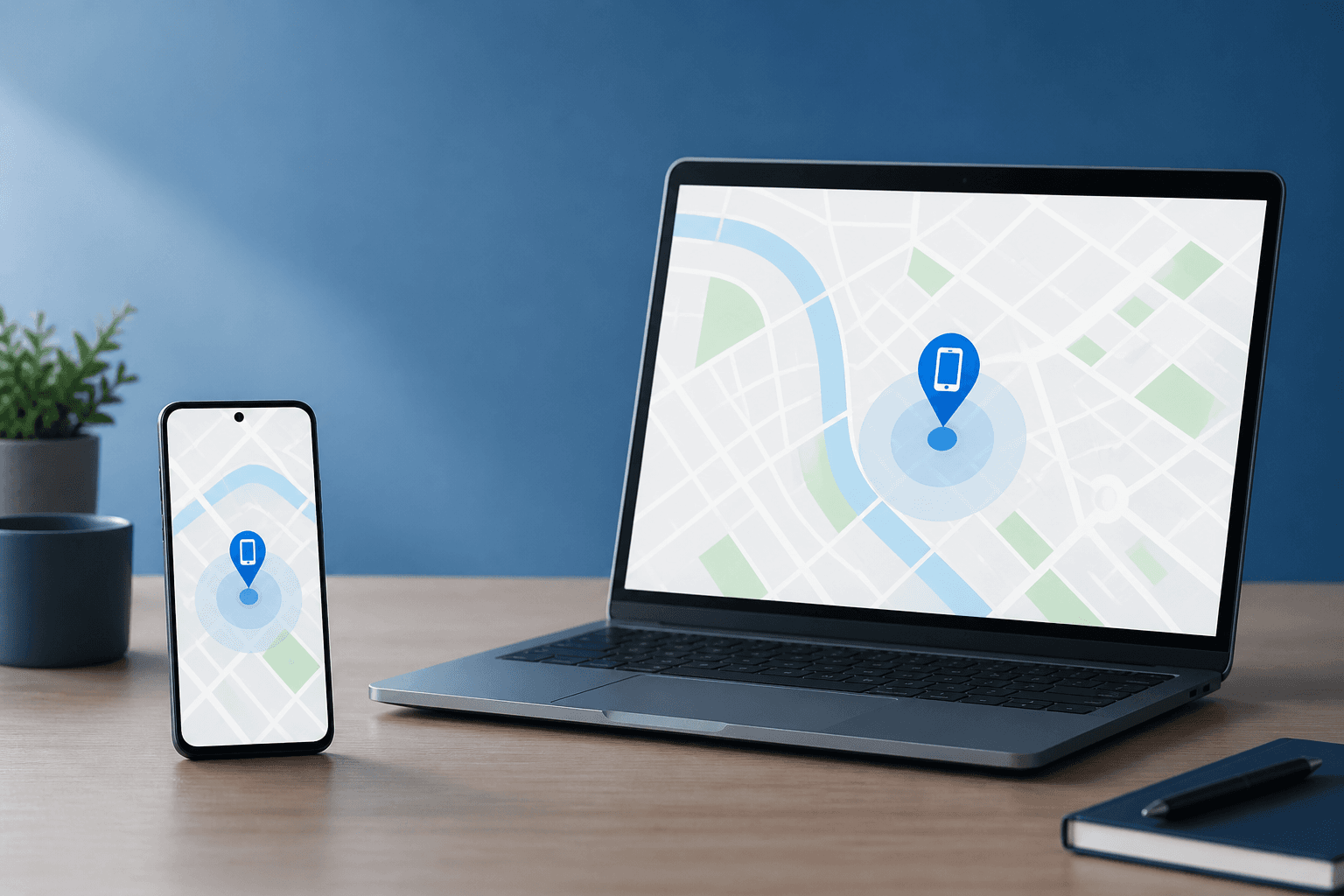
If you have lost your Android phone, Google's device-finding service can help you check its last reported location, play a sound, secure the screen, or erase the device. Open Google's official device-finding page, sign in with the Google account used on the phone, and select the missing device.
The result is not guaranteed to be a live or exact location. The phone generally needs to be associated with the right Google account and available to Google's device-finding service. Power, connectivity, account settings, Android version, and manufacturer settings can all affect what you see.
Research note for editorial review: Google’s current product name, URL, requirements, and available actions should be rechecked against current official documentation before publication.
Finding your own phone is different from tracking someone#
“Track my phone through Google” can mean two different things:
- Recovering your own lost phone: using Google's device-finding service to locate or manage a device connected to your account.
- Investigating unwanted tracking: checking whether an app, account, location-sharing setting, or physical tracking device may be exposing someone's location.
This guide covers the first situation. Finding a phone through your Google account does not identify spyware, prove that another person is monitoring you, or provide permission to track another person's device without their knowledge and consent.
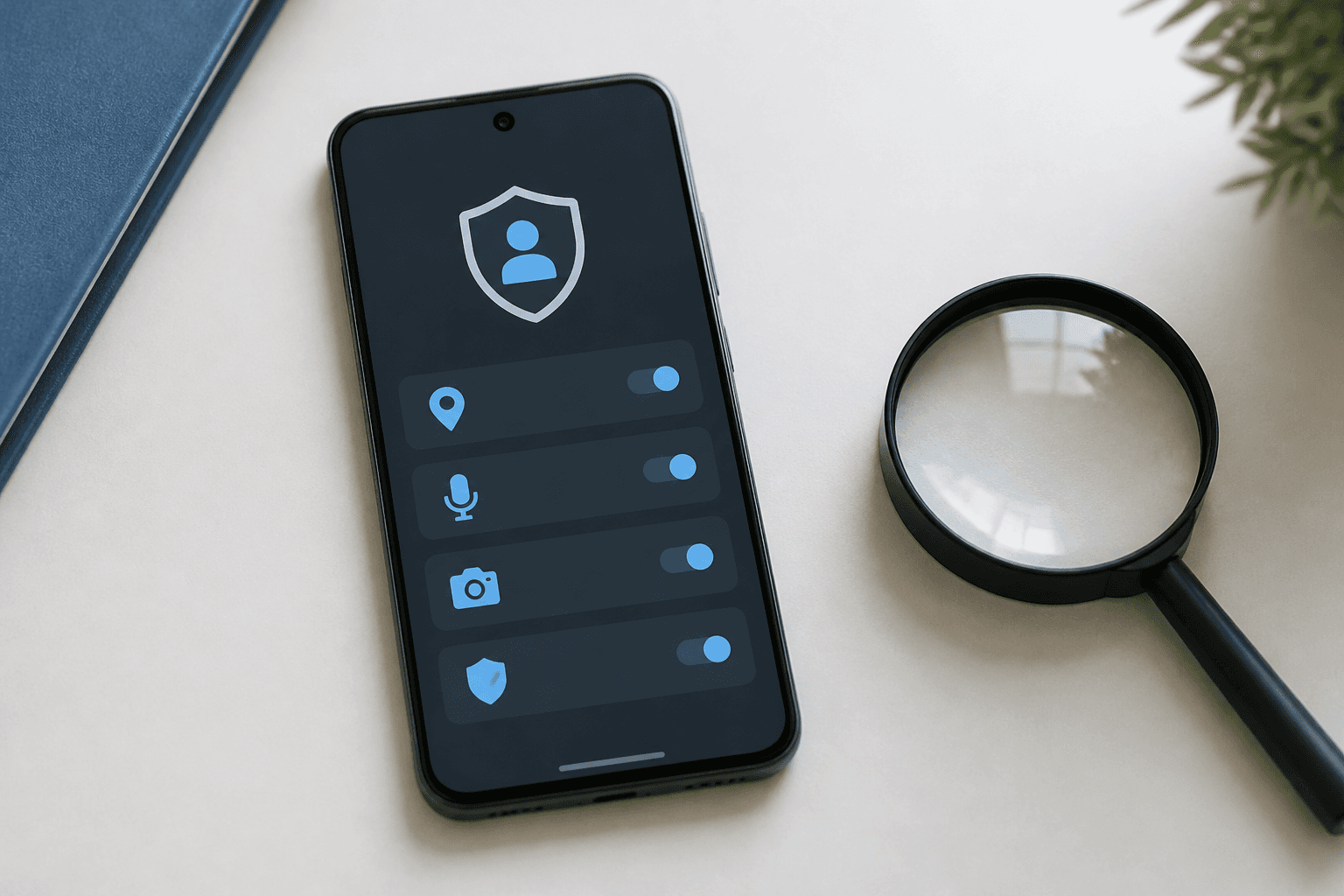
If you want to review which Android apps can access location, you can check which Android apps can access location. That type of permission review is different from recovering a lost phone, and it cannot guarantee that a device is free from surveillance.
What needs to be in place before the phone is lost?#
Google's recovery options depend on the phone being connected to the relevant account and service. In practical terms, check these items when setting up a new Android phone:
- You can sign in to the Google account used on the phone.
- The phone is powered on, or the service has a recent location or device status available.
- The phone can communicate with Google's service through Wi-Fi or mobile data when a current status is needed.
- Location and device-finding features are enabled where required.
- The phone is visible in the device list associated with your account.
Settings names and availability can differ by Android version, manufacturer, region, and account configuration. Do not wait until the phone is missing to discover that you cannot access the account or that a required setting is disabled.
How to find your Android phone through Google#
- Open Google's official device-finding website on another phone or computer. Use the official Google service rather than an unfamiliar APK or a website that asks for excessive information.
- Sign in to the Google account associated with the missing Android phone. If you use more than one Google account, try the account that was active on the phone.
- Choose the missing device from the device list. Confirm the model or device name before taking action.
- Review the location or last available status. Treat the map as an estimate. A displayed location may be old, approximate, or unavailable.
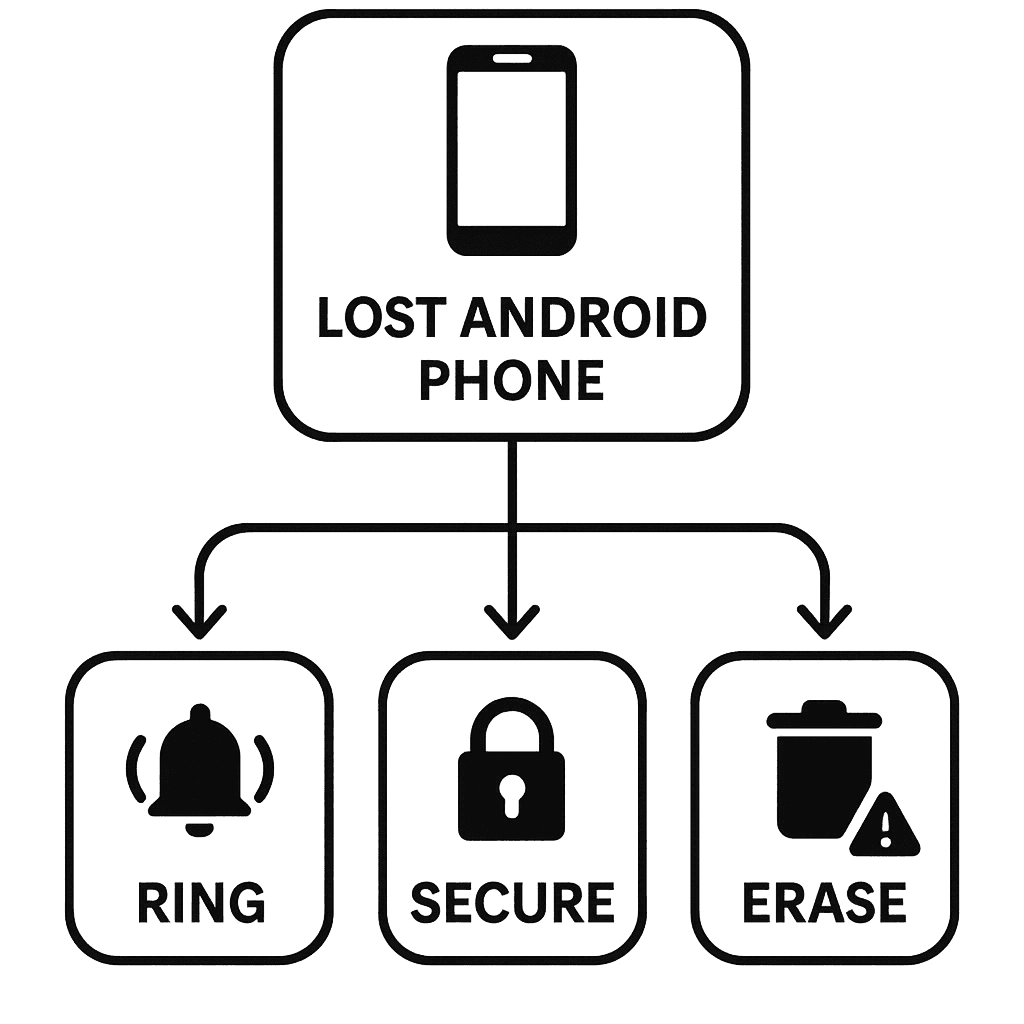
- Choose an action based on the situation. You may be able to play a sound, secure the device, or erase its data, depending on the phone's state and the options currently offered.
If the phone may be nearby, start with the sound option. If you think it was left in a public place or taken, secure it before considering an in-person recovery attempt.
What each Find My Device action does#
Play a sound#
A sound can help you locate a phone that is nearby, such as under furniture or in another room. Use it only after confirming that the selected device is yours. The exact sound behavior and availability can vary with the phone's state and current connection.
Secure the phone#
Securing the phone is usually the safer choice when you are not sure where it is. Use the available lock or secure option to protect access to the device and display a contact message or phone number if the service offers that option.
Avoid placing sensitive information in a recovery message. A short message and a safe contact method are better than displaying your home address, passwords, or other private details.
Change important passwords from a trusted device if you believe someone may have accessed the phone. Start with your Google account, email, financial accounts, and password manager. Use a device you trust and avoid saving passwords on a public computer.
Erase the phone#
Remote erasure is a last-resort privacy measure. It can remove personal data from the phone, but it may also prevent you from using the device-finding service to locate it afterward. Make sure you understand the consequences before selecting it.
Erasing a phone does not necessarily cancel your mobile service, replace a SIM-card block, recover a backup, or remove data that was already synchronized to online accounts. Secure your accounts separately.
If Google cannot locate the phone#
A missing location does not prove that the phone has been stolen, wiped, or compromised. Common explanations include:
- The battery is empty or the phone is switched off.
- The phone cannot currently reach Wi-Fi or mobile data.
- You signed in with a different Google account.
- The phone is not reporting a current location.
- A required setting was disabled, or the service is not available in the expected way on that device.
- The map is showing an older status rather than a live position.
Try the following:
- Check every Google account you may have used on the phone.
- Confirm the device model shown in the list.
- Look for a last-known or recently reported status rather than expecting continuous tracking.
- Try again later if the phone may be offline.
- Contact your mobile carrier if you need to suspend service or block the SIM.
- If theft is suspected, report it to the relevant authorities and do not confront a person based only on a map location.
A phone-finding service is not a substitute for emergency services, a police report, or safe personal judgment.
Privacy limits to understand#
Google's device-finding service is designed to help manage a device connected to your account. It does not answer every question about phone surveillance.
For example, it may not tell you:
- Which apps have accessed your location in the past.
- Whether another account has location-sharing access.
- Whether a suspicious app is collecting data.
- Whether a Bluetooth tracking device is traveling with you.
- Whether someone knows your Google password.
Those questions require separate checks, such as reviewing account security, location-sharing settings, app permissions, and unknown tracker alerts where supported. Battery drain, overheating, unusual data use, or an unfamiliar app alone also does not prove that someone is spying on you.
Frequently asked questions#
Can I find my Android phone through Google without installing an app?#
Often, you can use Google's official device-finding website from another phone or computer. Whether the phone appears and which actions are available depend on its account, settings, connection, power state, and device support.
Can Google show my phone's exact live location?#
Not always. The service may show an approximate or previously reported location, and it may show no location when the phone is powered off, offline, or unable to report its status.
Can I find my phone if it is offline?#
You may see a previous status or location, but an offline phone may not provide a current position or accept every remote action. The available behavior depends on the device and Google's current support for it.
Should I erase a lost Android phone immediately?#
Usually, no. First consider whether securing or ringing the phone is enough. Erasing can protect personal data but may limit later recovery options, so use it when protecting the data matters more than continuing to locate the device.
Does Find My Device detect spyware?#
No. Finding or managing your own lost phone is different from detecting spyware, unwanted app data collection, account compromise, or physical tracking devices. Use separate account, permission, and safety checks for those concerns.
Can I use Google to track someone else's phone?#
Do not use a device-finding account or location-sharing feature to monitor another person without their knowledge and consent. For a family or managed device, follow the applicable account, legal, and safety requirements.
Bottom line#
To find your phone through Google, open the official device-finding service, sign in to the Google account linked to the phone, select the correct device, and choose the least disruptive useful action. Start with ringing or securing the phone; consider erasing it only when protecting the data is more important than continuing recovery.
Remember that a map result is not proof of an exact location, and Google's device-finding service is not a spyware detector. Verify the current Google instructions and device requirements before publishing or relying on this guide.