If you want to see where your Android phone has been, Google Maps Timeline is usually the feature you are looking for. It can show past trips, places, and routes associated with your Google account—but it is not the same as someone viewing your live location.
The exact menus can vary by Android version, Google account settings, and device manufacturer. In general, open Google Maps, sign in to the relevant Google account, and look for Timeline through your profile menu. From there, choose a date to review recorded journeys and places. If Timeline is empty, the feature may be paused, configured for a different account, missing permission, or unable to reconstruct that day's movements accurately.
This guide explains what Google Timeline means, how to review it safely, and what it cannot prove about tracking or surveillance.
What Google Maps Timeline and Location History mean#
Google Maps Timeline is the user-facing view of historical location information associated with a Google account. Depending on the account and device configuration, it may show estimated visits, routes, travel dates, and places.
Google Location History is the account-level setting and data category behind this type of historical location record. Google has changed the names, storage behavior, and available controls for location data over time, so do not assume that every account has the same retention or device options.
Timeline is an estimate, not a perfect travel diary. Location can be inferred from GPS, Wi-Fi, mobile networks, sensors, and nearby signals. A displayed place or route may therefore be incomplete or wrong.
How to find Timeline in Google Maps on Android#
- Open the Google Maps app.
- Confirm that you are using the Google account whose history you want to inspect.
- Open the account or profile menu.
- Select Timeline if it is available.
- Choose a date, place, or trip to inspect the recorded information.
If you cannot find Timeline, check that Google Maps is updated and that you are signed in. The feature may also be unavailable, paused, or presented differently because of account configuration, regional changes, or a current Google interface update.
A missing day does not automatically mean that someone deleted the record. Battery-saving settings, disabled location services, a different signed-in account, weak location signals, and paused history can all produce gaps.
How to review a day, place, or device#
When reviewing Google Timeline, look for the following:
- Dates: Does the record cover the day you expected?
- Routes: Are the displayed journeys plausible, or are there obvious jumps and gaps?
- Places: Does Google identify locations you recognize?
- Devices and accounts: Could another phone or Google account be contributing data?
- Accuracy: Does the record say or imply that a place was estimated rather than directly confirmed?
Treat Timeline as personal data that helps you understand account activity. It is not reliable proof of a person's exact movements, and it does not by itself show that another person is monitoring you.
Timeline is different from live location sharing#
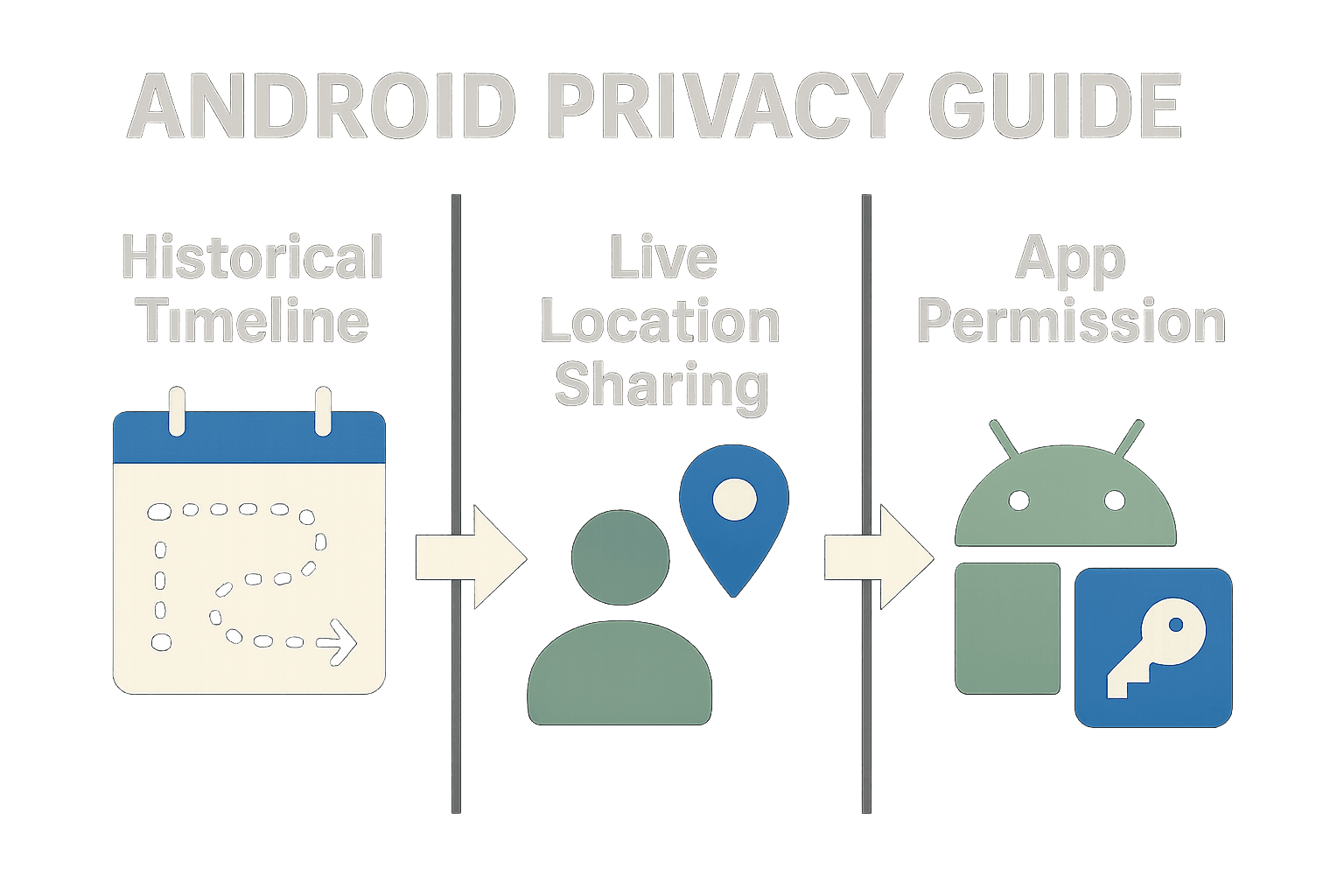
These three types of location access are easy to confuse:
| Feature | What it generally represents | Where to investigate | |---|---|---| | Google Maps Timeline | Historical location records connected with an account | Google Maps and Google account settings | | Live location sharing | A current or ongoing location shared with selected people or services | Google Maps sharing controls and account settings | | App location permission | Whether an installed app can request location from Android | Android Settings and Permission Manager |
Someone with access to your Google account might be able to view account data, but Timeline itself is not a live broadcast. Conversely, turning off Timeline does not automatically revoke every app's location permission or stop all forms of location sharing.
For a broader privacy check, read our guide on how to stop unwanted phone tracking on Android, especially if you are concerned about account access, sharing settings, or unfamiliar apps.
How to manage or delete Google location history#
Google's controls and storage options can change. Before deleting anything, identify the correct Google account and consider whether you need the records for travel memories, activity review, or another personal reason.
Common controls may include options to:
- Pause or turn off the relevant location-history feature.
- Delete a selected day or date range.
- Delete all available history.
- Set automatic deletion where the account offers that choice.
- Review which devices are signed in to the account.
Use the controls shown in your own Google Maps or Google Account interface rather than relying on an old screenshot or menu path. Deleting Timeline records may be irreversible, and deleting history does not remove location data held independently by another app, service, mobile carrier, or device.
Check Android apps that can access location#
Google Timeline is only one possible source of location information. To inspect app-level access, open Android Settings and look for Privacy, Permission Manager, or App permissions, then select Location. The wording and location of these menus vary by manufacturer and Android version.
Review apps that have:
- Precise location access when approximate access would be sufficient.
- “Allow all the time” or background access.
- Location access that does not match the app's purpose.
- A name you do not recognize or no longer use.
Change permissions only when you understand the effect. Navigation, safety, weather, transport, and fitness apps may function differently when background or precise location is removed.
An Android permission audit can show which apps have requested or received location access. It generally cannot read your Google account's Timeline, identify every form of surveillance, or prove why an app used location at a particular moment.
When a location record deserves more investigation#
A surprising Timeline entry is a reason to check details, not proof of spyware. Investigate proportionately if you see several related signs, such as:
- An unfamiliar Google account session or device.
- Location sharing enabled with a person you do not recognize.
- An app with unnecessary background location access.
- An unknown app installed through an unfamiliar route.
- Security alerts, password changes, or account activity you did not initiate.
If you suspect account compromise, secure the Google account from a device you trust, review signed-in devices, change the password, and enable stronger sign-in protection where available. If you are worried that another person with physical access to the phone may react badly, avoid confronting them directly and seek help from a trusted person or local support service.
Common questions about Google Timeline#
Does Google Timeline show my exact location?#
Not always. Timeline can contain estimates, gaps, incorrect places, or reconstructed routes. It should not be treated as a precise record of every movement.
Is Google Timeline the same as live location sharing?#
No. Timeline concerns historical location records. Live location sharing is a separate feature that can share a current or ongoing location with selected people or services.
Why is my Google Maps history missing?#
Possible reasons include a paused history feature, a different Google account, disabled location services, device settings that limited collection, an account or interface change, or incomplete location signals.
Can an Android permission audit see Google Maps Timeline?#
No. Android permissions can help you review which apps have location access, but they do not provide a complete view of Google account history or prove that someone is monitoring the phone.
Does an unfamiliar Timeline location prove spyware?#
No. It could result from an inaccurate estimate, account access, another signed-in device, shared access, or an app using location. Check related account, device, and permission evidence before drawing a conclusion.
The practical takeaway#
Use Google Maps Timeline to review historical location records connected with the correct Google account. Use Google account controls to manage that history, and Android's permission settings to review app-level location access. Keep those investigations separate: a Timeline entry, a location permission, and live location sharing are different kinds of data and different privacy questions.