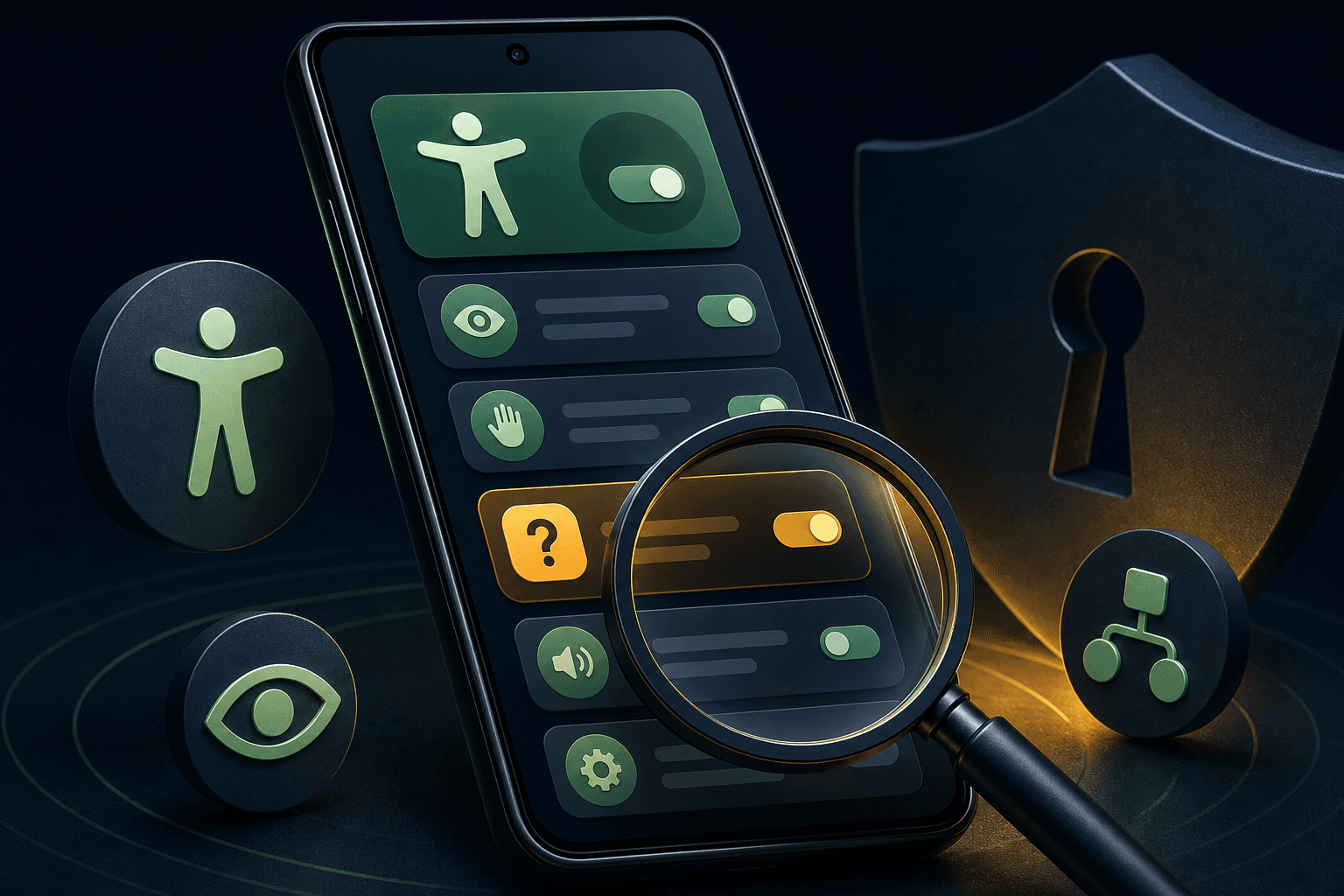
If an unfamiliar app appears under Android's Accessibility Services, it is reasonable to investigate—but the listing is not proof that your phone has spyware. Accessibility access is a powerful Android capability used by legitimate tools, including screen readers, switch-access devices, password managers, automation tools, and some support applications.
The safest approach is to identify the service, understand why it is enabled, and look for supporting evidence before disabling or removing anything. This guide explains what Accessibility Services do, how to review them, and how to use Android's permission controls without jumping to conclusions.
What are Android Accessibility Services?#
An Android Accessibility Service is a special component that helps an app interact with a device on behalf of a user who needs assistance. Depending on its declared capabilities and the user's approval, a service may observe information about the screen, receive accessibility events, and perform actions such as selecting, scrolling, or activating interface controls.
That level of access is broader than an ordinary permission such as access to the camera or approximate location. It is designed to make apps and interfaces usable for people with disabilities, but it can also be useful for legitimate automation and device-support features.
The important distinction is this: an enabled Accessibility Service shows that powerful access has been granted; it does not by itself show how the app is using that access or whether the app is malicious.
Android menu names and locations vary by device maker and software version. On many phones, you can start by opening:
Settings → Accessibility → Installed apps
On other devices, the relevant page may be called Downloaded services, Downloaded apps, Installed services, or simply Accessibility services. These labels generally refer to the area where downloaded or installed accessibility services can be reviewed. Use the Settings search box for “Accessibility” if you cannot find it.
Why might a legitimate app request accessibility access?#
Some apps need accessibility capabilities because their main function involves helping you operate another app or understand what is displayed. Examples can include:
- Screen readers and other assistive technologies.
- Switch Access and alternative-control tools.
- Apps that provide voice or gesture controls.
- Certain password managers that offer autofill assistance on older or incompatible interfaces.
- Remote-support or device-management tools used with your knowledge.
- Automation tools that perform repetitive actions after you configure them.
- Manufacturer-provided services that support special input or display features.
The request should make sense in relation to the app's purpose. A screen reader requesting accessibility access is expected. A simple flashlight, wallpaper, or calculator app requesting the same access deserves more scrutiny because the capability appears unrelated to its advertised function.
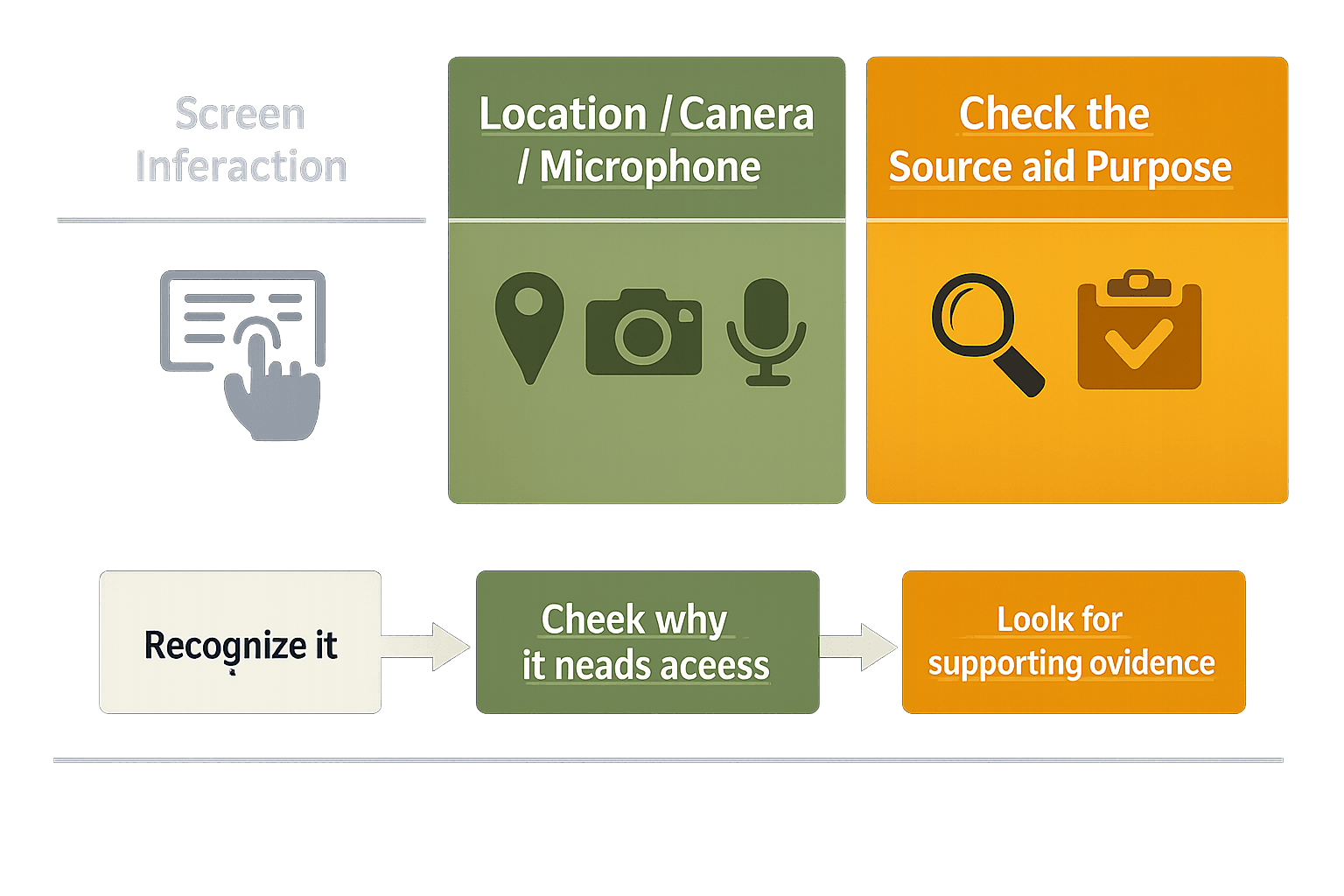
You can also review the app's permissions in Android's Permission Manager. Permission Manager and Accessibility Services are related to privacy review, but they are not the same thing. An app may have ordinary permissions without being an Accessibility Service, and an Accessibility Service may have a separate access switch that is not shown as a normal runtime permission.
For a broader review of camera, microphone, location, and other ordinary permissions, see our guide to Android app permissions for location, camera, and microphone.
Why security reviewers pay attention to enabled services#
Accessibility access can be sensitive because a service may receive detailed information about how you interact with parts of the interface. Depending on the service and Android version, that can include notifications or text exposed through accessibility events, as well as the ability to perform certain interface actions.
This does not mean every service can read everything on your phone. Apps are limited by the capabilities they declare, the Android version, system protections, the screens involved, and the access you approve. Some protected screens also restrict what accessibility services can observe or do.
Security reviewers pay attention because an untrusted app with broad interaction access could potentially misuse it—for example, by attempting to read information displayed in other apps or by carrying out actions you did not intend. That is a reason to investigate unfamiliar services, not a reason to assume that every enabled service is surveillance.
Battery drain, overheating, unusual data usage, or a familiar app behaving oddly can have many explanations. Those signs alone do not establish that an Accessibility Service is spying on you. If you are investigating several warning signs together, our guide to detecting possible spyware on Android can help you build a broader checklist.
How to check enabled Accessibility Services on Android#
Use these steps as a starting point. The exact labels may differ on Samsung Galaxy and other manufacturer-customized phones.
- Open Settings. Use the Settings search field if necessary.
- Open Accessibility. Look for a section named Installed apps, Downloaded apps, Downloaded services, or Installed services.
- Review the enabled list. Separate services that are on from services that are available but off.
- Open each unfamiliar entry. Read its description, developer name, and the warning shown by Android.
- Compare it with the app's purpose. Ask whether accessibility access is necessary for the feature you use.
- Check the app's store listing and developer information. Pay attention to the publisher, update history, and whether the app came from a source you recognize.
- Review related app details. From Settings, open the app's information page and inspect its install source, permissions, notifications, battery use, and mobile-data use where those options are available.
- Record what you found before changing anything. A screenshot or written note can help you compare the service later, especially if personal safety is a concern.
The existence of a service in the list is not necessarily suspicious. Android may show built-in services, manufacturer tools, services that are disabled, and apps you intentionally installed but forgot about.
Questions to ask about an unfamiliar service#
Use this short checklist rather than relying on the service name alone:
- Do you recognize the app and developer?
- Did you install it from Google Play or receive it as part of the phone's software?
- Does its advertised purpose require controlling or reading parts of the screen?
- Did you knowingly enable the service?
- Is the app still needed?
- Does the app have a reasonable privacy policy and support information?
- Are there other unusual changes, such as unknown device administrators, unfamiliar accounts, unexpected notification access, or unexplained app installations?
- Does someone else have physical access to the phone or know its unlock code?
A vague name is worth checking, but it is not conclusive. Some legitimate manufacturer components have technical names that are unfamiliar to ordinary users. Conversely, a polished name does not guarantee that an app is trustworthy.
Accessibility Services versus ordinary app permissions#
The difference matters when you are doing permission control on Android:
| Access type | What it generally controls | How to review it |
|---|---|---|
| Ordinary app permission | Access such as location, camera, microphone, contacts, or files | Settings → Privacy or Security and privacy → Permission Manager, depending on the phone |
| Accessibility access | Specialized ability to observe accessibility events or interact with supported interface controls | Settings → Accessibility → Installed or downloaded services |
| Notification access | Ability to read notifications or act on them, depending on the service | Settings → Notifications → Notification access, where available |
| Device administrator or management access | Administrative functions controlled by the device or organization | Search Settings for “device admin” or “device management” |
These categories can overlap in a privacy investigation, but checking one does not replace checking the others. For example, removing location access does not automatically revoke Accessibility access, and turning off an Accessibility Service does not remove an app's ordinary permissions.
What to do before disabling or uninstalling a service#
If the service is clearly unnecessary and you are confident it is safe to change, you can usually return to its Accessibility settings and turn it off. Android may show a warning before the change is applied.
Before doing that, consider these precautions:
- If the service supports a disability-related feature, disabling it may make the phone harder to use.
- If it belongs to a password manager, support tool, or automation app, another feature may stop working.
- If the phone is managed by an employer or school, the service may be part of an approved management setup.
- If you suspect coercive control or surveillance by someone with access to your phone, sudden changes could alert that person.
- Save relevant information before removal if you may need it for a support request or safety plan.
Do not install an unknown APK simply because a website recommends it as a “detector.” Do not disable Google Play Protect or other important protections to make an unfamiliar tool work. If you are in immediate danger, use a safer device to contact a trusted person or a local support organization rather than confronting someone based only on a service listing.
After disabling a service, check whether the app remains installed and review its ordinary permissions. Disabling access is not the same as uninstalling the app, deleting an account, or securing a compromised Google account.
When a broader privacy audit is appropriate#
A permission review is useful when you find an unfamiliar service, but it cannot identify every form of tracking or compromise. Consider a broader review if you also notice:
- An unknown app or account.
- Unexpected password-reset messages or sign-in alerts.
- Unknown device administrators or notification access.
- Location sharing that you did not configure.
- Repeated settings changes after you undo them.
- Physical access by someone who may know your PIN.
- Suspicious calls, texts, or SIM-related changes.
Use Google Play Protect and Android updates as part of routine security hygiene, but do not treat one scan as a guarantee that a phone is safe. If account compromise is possible, secure important accounts from a trusted device and review signed-in devices and recovery methods.
For a related physical-device question, our guide on how to stop a phone from being tracked explains why app permissions, account sharing, carrier services, and physical tracking devices need different responses.