If you searched for my activity Google, you probably want to know what Google has saved about your account—and whether an unfamiliar entry means someone is using your phone. Google My Activity is the place to review activity associated with your signed-in Google account, such as searches, websites visited through Google services, and activity from some apps and services.
It is not the same as your Android notification history, your phone's app-usage screen, Google Account security events, or Google Maps Timeline. An activity entry can show that an account or service recorded an event, but it does not automatically prove spyware, physical tracking, or that another person controlled your phone.
This guide explains how to open myactivity.google.com history, interpret what you see, change activity controls, and decide what to check next.
What Google My Activity records#
Google My Activity is an account-level history view. The exact entries depend on your Google account settings, the products you use, whether you are signed in, and which activity controls are enabled.
You may see records related to:
- Google Search queries.
- Websites or pages reached through Google services.
- YouTube searches and watched videos when the relevant history setting is enabled.
- Activity from Google apps and services.
- Android or Google Assistant interactions, depending on your settings and account configuration.
- Dates, times, and product labels associated with an event.
The page is best understood as a record of activity Google associated with your account or a Google service. It is not a complete forensic log of everything that happened on the phone.
For example, an entry for a search may reflect a search made while your account was signed in. It does not, by itself, prove who held the device, whether the search was intentional, or whether the phone was being monitored.
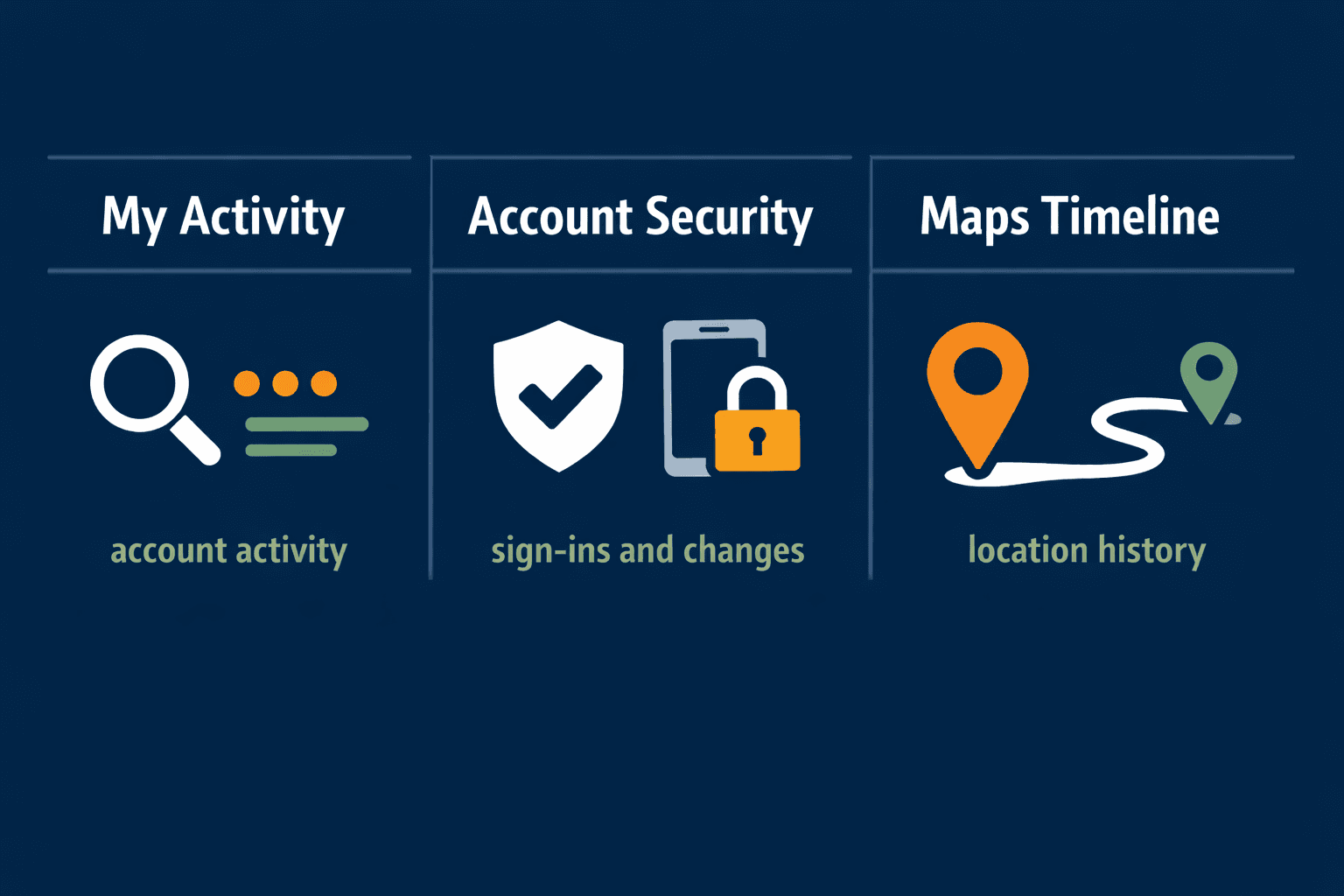
My Activity, Web & App Activity, and Maps Timeline are different#
These names are easy to confuse, but they answer different questions.
| Record or feature | What it generally helps you review | What it does not establish by itself |
|---|---|---|
| Google My Activity | A central view of activity associated with your Google account and services | That another person physically used your phone or installed spyware |
| Web & App Activity | Search and related activity saved under its control, including activity from supported Google apps and services | Every app opened on the phone or every website visited in every browser |
| Google Account security activity | Sign-ins, security changes, and other account-protection events | A complete list of ordinary searches and app interactions |
| Google Maps Timeline | Location-related history when the relevant location features are enabled | All locations your phone ever visited or proof of unauthorized tracking |
| Android app usage | Local information about how apps were used on the device | What Google saved to your account or what happened on another device |
If you are investigating unfamiliar sign-ins, recovery changes, or devices connected to your account, use the site's guide to check Google Account security activity and 2FA on Android. If your concern is a place or route shown in location history, review Google Maps Timeline and location history instead.
How to open Google My Activity on Android#
The most direct method is to open a browser on your Android phone and go to Google My Activity. Sign in to the Google account whose history you want to review if prompted.
You can also reach activity controls through Android's Google account settings. The wording and menu location can differ by Android version, manufacturer, and Google app version. Look for a section similar to:
- Open Settings.
- Tap Google or your Google account area.
- Select Manage your Google Account.
- Open the Data & privacy section.
- Find History settings, Web & App Activity, or My Activity.
If you have more than one Google account on the phone, check the account avatar or email address before interpreting the results. A history entry may belong to a different account than the one you expected.
How to review an entry carefully#
When you find an activity record that looks unfamiliar, do not jump straight to the conclusion that your phone is being tracked. Work through the surrounding details:
- Check the date and time. Consider your time zone, travel, and whether the event was recorded later than the action occurred.
- Check the product or service. Search, YouTube, Chrome, Assistant, and other Google services may appear differently.
- Check the signed-in account. Verify that the record belongs to the account you intended to inspect.
- Look for nearby entries. A single search may be part of a sequence you recognize.
- Compare with your own memory and other devices. A tablet, shared computer, work phone, or family device may use the same account.
- Review security activity separately. A My Activity record is not a substitute for checking recent sign-ins, unfamiliar devices, or account changes.
An unexpected search can have ordinary explanations: voice input, an accidental tap, browser synchronization, a shared device, or another device signed in to the same account. It may still be worth investigating, but it is not conclusive evidence of surveillance.
How to change Web & App Activity controls#
From the activity controls area, you can review whether Web & App Activity is enabled and adjust the available settings. Depending on your account and current Google interface, you may be able to control whether activity from supported Google apps and services is saved and whether certain related data is included.
Before pausing a control, understand the trade-off:
- Pausing a history control can reduce future account-based personalization and saved history.
- It does not erase records that were already saved.
- It may not affect other history categories, such as YouTube History or location-related settings.
- It does not delete browser history stored locally on the phone or in another browser account.
- Some services may retain information for security, billing, legal, or operational reasons under their own policies.
Treat the available switches as separate controls rather than one universal privacy button. Review each history category that matters to you.
How to delete Google activity#
You can usually delete an individual item, a group of items, or a selected date range from the My Activity interface. The exact buttons may change, but the general process is:
- Open My Activity and confirm the correct account.
- Find the item or filter the history by date, product, or activity type.
- Open the item's options menu or select the relevant records.
- Choose the delete option and confirm carefully.
- Return to the activity controls if you also want to change future collection.
Deleting My Activity does not necessarily remove every related copy everywhere. Browser history, downloaded files, app data, messages, backups, and records held by separate services may have their own controls and retention periods.
Automatic deletion may also be available for some activity categories. The choices and retention periods can vary by account and feature, so read the confirmation screen instead of assuming that one setting covers all Google history.
What My Activity can—and cannot—prove about phone tracking#
My Activity can help you understand what a Google account recorded. It can sometimes reveal an unfamiliar pattern that deserves further checking, especially when combined with a security alert or an unknown signed-in device.
It cannot, by itself, prove:
- That spyware is installed.
- That someone is watching your screen.
- That a person physically handled your phone.
- That your location was tracked through Google My Activity.
- That an app accessed data simply because its name appears in a record.
Battery drain, unusual data use, overheating, or an unfamiliar app also have many possible explanations. If you are concerned about an app's access, review the phone's permission controls and use the site's guide to check Android app permissions for location, camera, and microphone access. If several signs point to unwanted software, the Android spyware detection guide provides a broader checklist without treating one symptom as proof.
What to do if activity really looks unfamiliar#
Use a proportionate sequence rather than deleting everything immediately:
- Save a note or screenshot of the date, product, and account involved if you may need to compare it later.
- Check Google Account security activity and signed-in devices.
- Change your Google password from a device you trust if you find evidence of account access you do not recognize.
- Turn on two-step verification where appropriate.
- Remove unfamiliar sessions or devices through the account-security controls.
- Review recovery email addresses, phone numbers, and third-party access.
- Check Android permissions and installed apps for changes you did not make.
If checking the phone could put you at risk—for example, if another person may react badly to security changes—consider using a safer device and seeking help from a trusted person or local support service before making changes. Do not confront someone based only on a My Activity entry.
Common mistakes to avoid#
- Confusing account history with phone history: My Activity does not list every action performed on the handset.
- Checking the wrong account: Multiple accounts can be signed in on one Android phone.
- Assuming deletion is retroactive everywhere: Removing a Google activity entry does not erase local or independent service records.
- Treating one unusual entry as proof of spyware: Look for corroborating evidence and alternative explanations.
- Pausing one control and expecting total privacy: Web & App Activity, YouTube History, location settings, browser data, and app permissions are separate areas.