If you connect your Android phone to a café, hotel, workplace, school, or home Wi-Fi network, the network can usually observe some information about that connection. That does not automatically mean someone is secretly following your phone. It means the network has a limited view of the device and its activity while it is connected.
Wi-Fi tracking can involve recognizing a device, recording when it connects, associating it with an account or captive-portal login, or reviewing connection information in a router or network-management system. It is different from GPS location, cell-tower location, and an app secretly accessing your location.
The practical takeaway is simple: Android privacy controls can reduce some forms of device recognition, but they cannot make you invisible to a Wi-Fi operator. If you are investigating suspicious behavior, check the network, apps, permissions, accounts, and physical access separately rather than treating one unfamiliar Wi-Fi entry as proof of spyware.
What Wi-Fi tracking means#
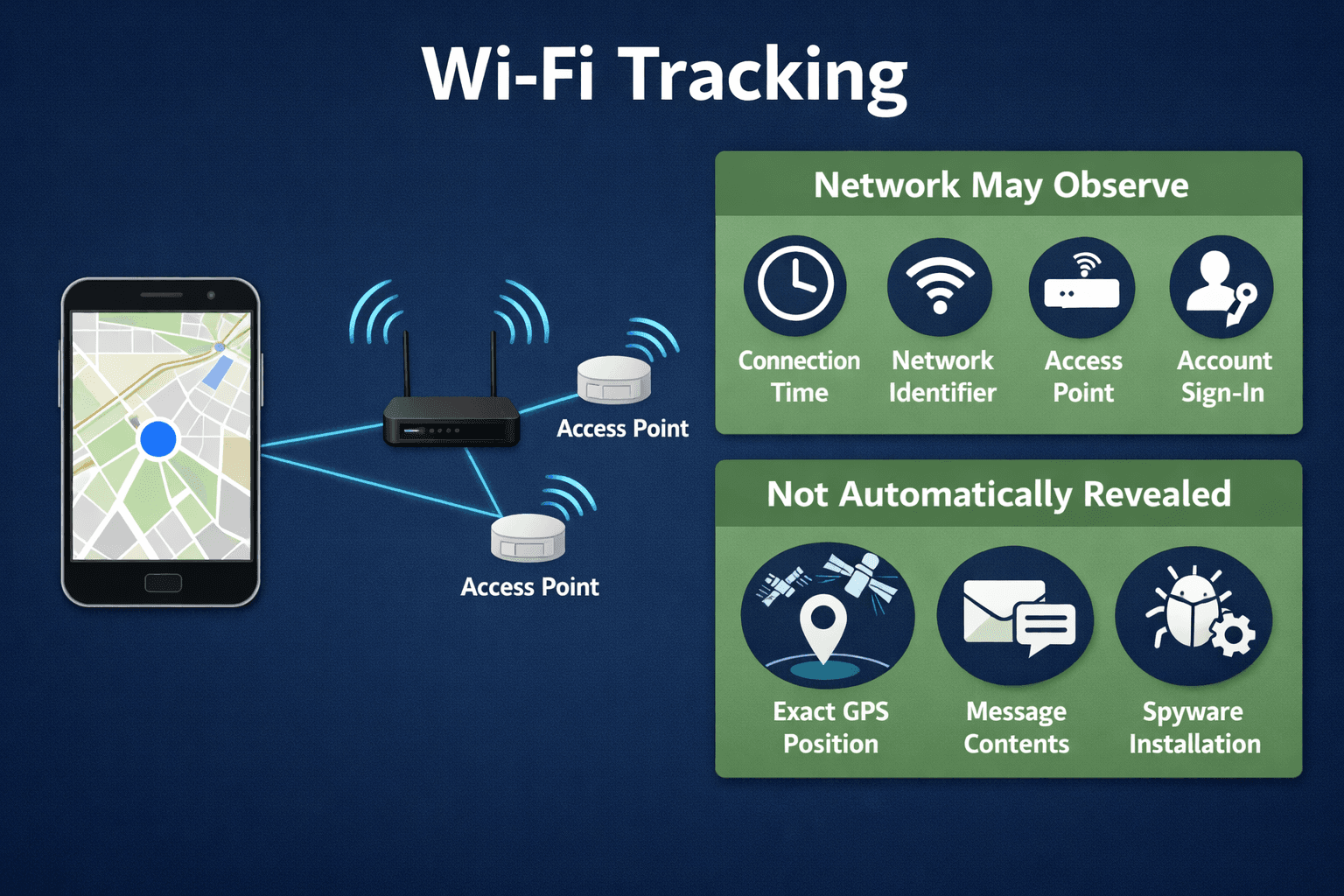
A Wi-Fi network needs to exchange technical information with your phone to provide internet access. Depending on the network and device, the operator may be able to record details such as:
- When a device connects, disconnects, or requests a new address.
- The device's network identifiers as presented to that network.
- The local network address assigned during the connection.
- The access point or radio location used by the device within a managed network.
- DNS, web-request, authentication, or captive-portal events visible to the network operator.
- An account, email address, phone number, or room number supplied during sign-in.
The exact visibility depends on the network equipment, encryption, apps, browser connections, and the operator's logging configuration. A home router may show a connected-device list and basic traffic metadata. A corporate or school network may have more extensive monitoring and retention systems.
Wi-Fi tracking does not necessarily reveal your precise GPS position. It generally tells an operator that a device or account interacted with a particular network or access point. A large organization with multiple access points may be able to estimate movement between those access points, but that is not the same mechanism as satellite-based location.
How a Wi-Fi network can recognize a phone#
Device identifiers and MAC addresses#
A MAC address is a network identifier associated with a Wi-Fi interface. Historically, a device could present the same hardware-linked MAC address to many networks, making it easier to recognize the device over time.
Modern Android devices commonly support MAC address randomization. Instead of always presenting the same identifier, the phone can use a different, privacy-oriented address for different networks or connection situations. This makes simple cross-network recognition harder.
Randomization is not the same as anonymity. A network may still associate a randomized identifier with your phone during a session. If you sign in to a captive portal, use a workplace account, or identify yourself in another way, the operator may connect the network activity to that account. Network timing, assigned addresses, device behavior, and other information may also provide context.
The exact behavior can vary by Android version, manufacturer, network configuration, and whether you are viewing the settings for a saved network or an active connection. Treat the setting as a privacy feature, not a guarantee that a network cannot recognize you.
Network logs and access points#
A router or managed Wi-Fi system can keep records of connected clients. Depending on the equipment, administrators may see a device label, an identifier, connection times, assigned local addresses, and the access point used.
In a large building, several access points may share one network name. If the system records which access point served a device, an administrator may be able to infer movement within the building. This is most relevant to managed networks, not necessarily to an ordinary home router.
Captive portals and account sign-ins#
A captive portal is the sign-in or acceptance page shown by many public Wi-Fi networks. Hotels, airports, cafés, and venues may ask you to accept terms, enter a room number, provide an email address, or authenticate through an account.
That step can link a connection to information you supplied. The portal may also record the time of access and the network identifier presented by the phone. This is one reason a public Wi-Fi connection can be identifiable even when the phone uses MAC randomization.
What encrypted connections change#
HTTPS and end-to-end encrypted apps can prevent the Wi-Fi operator from reading the contents of many communications. They do not necessarily hide the fact that your phone connected to the network, nor do they erase connection records kept by the network.
A VPN can change which service sees some internet traffic, but the Wi-Fi operator can still see that your device connected to the network and exchanged traffic with a VPN service. A VPN is not a solution to every form of Wi-Fi tracking, and it does not prevent an account, captive portal, or compromised phone from identifying you.
Wi-Fi tracking versus other kinds of phone tracking#
| Mechanism | What it uses | Typical observer | What it can indicate |
|---|---|---|---|
| Wi-Fi tracking | Wi-Fi identifiers, access points, connection records, and network activity | Router owner, network administrator, captive-portal operator, or service provider | That a device or account used a network, and sometimes its presence within a managed site |
| GPS or Android location | Satellite signals, nearby networks, sensors, and device location services | Approved apps, Android services, or account features | A location estimate, subject to settings and permissions |
| Cell-tower location | Connections between the phone and mobile carrier network | Mobile carrier and authorized parties | Approximate location based on cellular network information |
| App-based tracking | App permissions, SDKs, account data, and app activity | App developer, advertising partners, or an account owner | Data collected by the app and services it uses |
| Physical tracking device | Bluetooth or other nearby radio signals | The owner of the tracker or a detection service | Proximity to a tag or tracker, not necessarily the phone's internal location |
For a separate explanation of the cellular mechanism, see how cell-tower location differs from other tracking methods. Wi-Fi tracking should not be used as a substitute explanation for every unexplained location event.
What Android privacy controls can and cannot prevent#
Android privacy features can reduce unnecessary exposure, but they operate at different layers.
Review the network's privacy setting#
Open the details for the Wi-Fi network you are connected to or have saved. Depending on your phone, look for a setting related to privacy, MAC address type, randomized MAC, or device MAC. The wording and location vary by manufacturer and Android version.
A randomized option can reduce the usefulness of a stable hardware address for tracking across different networks. Do not assume that changing it will erase records already held by a network, disconnect an account association, or hide your activity from a network administrator.
Some networks use access controls based on a stable device identifier. If a legitimate network stops working after a privacy setting changes, contact the network administrator rather than installing an unknown configuration app or disabling security protections.
Forget networks you no longer use#
A saved Wi-Fi network can reconnect automatically when you return to its range. Review saved networks and remove old, unfamiliar, or unnecessary entries. This limits automatic reconnection, but forgetting a network does not delete logs kept by the network operator.
Review app access separately#
Wi-Fi connection information and location access are not the same thing. An app may have permission to determine location, scan for nearby devices, use network access, or communicate with its own servers. Android labels and permission groups can change across versions.
Use the phone's Privacy or Permission Manager area to review apps with location, nearby-device, or other sensitive access. Our guide to checking Android app permissions can help you investigate app-level access without assuming that every permission is malicious.
Check network and account context#
If a network seems unfamiliar, ask:
- Is it a saved network from a previous visit?
- Does its name resemble a legitimate venue, home router, or workplace network?
- Did the phone connect automatically while you were nearby?
- Did you sign in through a captive portal or workplace account?
- Is the concern limited to one network, or does it occur across locations?
A network name alone is not proof of who operates the network. If you control the router, change its administrator password, update its firmware, remove unknown administrator accounts, and review connected devices using the manufacturer's documentation.
How to investigate suspicious Wi-Fi-related behavior safely#
Use a proportionate process instead of jumping directly to spyware conclusions.
- Record the observation. Note the network name, approximate time, location, and what the phone displayed. A screenshot can help, but do not share sensitive network passwords or personal data publicly.
- Check whether the network is expected. Compare it with the router label, venue information, or a trusted administrator. Be cautious with look-alike public network names.
- Review the saved-network list. Forget networks you no longer need and investigate unfamiliar entries before reconnecting.
- Review privacy and permission settings. Look for unexpected apps with location, nearby-device, accessibility, VPN, or device-management access. For broader warning signs, see how to detect spyware on Android.
- Check accounts and security events. An account sign-in or captive-portal record may explain why network use can be linked to you. Review Google account security activity and change credentials from a trusted device if compromise is plausible.
- Secure equipment you control. For a home network, update the router, use a strong unique administrator password, remove unknown clients, and review remote-management settings.
- Get help if safety is involved. If you suspect a partner, employer, or another person may monitor you, avoid confronting them based only on a Wi-Fi record. Use a safer device or trusted support service to plan next steps.
Battery drain, overheating, increased data use, or an unfamiliar Wi-Fi network does not by itself prove that a phone is being monitored. These signs have many ordinary explanations, including poor reception, automatic updates, router changes, and normal background activity.
What a Wi-Fi record does not prove#
A connection record may show that a device or account used a network. By itself, it usually does not prove:
- That spyware is installed on the phone.
- That someone can read encrypted messages.
- That the phone's precise GPS location was obtained.
- That a person followed the phone between unrelated networks.
- That an unfamiliar network was created by an attacker.
- That a particular app collected the data.
Look for corroborating evidence from the relevant layer. A suspicious app requires an app and permission review. An account concern requires account-security checks. A home-router concern requires router logs and administrator-account review. A physical-tracking concern requires a separate nearby-device investigation.
Practical Wi-Fi privacy checklist#
- Use randomized MAC or network privacy options where your phone and network support them.
- Remove saved networks you no longer use.
- Avoid automatically joining open networks when that option is available.
- Treat captive-portal sign-ins as an identity-linking event.
- Use encrypted websites and apps, while remembering that encryption does not hide every connection detail.
- Keep Android, apps, and network equipment updated.
- Review sensitive app permissions and special access separately from Wi-Fi settings.
- Secure your home router and its administrator account.
- Do not install unknown APKs marketed as Wi-Fi trackers, spyware detectors, or privacy fixes.
- If personal safety is involved, investigate from a safer device and avoid actions that could alert a potential abuser.