If your Android phone says “Your phone is encrypted for security,” the message is usually describing a built-in protection feature—not accusing you of being hacked. Encryption scrambles data stored on the phone so that someone who removes the storage or accesses the device while it is locked cannot simply read your photos, messages, files, and app data.
The most important point is this: encryption protects stored data, especially when the phone is locked. It does not detect spyware, stop tracking, or make an unlocked phone safe from every threat.
This guide explains what an encrypted phone on Android means, why Samsung and other manufacturers may use different wording, and what you should check if the message appeared unexpectedly.
What Android phone encryption means#
Encryption converts readable information into protected data that appears meaningless without the required key. On an Android phone, that protection is applied to data stored on internal storage. The operating system and hardware manage the encryption process in the background.
For most people, the practical result is simple:
- Your stored files are harder to read if the phone is lost or stolen.
- A person who cannot unlock the phone should have less access to its protected data.
- Apps and Android can continue using the data normally after the device has been unlocked.
- You usually do not need to open a separate encryption app or manually encrypt individual photos and messages.
Android terminology and implementation can vary. Newer devices commonly use file-based encryption, while older devices or particular manufacturers may describe encryption differently. The exact behavior depends on the Android version, device model, hardware, and software configuration.
What “encrypted for security” protects when the phone is locked#
A locked phone is still a physical computer containing valuable information. Encryption adds protection if someone has possession of the device but does not have the credentials needed to unlock it.
It can help protect data such as:
- Photos and videos stored on the device
- Downloaded documents and other files
- Local messages and application data
- Some saved account and system information
- Data stored in parts of the phone that are unavailable before unlock
Encryption is strongest when combined with a proper screen lock. A long PIN or password is generally harder to guess than a short, predictable code. Biometrics can make unlocking convenient, but the device may periodically require the primary PIN, password, or pattern instead.
Encryption is not the same as simply hiding files. A hidden folder, app lock, or private album may limit ordinary access inside Android, while device encryption protects stored data at a lower level. Those features can complement each other, but they solve different problems.
Why Android or Samsung may display this message#
The wording may appear during setup, after a restart, after a security change, or on a lock screen or recovery screen. Samsung devices may use wording such as “Your phone is encrypted for security” or display related messages during startup. The exact screen and wording can differ by One UI version, Android version, carrier software, and device model.
In ordinary circumstances, the message means the phone’s protected-storage system is active or that Android is informing you about its security state. It does not, by itself, mean that:
- Someone is remotely controlling the phone
- Spyware has been found
- Your location is being tracked
- Your SIM card has been encrypted
- Your accounts have been compromised
If the phone starts normally and you can unlock it with your usual credentials, the message is usually informational. If it appears alongside a failed unlock, repeated recovery prompts, unexpected resets, or a demand for an unfamiliar credential, pause before making changes and look for device-specific support.
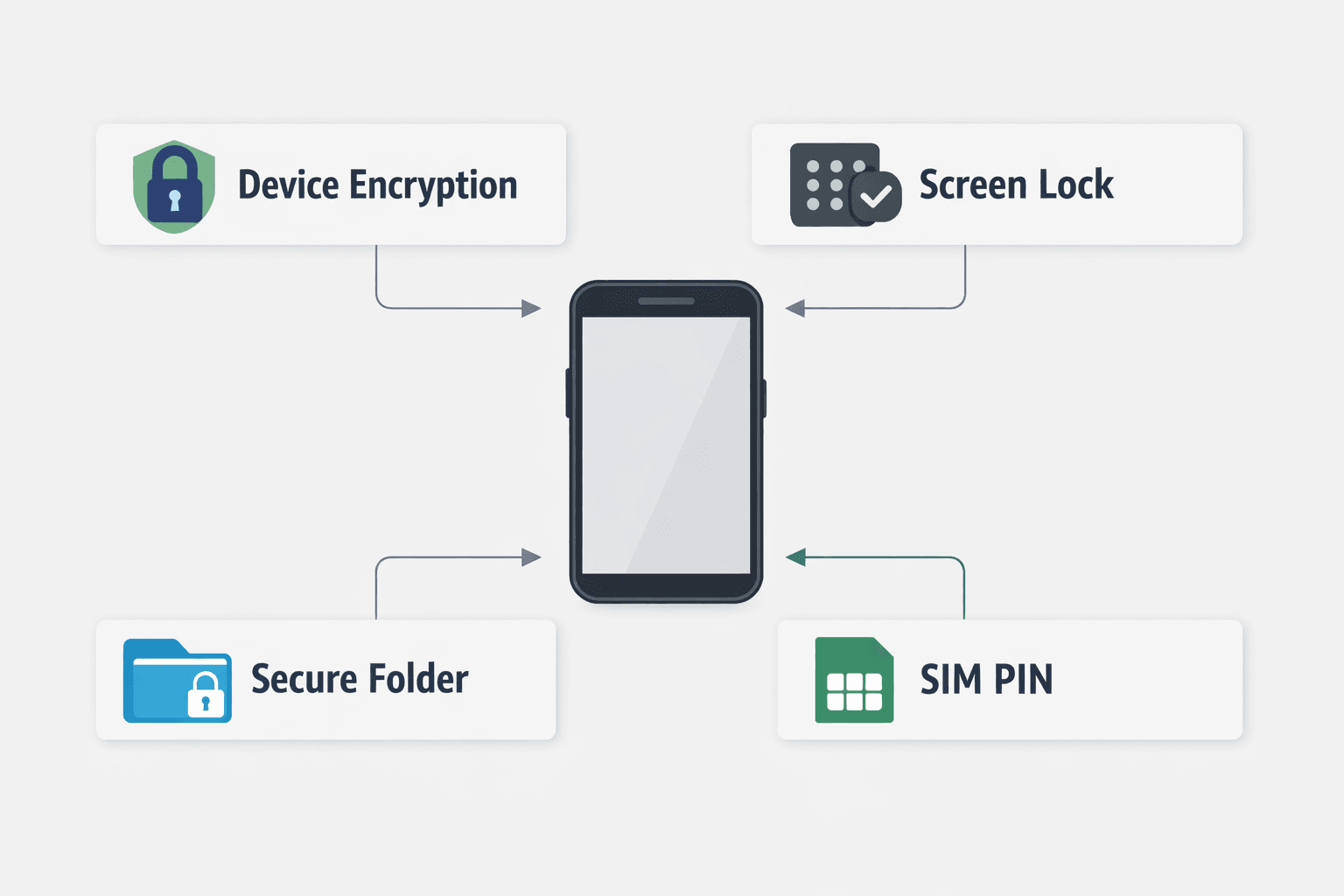
Encryption versus Secure Folder and app locks#
These protections are related but not interchangeable:
| Protection | Main purpose | What it does not establish |
|---|---|---|
| Device encryption | Protects stored device data, especially while the phone is locked | Does not identify spyware or stop tracking |
| Secure Folder | Separates selected apps and files behind an additional protected area on supported Samsung devices | Does not replace whole-device encryption |
| App lock | Requires an extra lock before opening selected apps | Does not necessarily protect all app data outside the lock |
| Screen lock | Controls ordinary access to the device | Does not by itself explain every security event |
| SIM PIN | Helps prevent unauthorized use of a SIM after it is moved or restarted | Does not encrypt the phone’s internal storage |
For a deeper distinction between device-wide protection and Samsung’s protected workspace, see what Secure Folder protects.
Device encryption is not the same as an encrypted SIM card#
The phrase “encrypted SIM card” can refer to a different subject from Android phone encryption. A SIM or eSIM stores cellular-network credentials and may have its own authentication and security mechanisms. That does not mean the SIM encrypts all files on the phone.
Likewise, a SIM PIN is an access control for the SIM. It can help prevent someone from using the SIM in another phone without the PIN, but it is not a substitute for a screen lock, device encryption, account security, or protection against malicious apps.
If your question concerns a SIM that is blocked, asking for a PUK, or showing unusual network behavior, use the guidance in the Android SIM PIN and PUK code guide rather than treating it as a device-encryption problem.
What happens after a factory reset?#
A factory reset removes user data and returns the phone to an initial setup state. Encryption does not make a reset reversible: if important files exist only on the phone, a reset can make them unavailable.
A reset can also change the practical security situation because the previous user data is removed and the device creates a new setup environment. Before resetting a phone, check whether you need photos, authenticator codes, messages, or backups. Make sure you know the Google or Samsung account credentials that may be required during setup afterward.
For a privacy-focused reset checklist, see how to factory reset an Android phone safely.
What encryption does not prevent#
Encryption is valuable, but it protects one part of the security picture. It does not automatically prevent:
- Tracking through location sharing, a compromised account, or a legitimate tracking feature
- A malicious app from accessing data while the phone is unlocked and the app has the required access
- Phishing or account takeover
- Someone using the phone after it has already been unlocked
- Information voluntarily uploaded to cloud services
- Physical tracking devices such as Bluetooth trackers
- Data collection by an app that is allowed to access relevant information
Battery drain, overheating, unusual data use, or a new app can have many ordinary explanations. None of those signs alone proves surveillance. If you are investigating an app’s access, review Android permissions and special access rather than assuming that an encryption message explains the behavior. The site’s guide to checking Android app permissions can help with that separate task.
How to check your security settings safely#
Menu names vary by Android version and manufacturer, so treat these as general directions rather than an exact path for every phone.
- Confirm that you recognize the lock method. Check whether the phone uses a PIN, password, pattern, or biometric unlock. Replace an easily guessed PIN or pattern.
- Check for system updates. Open Settings and look for Software update, System update, or Security and privacy. Install updates from the phone’s normal settings—not from an unexpected pop-up or unknown download.
- Review account security. Check the Google Account security area for unfamiliar sign-ins, recovery changes, or devices you do not recognize.
- Review apps and permissions separately. Look for unfamiliar apps and consider whether their permissions match their purpose. Do not remove a work-management app or accessibility service without understanding why it is installed; doing so could affect a managed device or someone’s safety plan.
- Back up essential data before major changes. Do this before a factory reset, storage repair, or account removal.
If the phone is managed by an employer, school, or another organization, some security settings may be controlled by an administrator. A management notice does not automatically mean spyware; it may indicate legitimate device management.
When should you investigate further?#
The encryption message alone usually does not require emergency action. Consider further investigation when it is paired with a concrete, unusual event such as:
- The phone no longer accepts your normal unlock credential
- The device repeatedly restarts, wipes itself, or enters recovery mode
- An unfamiliar account, administrator, or management profile appears
- You receive a security alert for an account sign-in you did not make
- A trusted service confirms a change you did not request
If you may be dealing with an abusive partner or someone who has physical access to your phone, avoid confronting the person based only on a warning or suspicion. Use a safer device to seek support when possible, and consider whether changing settings could alert someone monitoring the situation.
The bottom line#
An encrypted smartphone protects data stored on the device, particularly when the phone is locked. “Your phone is encrypted for security” is generally a description of that protection, including on many Samsung phones—not proof that spyware or tracking has been detected.
Keep the phone updated, use a strong screen lock, secure your Google and Samsung accounts, and investigate app access or account alerts as separate questions. Encryption is an important layer of Android security, but it works best as part of a broader security routine.