If your Android phone says “Enter PUK code,” stop entering numbers at random. A PUK is not the same as your phone unlock code, Google password, or ordinary SIM PIN. It is a carrier-issued code used to unblock a SIM card after the SIM PIN has been entered incorrectly too many times.
If Android is asking for a SIM card lock code or SIM unlock code, it usually means the current SIM PIN. If it specifically says “Enter PUK code,” the SIM PIN has already been blocked and you need the carrier-issued PUK instead. Follow the exact wording on the screen, and do not guess if the prompt is unclear.
The safest solution is to get the PUK from your mobile carrier, enter it carefully, and then create a new SIM PIN when Android asks for one. The exact retry limit and menu labels can vary by carrier, SIM, phone manufacturer, and Android version.
SIM PIN, PUK code, and phone unlock code are different#
These terms are easy to mix up, but they protect different things:
| Credential | What it protects | Where it is used |
|---|---|---|
| SIM PIN | The SIM or eSIM profile | When the phone starts, restarts, or reconnects to the mobile network |
| PUK code | The ability to unblock a locked SIM | After too many incorrect SIM PIN attempts |
| Screen lock | The contents of the phone | The Android lock screen |
| Phone unlock code | In some cases, the device's carrier or network restriction | When using a phone with another carrier |
| Carrier account password | Your mobile account | Your carrier website, app, or customer-support process |
When someone says “SIM lock code” or “SIM card lock code,” they usually mean the SIM PIN—the code used to unlock a working SIM when Android requests it. However, labels can vary by carrier, phone manufacturer, and region. A PUK is different: it is the recovery code used after too many incorrect SIM PIN attempts.
A PUK is sometimes described as a PUK password, but it is normally a number supplied by the carrier. It is associated with the SIM or eSIM profile, not stored as a universal code on Android.
A locked SIM also does not, by itself, prove that someone is tracking your phone or has taken over your account. It usually means that the SIM PIN protection was triggered. If you also notice unexpected loss of service, unexplained account changes, or alerts that your SIM was moved to another device, read the guide to SIM swap warning signs on Android.
What to do when Android asks for a PUK#
Follow these steps in order:
- Do not guess the PUK. Stop if you are unsure of the number.
- Write down the mobile number and carrier associated with the SIM. If you have a dual-SIM phone, identify which SIM is blocked.
- Contact the carrier or open its official account app or website using a trusted device if necessary.
- Ask for the PUK for that specific SIM or eSIM. The carrier may verify your identity before displaying or providing it.
- Enter the PUK exactly as supplied. Check each digit before submitting it.
- Create a new SIM PIN when Android requests one. Choose a number you can remember but do not use an obvious sequence.
- Restart the phone or check mobile service after the SIM is unlocked.
The PUK is not usually something you can discover by opening Android settings. It may appear on the original SIM packaging or in your carrier account, but availability depends on the carrier and the type of SIM. Treat printed packaging and account information as sensitive credentials.
Where to find a PUK safely#
There is no universal online PUK finder or generator that can produce the correct code. A PUK belongs to a particular SIM or eSIM profile, not to the Android phone using it. Even if the affected SIM is currently inserted in another phone, you can generally retrieve its PUK through the carrier account associated with that SIM, the original SIM documentation, or the carrier's authorized support process. The exact option depends on the carrier, SIM type, account permissions, and identity verification.
Possible legitimate sources include:
- The plastic card or documentation that came with the physical SIM.
- Your carrier's official app or customer account portal.
- The carrier's support phone number or an official retail location.
- An account holder or administrator who manages a business or family mobile plan.
Use the carrier's official website or a phone number printed on a bill or contract. Avoid websites that claim to generate a PUK. A random online code cannot safely replace the carrier's record for the affected SIM or eSIM profile.
How to enter a PUK on Android#
When the SIM is blocked, Android may show a PUK prompt during startup or when the phone attempts to connect to the mobile network. Enter the carrier-provided PUK in that prompt, then follow the instructions to set a new SIM PIN.
Some phones provide a SIM-management area instead. Menu names vary, but a common route is:
Settings → Security and privacy → More security settings → SIM card lock
On other devices, look under Settings → Security, Settings → Connections, or Settings → Mobile network. Use the Settings search box for SIM lock or SIM PIN if you cannot find it. Do not treat a different menu path as evidence that the phone is malfunctioning; manufacturers customize Android settings.
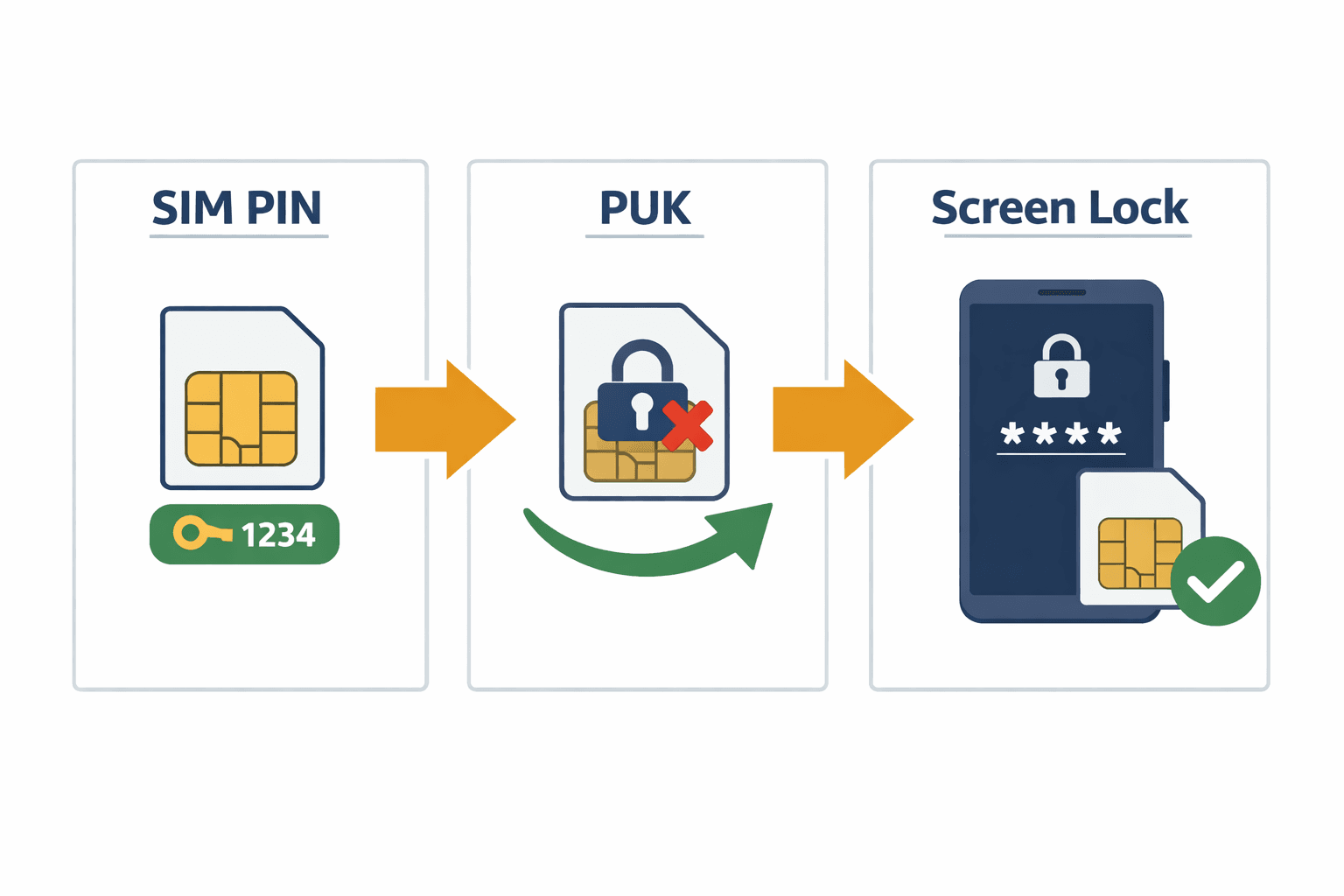
The visual above is a conceptual explanation, not an authentic Android screenshot. The important sequence is: the SIM PIN is entered incorrectly, the SIM becomes blocked, the carrier's PUK restores access, and you set a new SIM PIN.
What happens after failed PUK attempts?#
PUK retry limits are controlled by the SIM or carrier rather than by a universal Android rule. After too many incorrect PUK entries, the SIM may become permanently blocked and require replacement. The exact limit should be confirmed with your carrier before you continue.
If you have already tried several PUKs:
- Stop entering codes.
- Contact the carrier and explain how many attempts you made, if known.
- Ask whether the SIM can still be recovered or must be replaced.
- Do not discard the old SIM until the carrier confirms what happens to the number and service.
A replacement SIM or eSIM may preserve your mobile number, but the carrier must confirm the process. A replacement also does not automatically resolve unrelated issues such as a compromised account, call forwarding, or a SIM-swap incident.
If you only need to change or disable the SIM PIN#
If the SIM is working and you know the current SIM PIN, you may be able to change or disable SIM locking from the phone's SIM security settings. Android will normally ask for the existing SIM PIN before allowing the change.
Disabling the SIM PIN can make the phone easier to use after a restart, but it removes one layer of protection from the SIM. If someone removes the SIM and places it in another compatible phone, SIM-level protection may matter. Consider your risk before turning it off.
Do not confuse the SIM PIN with your Android screen lock. Changing one does not change the other. For broader privacy checks, you can review Android app permissions for location, camera, and microphone. An app-permission review is useful for understanding app access, but it cannot reveal a carrier's PUK or diagnose every form of account compromise.
When a blocked SIM may be a separate security issue#
A PUK prompt alone is generally a SIM-access problem. Investigate further if it appears alongside signs such as:
- Your phone suddenly loses cellular service without an expected outage.
- Your carrier says the SIM was activated on another device.
- You receive password-reset or account-change notices you did not request.
- Calls or texts stop arriving while Wi-Fi still works.
- Your carrier account contains changes you do not recognize.
Use a trusted connection to contact the carrier, secure your carrier account, and ask whether a SIM replacement or transfer occurred. If you are concerned about unwanted software, the guide on how to detect spyware on Android can help you review possible indicators without treating battery drain or an unfamiliar app as proof of surveillance.
Common mistakes to avoid#
- Entering your screen-lock PIN: It will not unblock the SIM.
- Using your carrier account password: That is a different credential.
- Trying a PUK from a search result: PUKs are specific to the SIM or eSIM profile.
- Continuing after failed attempts: You may permanently block the SIM.
- Assuming the prompt proves tracking: A SIM lock is not evidence of spyware or malicious tracking by itself.
- Sharing the PUK publicly: Treat it as sensitive information and provide it only through the carrier's legitimate process.