
If you are selling an Android phone, handing it to someone else, recovering from serious software problems, or trying to reduce the risk from an unwanted app, a factory reset can be appropriate. It is also easy to use it too quickly and lose photos, messages, authentication access, or evidence you may still need.
A factory reset on this phone erases user data and returns the device to an initial setup state. It does not automatically secure every account connected to the phone, prove that spyware was present, or guarantee that every possible compromise has been removed. Prepare first, reset through the phone's own settings when possible, and check your accounts afterward.
What an Android factory reset does#
A factory reset removes data stored in the user portion of the phone. Depending on the device and how it was configured, that can include:
- Installed apps and their local data
- Photos, downloads, messages, and locally stored files
- Saved settings and personalization
- Screen-lock and device configuration data
- Accounts currently added to the device
The exact result varies by manufacturer, Android version, managed-device policy, and storage configuration. Data already synchronized to Google, another cloud service, a messaging service, or a computer may still exist elsewhere.
A reset is different from restarting the phone, resetting network settings, or resetting app preferences. Those less extensive actions do not erase the phone in the same way.
When a factory reset may be appropriate#
Consider a factory reset when:
- You are transferring, selling, donating, or returning the phone.
- Persistent software problems remain after ordinary troubleshooting and updates.
- You want to remove many unfamiliar apps and return the device to a clean starting point.
- A trusted support process recommends it after account and data preparation.
- You have completed an evidence-preservation plan and need to rebuild the device.
A reset is not always the best first step. If you are investigating suspicious behavior, record relevant information before erasing it. Screenshots, app names, permission details, dates, and account alerts may be useful later. Battery drain, heat, unusual data use, or one unfamiliar app alone does not establish surveillance.
For a more targeted first step, review the guidance on how to detect spyware on Android and check whether an app has access it genuinely needs.
What to do before you reset your phone#
1. Decide what must be kept#
Make a short list before starting:
- Photos and videos
- Contacts and calendar data
- Messages and call history that are not synchronized
- Files in Downloads or other local folders
- Notes, recordings, and documents
- Password-manager access and recovery codes
- Authenticator accounts and backup methods
- Data inside apps that do not automatically synchronize
A cloud backup is not the same as a verified backup. Check that important photos, contacts, and files can be seen from another device or through the relevant service's web interface.
2. Protect authentication access#
A reset can remove an authenticator app and its locally stored accounts. Before proceeding, make sure you can sign in to your primary email, Google account, password manager, banking services, and other important accounts without relying only on the phone being erased.
Save recovery codes where appropriate. If an account uses an authenticator, transfer the account or configure another approved sign-in method first. Do not save recovery information in an unsecured public location.
If you suspect that an account—not the phone itself—has been compromised, review Google account security on Android and change credentials from a device you trust.
3. Check backup and synchronization status#
Open the backup settings available on your phone and review the most recent backup time. Also check individual services that may store data separately, such as photo storage, messaging apps, password managers, and manufacturer cloud services.
Some app data may not be included in a standard device backup. Treat anything important that exists only on the phone as at risk until you have copied or verified it elsewhere.
4. Remove external storage and SIM cards when appropriate#
Remove a physical SIM card if you are transferring the phone and remove a microSD card if it contains personal files. A factory reset may not erase an external card, and behavior varies by device and formatting method.
If you use an eSIM, check the reset screen carefully. Some devices offer a choice to erase or retain eSIMs. Choose based on whether you are keeping the mobile plan and whether the phone is being transferred.
5. Consider account removal and device-protection locks#
Before giving the phone to another person, remove your accounts through the device's account settings when possible. This helps prevent confusion during setup and reduces the chance that the next user encounters a device-protection verification screen.
The names and locations of these controls vary. On many phones, account management is under Settings > Passwords & accounts, Settings > Accounts, or a similarly named section. Samsung and other manufacturers may use different labels.
Do not remove an account merely because a random message tells you to. Confirm that you are working on your own device and that you still know the account credentials needed after the reset.
How to factory reset Android#
Menu names differ by Android version and manufacturer, so use the Settings search box for factory reset, erase all data, or reset options if the menu is difficult to find.
A common path is:
- Open Settings.
- Open System, General management, or a similar section.
- Select Reset options or Reset.
- Choose Erase all data or Factory data reset. Do not choose only a network or app-preference reset unless that is what you intend.
- Review the data and accounts listed for removal.
- Enter the screen lock or account verification details if requested.
- Confirm the reset and keep the phone connected to power if possible.
On Samsung Galaxy phones, the relevant control is commonly under Settings > General management > Reset > Factory data reset, but the wording and location can change with the One UI and Android version. Other manufacturers use their own menu structure.
If the phone cannot open Settings, recovery-menu reset options may exist, but they are easier to misuse and can trigger additional verification requirements. Use the device manufacturer's current support instructions for that model rather than following an unverified button combination.
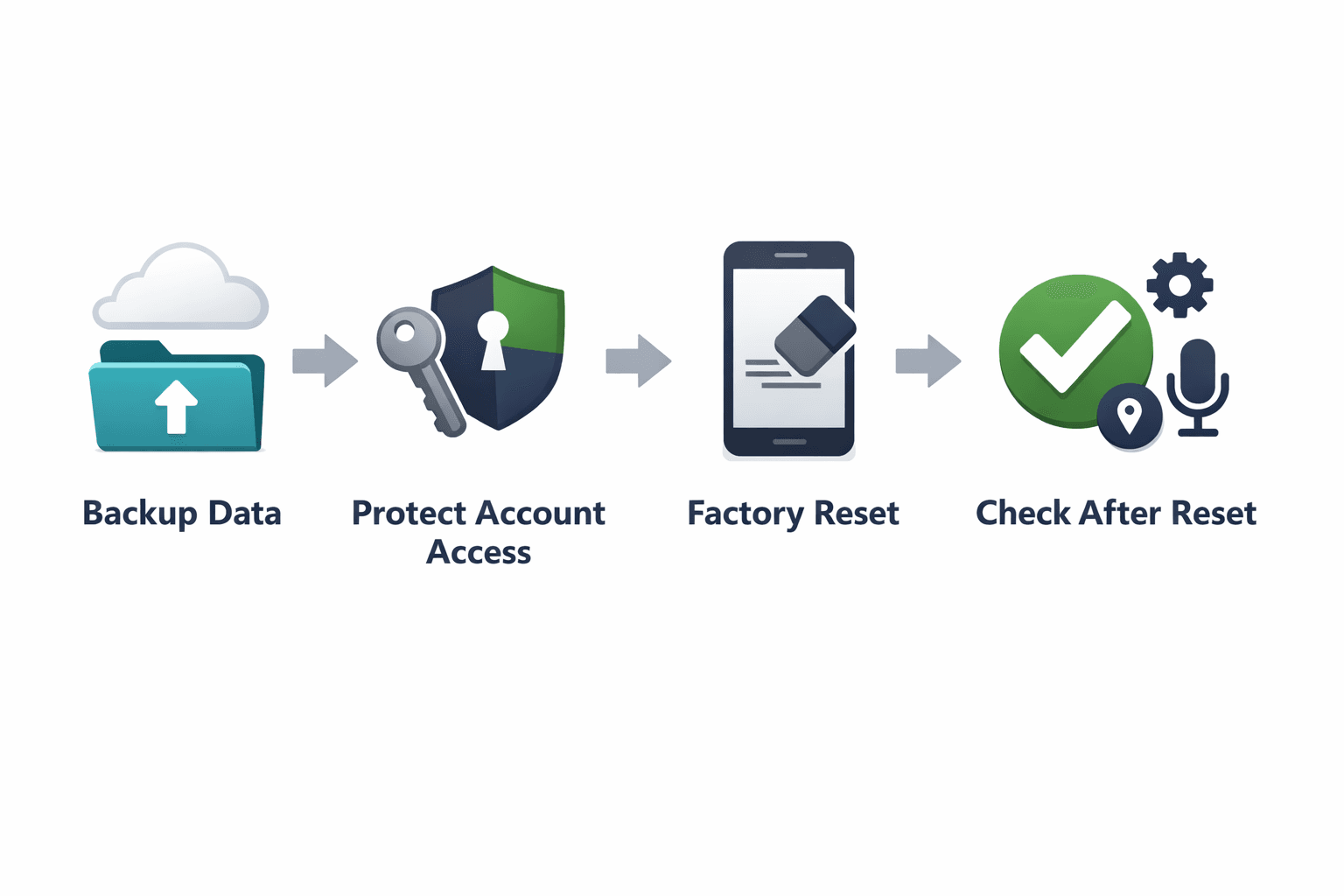
What to check after the reset#
When the setup screen appears, the phone has reached its initial setup state. Before restoring everything, use this moment to make deliberate choices:
- Confirm that your personal files and accounts are no longer displayed on the device.
- Install pending system updates before using the phone normally.
- Turn on a screen lock and use a strong, private passcode or PIN.
- Restore only the apps and data you need.
- Review permissions for apps that request location, camera, microphone, contacts, files, accessibility access, or notification access.
- Keep built-in security features enabled.
- Check account security alerts from a trusted device.
If you are keeping the phone, avoid restoring every old app automatically when you are investigating an unwanted or suspicious application. Reinstall known apps from the official app store and review each app's permissions as you go. The guide to Android app permissions for location, camera, and microphone can help you interpret those requests.
What a factory reset cannot prove#
A factory reset is a data-erasure and recovery action, not a forensic report. It cannot tell you:
- Whether spyware was ever installed
- Which person may have accessed the phone
- Whether an account was compromised before the reset
- Whether a physical tracker is nearby
- Whether information was copied before the reset
- Whether a managed or modified device has been fully returned to a trusted state
It also does not automatically change passwords, revoke every active session, or repair a compromised email, social-media, or banking account. Secure important accounts separately, preferably from a device you trust.
If the phone is managed by an employer, school, or mobile administrator, a reset may not remove the organization's management. The device may be enrolled again during setup. Ask the responsible organization or carrier about ownership and management status.
When to secure accounts or contact the carrier instead#
Prioritize account security over resetting the phone when you see:
- Password-change or sign-in alerts you did not initiate
- A new recovery email, phone number, or passkey
- Unrecognized active sessions
- Unexpected two-factor authentication prompts
- Mobile-service loss or a SIM-change warning
- Messages or calls sent from your accounts without your involvement
Contact your carrier promptly if you suspect a SIM swap, unauthorized eSIM change, or account takeover. A factory reset cannot reverse a carrier-account compromise.
If you may face retaliation from another person who has access to your phone or accounts, plan discreetly. Use a safer device for sensitive account changes and seek help from a trusted person or an appropriate local support service. Avoid confronting someone based only on uncertain technical symptoms.
Common mistakes to avoid#
- Resetting before saving recovery codes or authentication access
- Assuming cloud backup includes every app's data
- Leaving a physical microSD card in the phone
- Confusing a network reset with a full factory reset
- Restoring all old apps without checking them
- Treating the reset as proof that spyware was present or absent
- Forgetting to secure accounts after erasing the device
- Using unofficial reset tools or unknown APK files