If you are worried that someone has accessed Gmail, Google Photos, Drive, or another Google service, start with your Google account security settings. From an Android phone, you can review devices signed in to the account, inspect recent security events, check recovery methods, and add stronger sign-in protection.
The quickest route is usually Settings > Google > Manage your Google Account > Security, although labels and menu placement can vary by Android version and phone manufacturer. You can also open the Google Account security page in a browser at myaccount.google.com/security.
This guide explains what to check, how to enable Google two-factor authentication, and what account activity can—and cannot—tell you about possible phone tracking.
What Google account security can help you check#
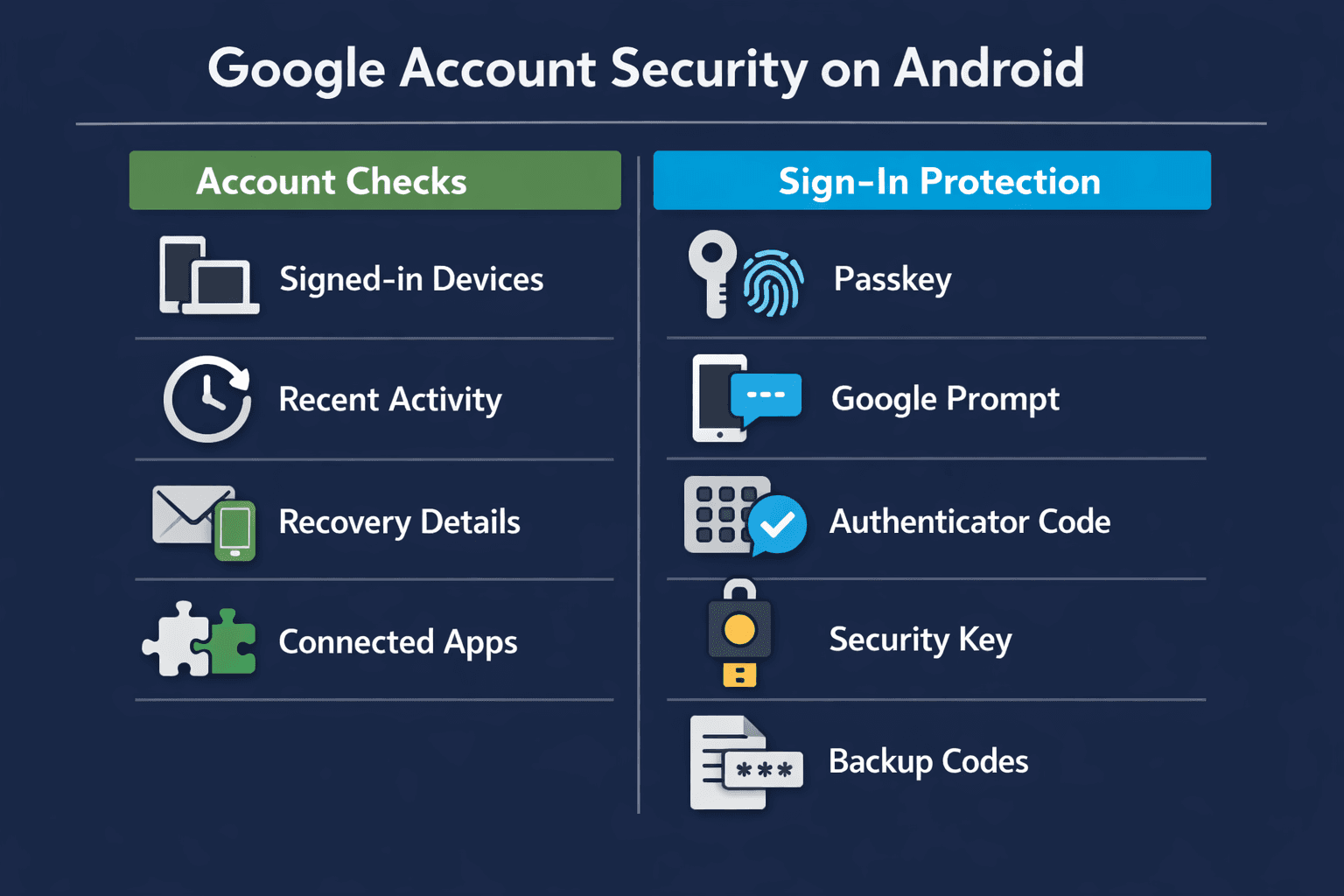
Google’s security controls are mainly about access to your Google account, not every form of activity on your phone. They can help you review:
- Phones, tablets, computers, and browsers currently signed in to your account.
- Recent sign-ins and security-related events.
- Recovery phone numbers and email addresses.
- Two-step verification methods, passkeys, backup codes, and other sign-in options.
- Apps and services that have access to parts of your Google account.
- Alerts about unusual sign-in activity or changes to account settings.
If you are looking for “device protection features,” there is not necessarily one universal setting with that exact name. In Google Account Security, the main protections you can activate include 2-Step Verification, recovery options, passkeys, security keys, and backup codes. Protections for the Android device itself—such as app permissions, screen-lock settings, or device-specific security controls—must be reviewed in Android Settings and can vary by phone, Android version, manufacturer, or managed-device policy. Confirm the exact feature name shown on your device before changing a setting.
These checks can reveal account compromise, such as someone signing in with your password. They do not prove that somebody is physically tracking your phone, reading every local file, or monitoring calls. For that kind of investigation, review Android permissions and installed apps separately. Our guide to checking Android app permissions for location, camera, and microphone access covers that device-level step.
How to open Google account security settings on Android#
Use either of these methods:
- Open Settings on your Android phone.
- Tap Google.
- Select Manage your Google Account.
- Open the Security tab.
The Security tab is where you manage protections for the Google account itself. If you need to activate a device-specific protection feature, look separately in Android Settings; its location and name may differ by Android version, phone manufacturer, account type, or managed-device policy.
Alternatively, open a browser, sign in to the relevant Google account, and visit myaccount.google.com/security.
If you manage more than one Google account, confirm the profile picture or email address before changing anything. It is easy to review a personal account while believing you are checking a work, school, or secondary account.
Google changes the appearance of account pages periodically. A menu may be called 2-Step Verification rather than two-factor authentication, and some options may appear only after you add a recovery method or verify your identity.
Review signed-in devices first#
In the Security section, find the area commonly labeled Your devices or Manage all devices. Open each unfamiliar or recently active device and compare it with your own phones, tablets, computers, and browsers.
Pay attention to:
- Device type and approximate location.
- The last time the account was used on that device.
- Whether several entries appear to represent the same phone or browser.
- Devices you sold, lost, replaced, or no longer control.
An unfamiliar device does not automatically mean an attacker is present. A shared computer, an old phone, a work device, a restored backup, or a browser session can explain an entry. Locations may also be approximate because Google may use the network address, mobile carrier information, or other signals rather than a precise GPS position.
If you are confident that a device should not have access, open its details and use the option to Sign out. Then change your Google password from a device you trust, especially if the suspicious device appeared recently or you reused that password elsewhere.
Changing the password is important because signing out one session may not address other active sessions or an exposed password.
Check recent security activity#
Look for a section such as Recent security activity. This may show events including:
- A new sign-in.
- A password change.
- A recovery phone or email change.
- Two-step verification being enabled or modified.
- A new device or application gaining access.
Read the event details instead of relying only on the location label. A sign-in from a nearby city may be your mobile carrier or an internet service whose network is registered elsewhere. Conversely, an event that looks familiar may still be suspicious if it happened at a time when you were not using the account.
If an event was not yours, follow Google’s account-security prompts, change the password, remove unknown devices, and review recovery options. Do not approve a sign-in prompt just because it appears on your phone. Google warns users not to share verification codes or approve prompts they did not initiate.
Check recovery phone numbers, email addresses, and passkeys#
Recovery methods help you regain access, but they are also valuable to anyone trying to take over an account. In the Security section, review:
- Recovery phone numbers.
- Recovery email addresses.
- Passkeys or security keys.
- Devices used for sign-in prompts.
- Backup codes.
- Third-party apps connected to the account.
Remove recovery information you do not recognize. Do not remove your only trusted recovery method until you have another reliable method in place, or you could make account recovery more difficult.
A passkey is a sign-in credential stored on a compatible device or password manager. It is designed to resist common phishing attacks because the credential is linked to the legitimate website or app. A passkey entry does not necessarily mean another person has access; it may belong to a phone, tablet, computer, or password manager that you previously enrolled. If you cannot identify it, treat it as untrusted and review the available removal option carefully.
Set up Google two-factor authentication for Gmail#
Google generally calls its account protection 2-Step Verification. Enabling it is one of the main account-level protections you can activate from Google Account Security. It adds a second step after the password, helping protect Gmail and other Google services if the password is exposed. It does not replace Android device security, app-permission reviews, or checks of location-sharing settings.
To begin:
- Open Manage your Google Account.
- Select Security.
- Find 2-Step Verification.
- Tap or click Get started.
- Follow the identity-verification and enrollment instructions.
- Add at least one backup method and store backup codes safely.
Depending on your account and device, Google may offer several methods:
| Method | What it does | Important consideration |
|---|---|---|
| Google Prompt | Sends a sign-in approval request to a signed-in device | Do not approve unexpected prompts |
| Authenticator app | Generates time-based verification codes | Keep access to the app when changing phones |
| Security key | Uses a physical USB, NFC, or compatible hardware key | Keep a spare or another recovery method |
| Passkey | Uses a device or password manager credential | Protect the device and its screen lock |
| Backup codes | One-use emergency codes | Store them privately and replace used codes |
| SMS or voice code | Sends a code to a phone number | More vulnerable to number-transfer and SIM-swap attacks than phishing-resistant methods |
Google may not offer every option to every account. Work, school, child, advanced-protection, and managed accounts can have different policies.
Which Google security method should you choose?#
For many people, the best practical setup is a passkey or Google Prompt on a well-protected personal device, plus backup codes stored somewhere safe. A security key can provide stronger phishing resistance and is especially useful for people at higher risk, such as journalists, activists, public figures, administrators, or anyone targeted repeatedly.
A security key is not the same as a password manager or an antivirus app. It is a physical authentication device that must usually be present during sign-in. Buy keys from a reputable source and register more than one if losing the only key would lock you out.
An authenticator app is useful when you do not want to depend on text messages. However, plan how you will recover access if your phone is lost, reset, or unavailable.
For a broader response to suspected number takeover, read the guide on Android SIM-swap warning signs and account protection. Two-factor authentication helps, but your mobile carrier account and recovery email also need protection.
What to do if you find an unfamiliar device or sign-in#
Use this order when the activity appears genuinely unfamiliar:
- Do not confront anyone based only on a location or device label. Account records can be approximate or misleading.
- Secure a trusted device. If you believe your phone itself may be controlled, use another device you trust for password changes.
- Change your Google password. Use a long, unique password that has not been used on another service.
- Sign out unfamiliar sessions. Review all devices, not only the one that raised concern.
- Check recovery settings and connected apps. Remove changes or access you do not recognize.
- Enable 2-Step Verification. Prefer a passkey, security key, authenticator app, or Google Prompt when suitable.
- Save backup codes securely. Do not store them in an exposed note or send them to another person.
- Check Gmail forwarding and filters. An attacker may use these to redirect or hide messages even after a password change.
- Review your phone separately. Check installed apps, accessibility access, device administrator access, notification access, and sensitive permissions.
If you suspect stalking or abuse, account changes can alert another person who has access to the account or device. Consider using a safer device, preserve relevant evidence, and contact a trusted support service or local authorities before making changes that could increase risk.
Account compromise versus app-based phone tracking#
These problems can overlap, but they are not the same:
- Account compromise: Someone can access Google services, email, files, contacts, or account settings.
- Unwanted app access: An installed app may collect location, microphone, camera, contacts, or other data according to its permissions.
- Location sharing: A person or app may receive location through a sharing feature rather than through account takeover.
- Physical tracking: A Bluetooth tracker or other device may be traveling with you.
- Device compromise: Malware or abusive configuration may affect the phone itself.
Battery drain, overheating, data usage, or an unfamiliar app alone does not prove surveillance. These symptoms can have ordinary explanations, including updates, poor reception, background synchronization, or a faulty battery. For another device-level check, see how to detect spyware on Android without jumping to conclusions.
Google account activity can show that an account was accessed. It generally cannot establish who was holding the phone, whether somebody installed a local monitoring app, or whether a physical tracker is nearby.
Short Google account security checklist#
Use this checklist after setting up your account:
- I recognize every device with access to my Google account.
- Recent security activity contains no unexplained changes.
- My recovery phone and email are current and private.
- I have enabled 2-Step Verification.
- I understand which verification methods I can use if my phone is unavailable.
- I have stored backup codes safely.
- I reviewed connected apps and removed access I no longer need.
- My Google password is unique.
- I checked Gmail forwarding and filters after a suspected compromise.
- I understand that account security checks do not replace a phone-permission review.