If your mobile allowance is disappearing faster than expected, Android can usually show which apps used it and when. The quickest route is Settings > Network & internet > SIMs > App data usage, although the wording and location can differ on Samsung, Pixel, Motorola, Xiaomi, OnePlus, and other phones.
From the data-usage screen, you can review total mobile-data use, change the measurement period, identify high-usage apps, and sometimes set a warning or limit. Your carrier’s app, website, or account code is usually the best place to confirm how much data you actually have left.
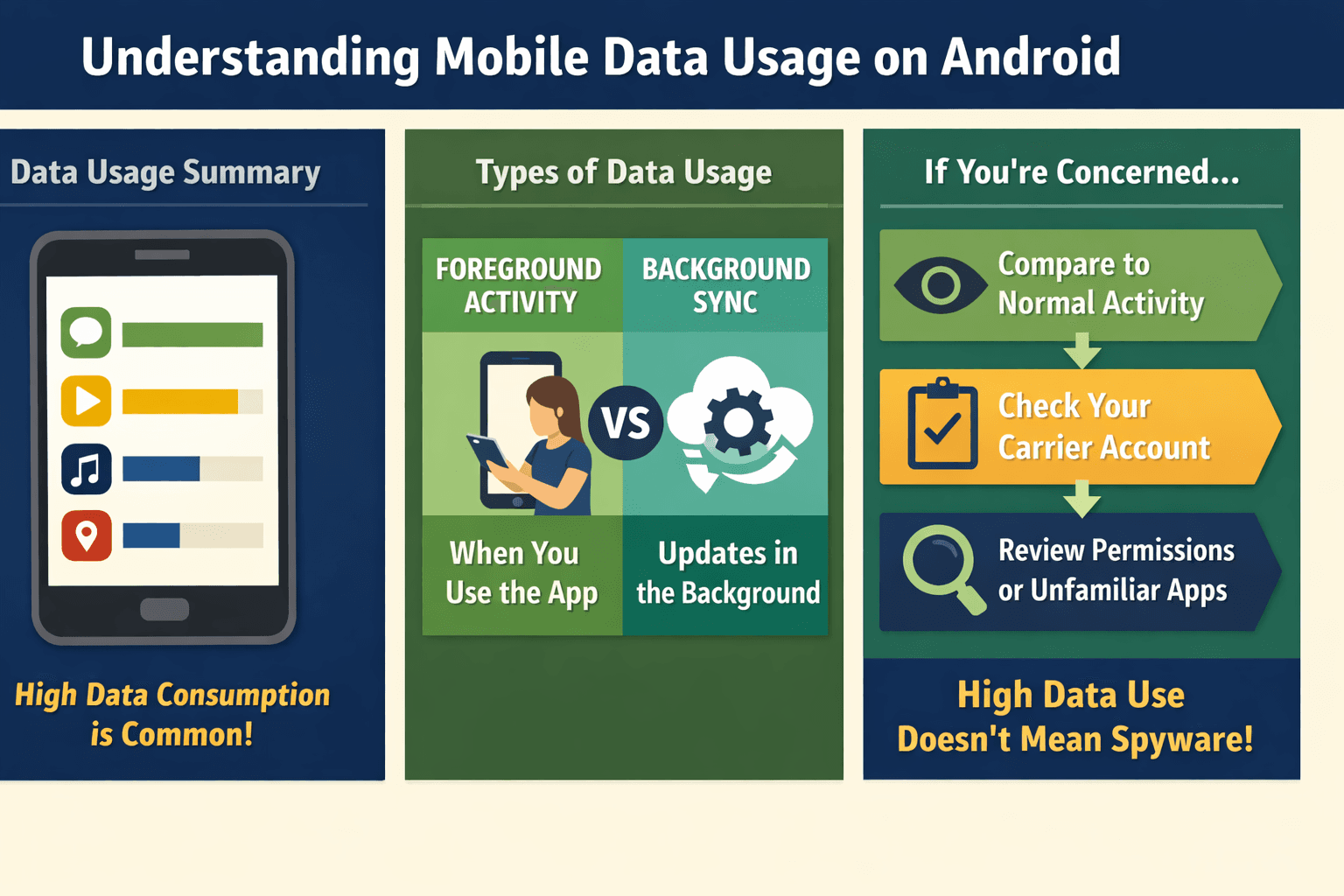
High data usage is worth investigating, but it does not prove that someone is tracking you. Automatic photo backups, video streaming, app updates, navigation, social-media feeds, and cloud synchronization can all use mobile data normally.
What Android mobile-data usage shows#
Android’s data-usage tools estimate how much information moved through your phone’s mobile network during a selected period. They may separate:
- Mobile data, which uses your SIM or eSIM allowance.
- Wi-Fi data, which uses a wireless network and normally does not reduce your carrier allowance.
- Foreground data, used while you are actively using an app.
- Background data, used while an app is not open, such as for synchronization or notifications.
The phone’s total may not match your carrier’s total exactly. Android and your carrier can measure traffic at different times, use different billing-cycle dates, or count network overhead differently. Treat Android’s figure as a useful diagnostic estimate and your carrier’s account as the final reference for remaining allowance.
How to find the data-usage screen#
Menu names vary by Android version and manufacturer. Try these paths:
On many Pixel and other Android phones#
- Open Settings.
- Tap Network & internet.
- Tap SIMs or Internet.
- Choose your SIM if you use more than one.
- Tap App data usage or App data usage cycle.
On many Samsung Galaxy phones#
- Open Settings.
- Tap Connections.
- Tap Data usage.
- Choose Mobile data usage.
If you cannot find these options, use the search field at the top of Settings and search for data usage, mobile data, or billing cycle. A manufacturer may place the feature under a different heading, and work-managed phones can restrict some settings.
Set the correct billing cycle first#
Android’s graph is most useful when its measurement period matches your carrier’s billing cycle.
Look for billing cycle, data warning, or a date range on the data-usage screen. Set the cycle start date to the day your allowance renews. If the phone shows a warning or limit option, enter values that match your plan—but remember that Android’s estimate is not the same as the carrier’s official counter.
A mismatch can make a normal month look unusual. For example, if your carrier resets on the 15th but Android resets on the first day of the month, the two totals are describing different periods.
Review usage by app#
On the mobile-data screen, Android normally lists apps from highest to lowest usage. Tap an app to see more detail, including—on some devices—the split between foreground and background activity.
Start with the largest users and ask whether the amount makes sense:
| Usage pattern | Ordinary explanation to check | Useful next step |
|---|---|---|
| Video or music app is high | Streaming over mobile data | Lower streaming quality or use Wi-Fi for downloads |
| Photos or cloud storage is high | Backup or synchronization | Review backup settings and whether cellular data is allowed |
| Social app is high | Video autoplay, uploads, or background refresh | Disable autoplay and restrict background data if appropriate |
| Maps or navigation is high | Map downloads, live traffic, or route use | Download maps over Wi-Fi and review offline options |
| An unfamiliar app is high | Recently installed app, game, launcher, or bundled software | Identify the app before removing or restricting it |
| System services are high | Updates, setup, synchronization, or network services | Check the date range and recent system activity before taking action |
One unusually high day is not enough to identify malicious behavior. Compare the app’s use with your own activity, recent travel, downloads, video watching, photo backups, and phone setup.
If an unfamiliar app remains high after you identify it, review its purpose and permissions. Our guide to checking and changing Android app permissions explains how to inspect access to sensitive features such as location, the camera, and the microphone.
How to check how much data you have left#
Android may show how much data the phone has used, but it usually cannot know your carrier’s allowance with complete accuracy. To check how much data you have left, use one or more of these options:
- Open your carrier’s official app. Look for a data, usage, or account section.
- Sign in to your carrier’s official website. Confirm the current billing period and remaining allowance.
- Use the carrier’s official text or dial code. These vary by country, plan, and carrier, so obtain the code from the carrier rather than an unverified list.
- Check account messages or statements. Some plans send an alert when usage reaches a selected percentage.
Be careful with third-party data-counter apps. They can be useful, but they may request access that is unnecessary for simple counting. Prefer Android’s built-in tools or your carrier’s official app, and review an app’s permissions before installing it.
Restrict background data without breaking useful features#
If one app is using more data than expected, open its entry in the data-usage list and look for Allow background data usage, Background data, or a similar control. Turning this off can reduce cellular use while the app is not open.
There can be trade-offs. The app may delay notifications, stop syncing until you open it, or fail to upload photos automatically. A safer approach is to restrict background data for nonessential apps first, then monitor whether an important function stops working.
You can also use Data Saver if your Android version provides it. Data Saver generally limits background mobile-data activity, while allowing you to make exceptions for apps that need timely access. Review those exceptions periodically.
Do not disable core security updates or remove protections simply to reduce data use. If an app needs a large transfer, connect to a trusted Wi-Fi network instead.
Does high data usage prove spyware?#
No. Data consumption alone cannot establish that a phone contains spyware or that another person is monitoring it.
Spyware is only one possible explanation, and ordinary causes are much more common. A high total may result from:
- A new phone restoring photos, apps, or account data.
- Automatic operating-system or app updates.
- Video autoplay or high-quality streaming.
- Cloud photo synchronization over mobile data.
- A hotspot connection shared with another device.
- A newly installed game or social-media app.
- A billing-cycle mismatch.
A privacy concern becomes more reasonable to investigate when unusual data use appears alongside other specific signs, such as an unfamiliar app, unexpected accessibility access, unexplained account changes, or settings that someone else may have altered. Even then, no single sign proves surveillance.
For a broader, cautious review, see our guide on how to detect possible spyware on Android. If you find an app you do not recognize, our article about finding hidden apps on Android can help you check the app list and launcher more systematically.
If you believe another person may react badly to changes on the phone, avoid confrontation and consider using a safer device to seek support. Removing an app or changing settings can sometimes alert someone who had access to the device.
A practical Android data-usage checklist#
Use this order when mobile data is being consumed unexpectedly:
- Confirm that Android is measuring the correct SIM and billing period.
- Check your carrier account for the official remaining allowance.
- Sort the Android list by mobile-data use.
- Compare the largest users with your recent activity.
- Check background-data settings for nonessential apps.
- Review recently installed or unfamiliar apps.
- Inspect permissions if an app’s purpose or behavior is unclear.
- Look for other warning signs before considering spyware or account compromise.
- Keep important security updates and built-in protections enabled.
- If the concern involves personal safety, seek help from a trusted person or local support service before making noticeable changes.