If your Android battery is suddenly dropping faster than usual, start with the phone's built-in Battery or Battery usage screen. It can show which apps and system components have consumed the most power recently. Then compare that information with what changed: a new app, an update, weak mobile signal, hotter conditions, heavier screen use, or an account or privacy concern.
Fast battery drain is worth investigating, but it is not proof that someone is spying on your phone. The same symptoms can come from video streaming, navigation, a poor signal, an aging battery, or an app repeatedly running in the background.
This guide explains how to investigate the problem without deleting important apps, disabling security protections, or jumping to conclusions.
What fast battery drain can—and cannot—tell you#
Battery use is a clue about activity and power consumption. It does not identify the purpose of that activity by itself.
For example, a navigation app may use substantial power because it keeps the screen, location services, GPS hardware, and mobile connection active. A social media app may consume power while checking for notifications or uploading media. A system component may appear near the top because it supports several other apps.
Battery drain alone does not prove:
- Spyware or stalkerware is installed.
- An unfamiliar app is malicious.
- Someone is remotely controlling the phone.
- A particular permission has been abused.
- Your accounts or location have been compromised.
Treat a sudden change as a reason to gather more evidence. Look for several consistent signs rather than relying on one symptom.
How to check Android battery usage by app#
The exact labels and location of these settings vary by Android version and manufacturer. Look for a setting named Battery, Battery usage, or App battery usage in the Settings app.
A typical process is:
- Open Settings.
- Select Battery, or search Settings for “battery usage.”
- Open the screen that lists battery consumption by app or system component.
- Change the time period if your phone offers that option.
- Select an app near the top of the list and inspect its details.
The percentage is most useful when you consider the time period and your normal behavior. An app used for several hours of video, gaming, navigation, or camera work may reasonably rank highly.
When reviewing an app, note:
- Whether you recognize it.
- Whether you used it heavily during the displayed period.
- Whether it used power in the background.
- Whether the drain started after installing or updating it.
- Whether its battery use seems disproportionate to what it does.
A high position in the list is a starting point, not a verdict. System services can also appear high because they provide functions used throughout Android.
Identify background activity and recent changes#
If an app consumed power while you were not using it, review its background behavior before uninstalling it. Some background activity is expected. Messaging, email, cloud backup, wearable-device, security, and location apps may need to run periodically.
Make a short timeline:
- When did the battery drain begin?
- Which apps were installed or updated shortly before then?
- Did you change notification, sync, VPN, launcher, or accessibility settings?
- Did the phone begin running hot while idle?
- Is the problem limited to mobile data, Wi-Fi, or a particular location?
You can also check the app's information page from Settings. Depending on the phone, options may include battery usage, background activity, mobile data, notifications, permissions, and an uninstall control.
Avoid force-stopping or restricting system components at random. That can break notifications, synchronization, calling features, or other apps without explaining the original problem.
If you find an app you do not recognize, first learn what it is. Android may display a package or service name that does not match the name shown on your home screen. You can also review your installed-app list and compare it with apps you remember installing.
For a broader privacy review, see this guide to finding hidden apps on Android. An unfamiliar app deserves attention, but it still needs context: it may be a preinstalled service, a work-management tool, or part of another app's functionality.
Review permissions alongside battery usage#
Battery information tells you that an app used power. Permissions can help explain what the app is allowed to access.
Review permissions for an app that is both unfamiliar and unusually active. Depending on your Android version, open the app's information page and select Permissions, or go to the system's Permission manager.
Pay particular attention to access involving:
- Location.
- Microphone.
- Camera.
- Contacts.
- Phone and SMS.
- Files and photos.
- Notifications.
- Accessibility or device-management features, where applicable.
A permission is not proof of misuse. A map app may need location, a calling app may need microphone access, and a photo editor may need access to images. The useful question is whether the permission fits the app's purpose and whether the app needs it while running in the background.
You can follow this with the site's guide to checking Android app permissions for location, camera, and microphone. If a permission does not make sense, consider denying it or uninstalling the app—but check what functionality will stop first.
What about Google Play Services and other system components?#
Some people notice Google Play Services near the top of their battery-usage list. It supports features used by many apps, including account functions, notifications, location-related features, and Google services. Its battery use can change when another app or service makes frequent requests.
That entry does not automatically mean Google Play Services is the cause of the problem, and it does not by itself indicate spyware. Look for a pattern: a recent change, unusual heat, repeated crashes, location activity you did not expect, or another app that began behaving differently at the same time.
Do not remove or disable core system services simply because they appear in battery usage. If the entry remains unusually high, install pending system and app updates, restart the phone, and continue comparing battery behavior over time. The exact troubleshooting options depend on the device and Android version.
You can also review Google Play Protect on Android as part of a broader safety check. Keep security protections enabled unless you have a specific, well-understood reason to change them.
Other common causes of battery drain#
Before treating battery drain as a privacy incident, check ordinary causes such as:
- High screen brightness or a long screen timeout.
- Extended video, gaming, camera, or navigation use.
- Weak cellular signal or frequent movement between networks.
- A phone that is hot from sunlight, charging, or demanding workloads.
- Many notifications, automatic sync tasks, or cloud backups.
- A recent operating-system or app update.
- An aging battery that no longer holds its original charge.
- A damaged charger, cable, or charging port that prevents a full charge.
A restart can clear a temporary process problem, but it is not a security diagnosis. If the phone continues losing charge rapidly while idle, compare the battery screen again after a period when you have used the phone very little.
When battery drain justifies a privacy investigation#
Consider a more detailed privacy review when battery changes occur alongside several other unexplained findings, such as:
- An unfamiliar app with sensitive permissions and persistent background activity.
- Unexpected accessibility, device-administrator, VPN, or profile settings.
- Unexplained account alerts, password-reset messages, or new signed-in devices.
- Location sharing or account activity that you did not configure.
- Someone having had prolonged physical access to the unlocked phone.
Even then, avoid confronting a person you suspect if doing so could put you at risk. If the concern involves a partner, household member, employer, or another person with access to your accounts or devices, use a safer device to seek help and make a plan before changing settings.
Battery behavior is one part of an investigation. The separate guide on how to detect spyware on Android can help you organize additional checks, while keeping in mind that no single scan or permission review can detect every form of surveillance.
Safe next steps if an unfamiliar app uses power#
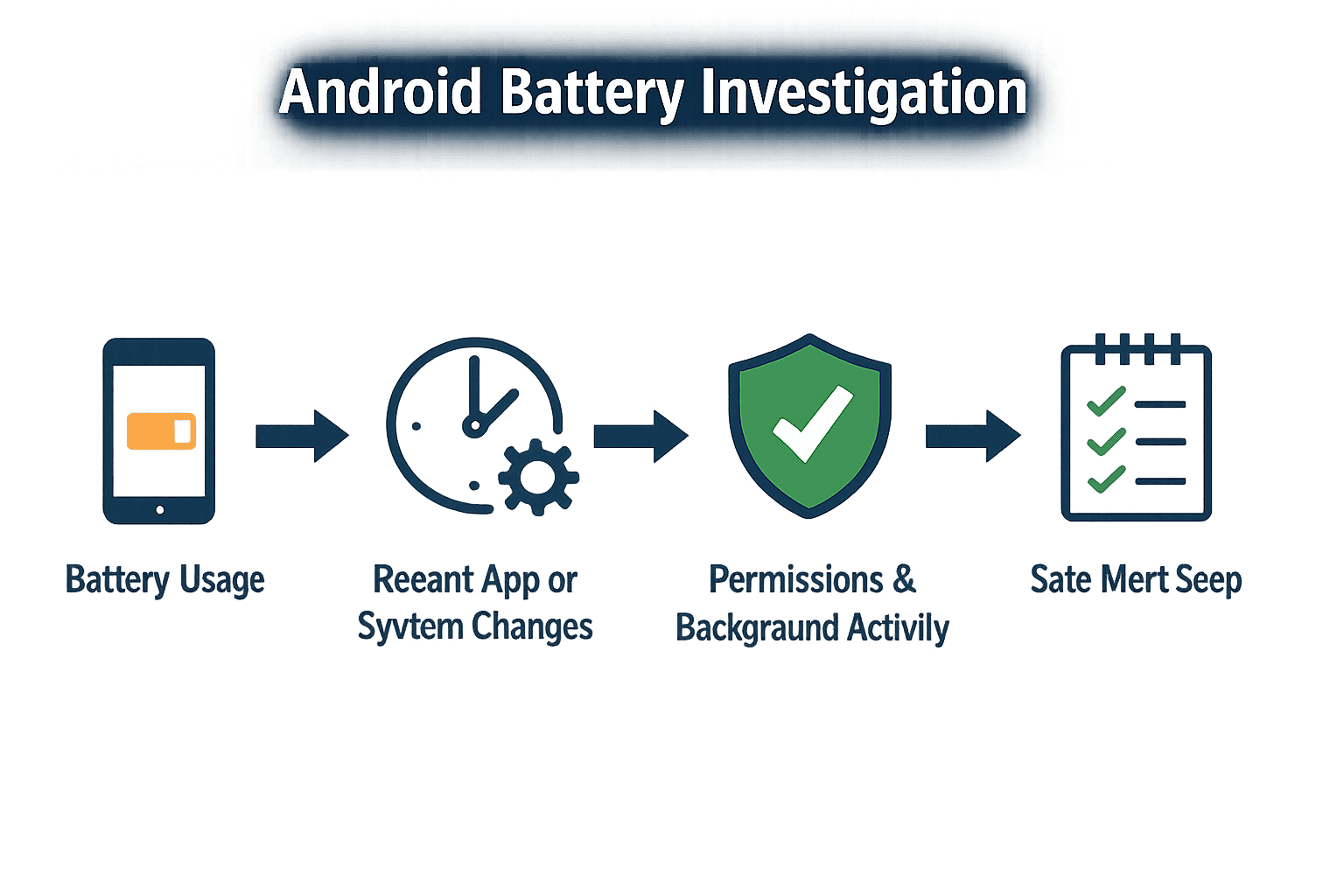
Use this order rather than immediately deleting files or installing an unknown “battery fixer”:
- Record the evidence. Note the app name, battery percentage, time period, background use, and relevant permissions.
- Check whether you recognize the app. Search its name only through a trusted source or the official app store.
- Install available Android and app updates. Updates may address bugs or compatibility problems.
- Review permissions and background settings. Restrict access only when you understand the effect.
- Run the phone's built-in security check. Do not disable Play Protect or install random APK files.
- Uninstall an unwanted app if appropriate. If it cannot be removed, check whether it has device-admin, work-profile, or management status before taking further action.
- Escalate carefully. For account compromise or personal-safety concerns, secure accounts from a safer device and seek qualified assistance.
If the battery remains poor after the suspicious app is removed or restricted, the cause may be battery health, signal conditions, heat, charging equipment, or another process.