If you are worried that an Android app may be unsafe, Google Play Protect is one of the first built-in checks to use. It scans apps for potentially harmful behavior, checks apps installed through Google Play and other sources, and can warn you about or take action against some harmful applications.
It is useful, but it is not a complete spyware investigation. A clean Play Protect result does not prove that every privacy problem, account compromise, unwanted permission, or physical tracking device has been ruled out.
What Google Play Protect does#
Google Play Protect is Android's built-in app-security service associated with Google Play. Its role generally includes several related functions:
- Scanning installed apps for potentially harmful software.
- Checking apps before or after installation, depending on how they were obtained and the device configuration.
- Warning about apps that may be harmful.
- Helping identify whether an app meets Google Play's certification requirements.
- Providing security status information through Google Play or Android settings.
The exact wording and menu location can vary by Android version, phone manufacturer, Google Play version, and account configuration. Treat the names below as a guide rather than a guarantee that every phone will display the same screens.
Where to find Play Protect on Android#
On many Android phones, you can review it through the Google Play Store:
- Open the Google Play Store.
- Tap your profile picture or account icon.
- Select Play Protect.
- Review the displayed scan status and any warnings.
- Start a scan if the option is available.
Some devices also expose security information through a Settings search. Search for “Play Protect” if you do not see it in the Play Store. A manufacturer may use a different security dashboard or place related controls elsewhere.
If the menu is missing, first confirm that Google Play services and the Play Store are enabled and up to date. Do not install an unknown application claiming to be the official Play Protect app. Play Protect is normally integrated into supported Android and Google Play components rather than being a separate antivirus download that you need to obtain from a random website.
How to interpret a Play Protect scan#
A scan result is best understood as a risk signal, not a guarantee.
No harmful apps found#
This result means the scan did not identify an app that matched the service's harmful-app criteria at that time. It does not establish that:
- Every app has appropriate permissions.
- No app collects more data than you expected.
- Your Google account or another online account is secure.
- The phone has never been accessed by another person.
- A physical Bluetooth tracker is not nearby.
- A sophisticated or newly developed threat will be detected immediately.
If your concern is an unfamiliar app, continue by checking its developer, installation source, permissions, accessibility access, device-administrator access, and recent behavior. You can use our checklist on how to find hidden apps on Android to identify background packages that do not display normal launcher icons.
A warning about an app#
Do not dismiss a warning simply because the app looks familiar. Read the warning and note the app's name, installation source, and recommended action. If the app is not essential, avoid opening it while you investigate.
Safer next steps may include:
- Stop using the app until you understand the warning.
- Uninstall it through Android's normal app controls if it is safe to do so.
- Review other recently installed apps for anything unexpected.
- Change important passwords from a device you trust if you entered sensitive information into the app.
- Check for unusual account activity and enable multi-factor authentication where available.
If removing the app could alert or endanger someone in your household, consider your personal safety before taking action. Use a safer device to seek help rather than confronting a person you suspect of monitoring you.
What Play Protect certification means#
“Play Protect certified” generally refers to whether a device meets Google's compatibility and security requirements for access to certain Google apps and services. It is primarily a device and platform certification status, not a statement that every app on the device is safe or that the device has passed a complete privacy audit.
A device may show a certification problem after system modification, installation of unofficial firmware, use of an unsupported device configuration, or another compatibility issue. Certification status and a malware scan answer different questions:
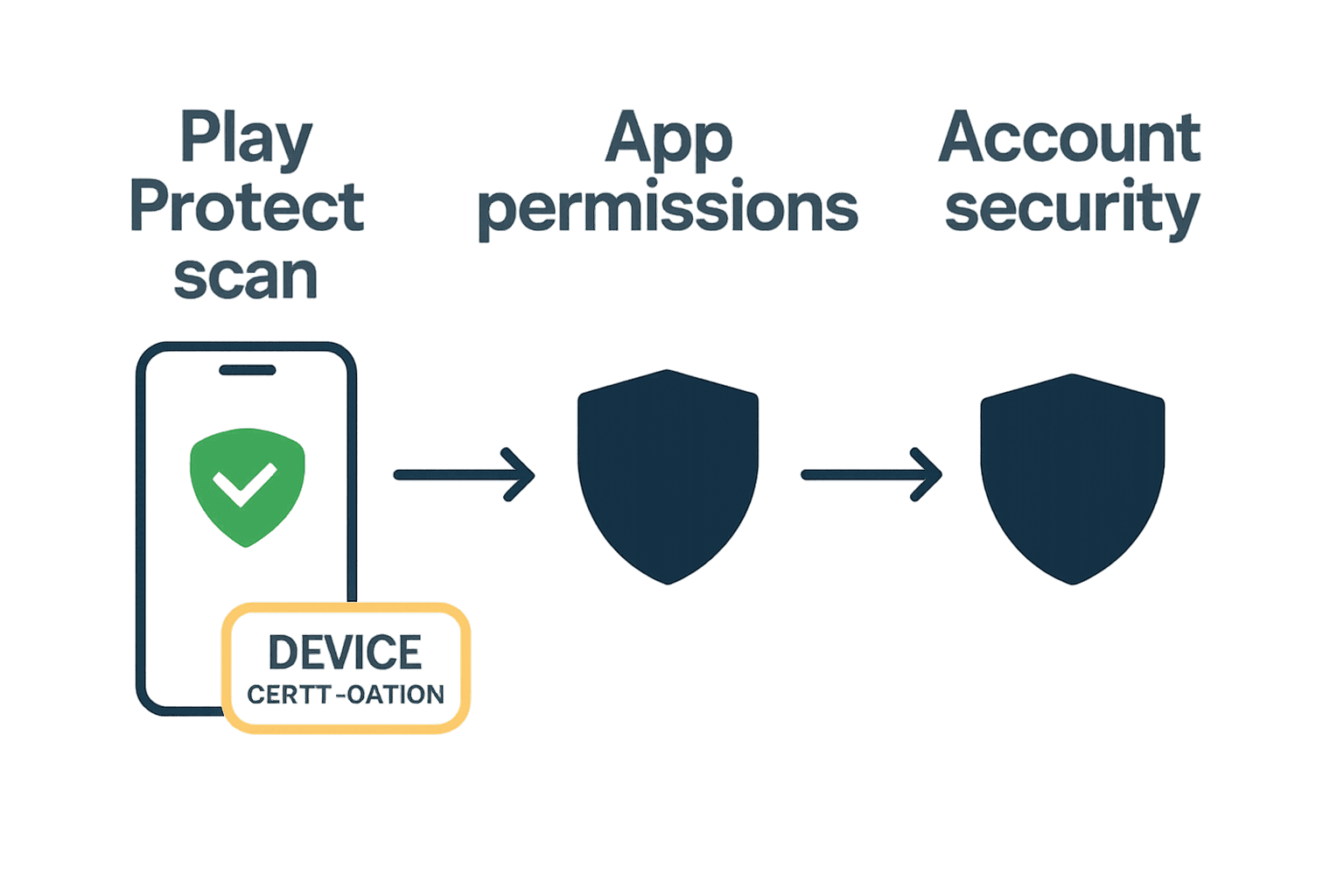
| Check | Main question it addresses |
|---|---|
| Play Protect scan | Does the service identify a potentially harmful app? |
| Play Protect certification | Does the device meet relevant Google compatibility and certification requirements? |
| Permission review | What access does each app have? |
| Account security review | Has an online account shown suspicious access or changes? |
Do not treat certification as a privacy rating. A certified device can still contain an app with excessive permissions, and an uncertified device is not automatically proof of spyware.
Play Protect versus an Android permission review#
Play Protect and a permission audit complement each other.
A Play Protect scan asks whether an app appears harmful according to the service's detection systems. A permission review asks what the app is allowed to access, such as location, camera, microphone, contacts, files, or notifications. To audit and restrict these privileges systematically, read our full breakdown of Android app permissions for location, camera, and microphone.
An app can be concerning without triggering a malware warning. For example, a flashlight app that requests continuous location access deserves a closer look even if Play Protect reports no harmful apps. That does not prove malicious intent, but it gives you a concrete reason to examine the app's purpose, privacy policy, developer, and access settings.
Review permissions through Android's Settings app. The exact path varies, but common routes include Privacy, Permission manager, or an individual app's Permissions page. You can also search Settings for “permissions.” Deny access that the app does not reasonably need, while remembering that some features may stop working when a permission is removed.
Play Protect versus spyware investigation#
Spyware investigation is broader than running one scan. If you suspect targeted monitoring, look for a pattern rather than relying on a single symptom. For a structured verification workflow, consult our guide on how to detect spyware on Android to distinguish between normal hardware symptoms and actual stalkerware indicators. Battery drain, overheating, unusual data use, or an unfamiliar app can have ordinary explanations such as an aging battery, poor reception, automatic updates, or a misbehaving application.
A broader review can include:
- Recently installed or updated apps.
- Apps with sensitive permissions that do not fit their purpose.
- Accessibility services and device-administrator access you do not recognize.
- Unknown VPNs, certificates, profiles, or work-management controls.
- Google account security activity and unfamiliar signed-in devices.
- Unexpected changes to location sharing or connected accounts.
Do not assume that Play Protect can detect every form of spyware. It also cannot determine whether someone knows your unlock code, has access to your accounts, or placed a physical tracker near your belongings.
A practical Android security checklist#
Use this sequence when you are unsure whether an app or device is safe:
- Run or review the Google Play Protect scan.
- Record the exact app name and warning text if a warning appears.
- Check whether the app came from Google Play, a manufacturer store, or an unknown source.
- Review its permissions and remove unnecessary access.
- Check accessibility, administrator, VPN, and notification-access settings for unfamiliar entries.
- Check for pending operating system updates and patches in our guide to Android updates and security patches.
- Update Android and installed apps through trusted update channels.
- Review account activity from a safer device if account compromise is possible.
- Uninstall suspicious software only when doing so will not create a personal-safety risk.
The important distinction is simple: Google Play Protect is a malware and app-safety layer, not a complete privacy audit. Use it as an early check, then investigate permissions, accounts, settings, and physical tracking concerns separately when the situation calls for it.