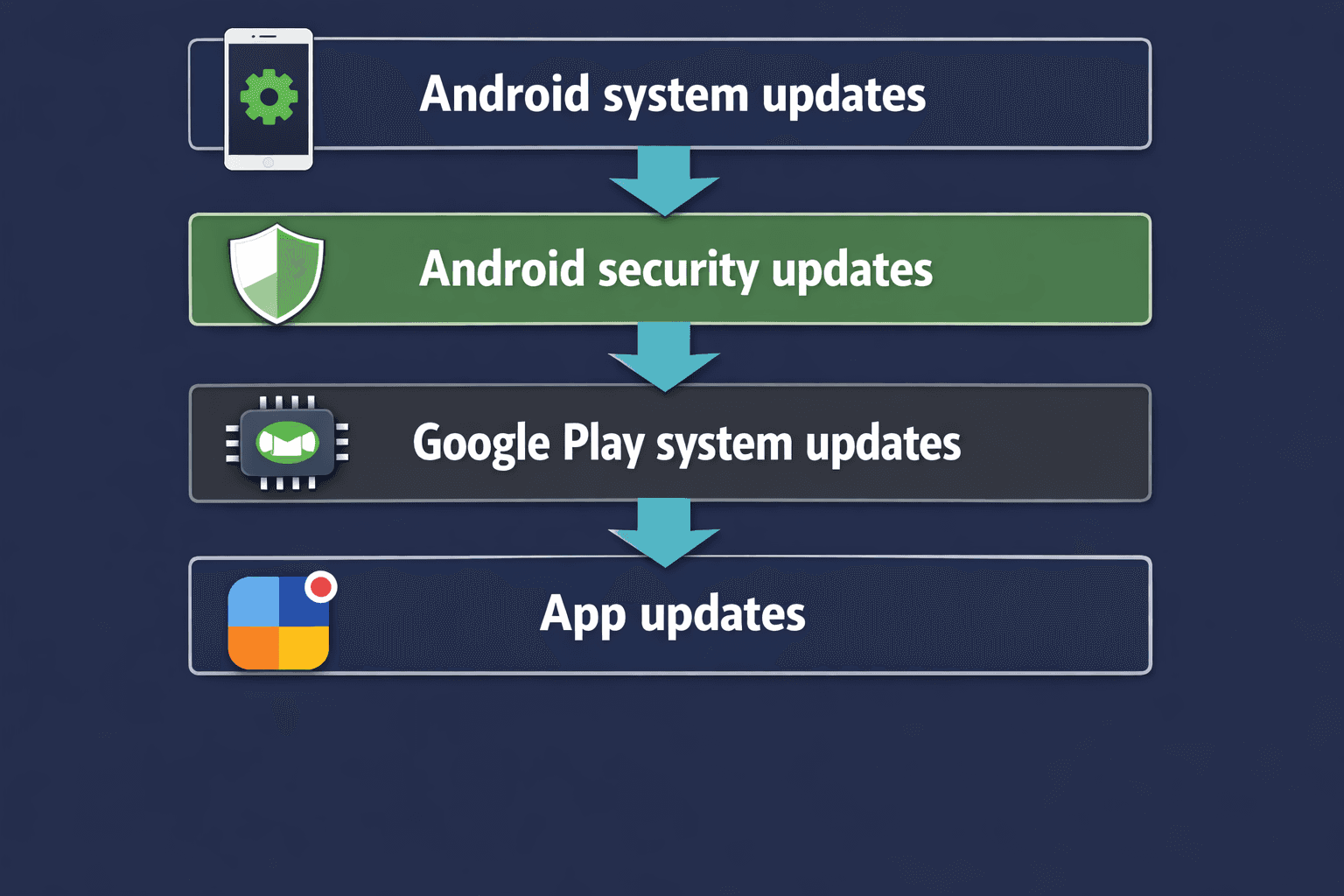
If your phone says it is up to date, that message may refer to more than one kind of update. Android system updates, Android security updates, Google Play system updates, and app updates are separate maintenance layers. They can also appear in different places depending on your phone maker, Android version, carrier, and region.
The safest starting point is to check the update screens built into your phone—not to install an update package from an unknown website. An update can fix known software weaknesses and improve reliability, but an outdated phone does not prove that someone is tracking you, and an update does not guarantee that every privacy problem has been found or removed.
What Android updates and security patches do#
Android updates can contain several kinds of changes:
- Android system updates: Larger operating-system releases or manufacturer updates that may change features, behavior, compatibility, and security.
- Android security updates: Fixes for known vulnerabilities in Android and related components. The phone usually displays a security patch date, such as a month and year.
- Google Play system updates: Updates for selected core components delivered through Google Play system infrastructure. These are separate from the main Android version and security patch.
- App updates: New versions of individual apps, normally delivered through Google Play. They are not the same as operating-system updates.
A phone can therefore show a recent Android version while having an older security patch date, or show a current security patch while still waiting for a larger manufacturer update. The exact combination depends on the device and its support schedule.
Keeping software current reduces exposure to vulnerabilities that have already been addressed by the manufacturer or platform provider. It is one part of phone security, alongside a screen lock, account protection, careful app installation, and sensible permission choices.
How to check for Android updates#
Menu names vary. On many phones, you can start with Settings and then look for System, Software update, or System update. Some manufacturers place the option under About phone or a similarly named section.
For a quick check, open Settings, search for Software update or System update, and check whether an update is available. Then separately review the Android security-update date and Google Play system-update date, since checking the main system-update screen does not always confirm the status of every update layer.
Try the general Android path#
- Open Settings.
- Look for System, Software update, or System update.
- Tap the update option and choose Check for update if it is available.
- Read the update details before accepting the installation.
- Connect to a trusted Wi-Fi network and, if possible, charge the phone or keep it connected to power.
- Allow the phone to restart and finish the installation without interrupting it.
Do not be concerned if your menu uses different wording. Search for “update” inside the Settings app if your phone provides a settings search box. Avoid following instructions that ask you to disable built-in security features or install an unknown APK, which is an Android application package obtained outside the usual app-distribution process.
Check a Samsung Galaxy phone#
Samsung devices commonly place the main update control under Settings > Software update, although the exact labels and available options can change with the model and software version. Open that section and look for an option such as Download and install or Check for updates.
A Samsung phone may also show separate information for the Android version, security patch level, and Google Play system update. Treat each date as a different piece of information rather than assuming one date represents every update channel.
Check the Android version and security-update date#
On many Android phones, these details are available under Settings > About phone or Settings > About device. Look for entries such as:
- Android version
- Android security update
- Google Play system update
- Build number
Some phones put these entries under a Software information submenu. If you cannot find them, use the Settings search field for “Android version,” “security update,” or “Google Play system update.”
The security patch level is the date or level reported by the phone for the Android security fixes installed on it. It is separate from the Android version and the Google Play system-update date, so checking one does not automatically confirm the status of the others. A newer security patch generally means the phone includes more recently released fixes for supported components, but the date is not a guarantee that every security or privacy issue has been addressed.
These screens usually show the phone's current reported status, not a complete history of every update that has ever been installed. Some manufacturers or software versions may provide limited update details, while others may show only the current version, patch date, and build number.
If you want to investigate an update history or support period, first record the phone's exact model, Android version, security patch date, build number, and carrier or region when relevant. Then check the manufacturer's official product-support records for that exact model. The phone's Settings screen may show only its current status, while the manufacturer's records may provide rollout, eligibility, or support information; they should not be assumed to provide a complete installation history. When carrier-specific timing may apply, also check the official carrier support page.
Use official support records rather than relying on a third-party update site. A third-party reference may describe general release information, but it should not replace the manufacturer's or carrier's information and should never be used to download unofficial firmware or update packages.
What to do when an update is unavailable#
An update may not appear immediately for every Android phone. Release timing can vary by manufacturer, model, carrier, country, storage capacity, and testing requirements. A phone that has not received a particular release on the same day as another model is not automatically malfunctioning.
Try these proportionate steps:
- Confirm that the phone has a stable internet connection.
- Check that there is enough free storage for the download and installation.
- Restart the phone and check again later.
- Install any update that is already offered before checking for a newer one.
- Check the phone maker's official product-support page or official carrier support page for the exact model's update policy.
- Contact the manufacturer or carrier if the phone repeatedly reports an error or has stopped receiving updates unexpectedly.
For update policies, support dates, and device eligibility, use the phone manufacturer's official support page first. Check the official carrier support page as well when carrier-specific rollout timing may apply. Use the exact model, carrier, and region when searching. Avoid third-party “update checker” sites that offer downloads or direct you to unofficial firmware.
Do not factory-reset the phone as a first response to a missing update. A reset erases local data and may not change the phone's eligibility or rollout timing. Back up important information before taking any step that could erase data.
If an older phone is no longer supported, the practical options may include using it only for lower-risk tasks, replacing it with a supported model, or asking the manufacturer about its official support options. Do not rely on unofficial firmware unless you understand the security and data-loss risks and can verify the source.
Updates versus Play Protect and app permissions#
System updates are only one part of Android security. Google Play Protect scans apps and may warn about harmful software, but it is not the same as an operating-system update and cannot guarantee that a phone is free from every form of unwanted monitoring. For a separate explanation, see this guide to Google Play Protect on Android.
App permissions control what an app is allowed to access, such as location, the microphone, camera, contacts, or files. A permission review can help you spot access that does not fit an app's purpose, but it cannot identify every type of surveillance or account compromise. If you want to review those settings, use the Android app permissions guide.
App updates are also separate. Open Google Play and review the app-update section to maintain installed apps. Keeping apps current is useful, but it does not replace Android system updates or security patches.
What an update can—and cannot—tell you about tracking#
An update screen can tell you about the software state reported by the phone. It cannot answer “Who is tracking my phone?” by itself.
An older security patch may mean that the device has more exposure to known vulnerabilities than a fully updated device. It does not establish that spyware is installed. Likewise, installing an update does not prove that tracking software has been removed.
Battery drain, overheating, unusual data use, or an unfamiliar app can have many ordinary explanations, including a weak signal, a recently updated app, background synchronization, a worn battery, or changed settings. Those signs should be investigated carefully rather than treated as proof of surveillance.
If you have several specific warning signs, start with low-risk checks: review recently installed apps, examine permissions, secure important accounts from a trusted device if necessary, and look for unexpected location sharing. For broader context, read the guide on how to stop a phone from being tracked. If you believe someone with access to the phone may react dangerously, avoid confronting them based only on a suspicion and consider using a safer device to seek support.
A safe Android maintenance checklist#
Use this short checklist every few weeks or after buying a used phone:
- Check the Android system-update screen.
- Note the Android security-update date.
- Check the Google Play system-update entry separately.
- Update apps through the official app store.
- Keep a screen lock enabled and difficult for others to guess.
- Review apps you no longer recognize or need before removing anything important.
- Review sensitive permissions, especially location, microphone, camera, SMS, and accessibility access.
- Keep enough free storage for updates.
- Back up important photos, contacts, and documents.
- Avoid unknown APKs and unofficial “security” tools that demand excessive access.
- If a concern involves an account, review account sign-in activity and change credentials from a trusted device.
The most useful result is not simply “up to date.” It is knowing which update layer you checked, what date the phone reports, and what the result does—and does not—prove.