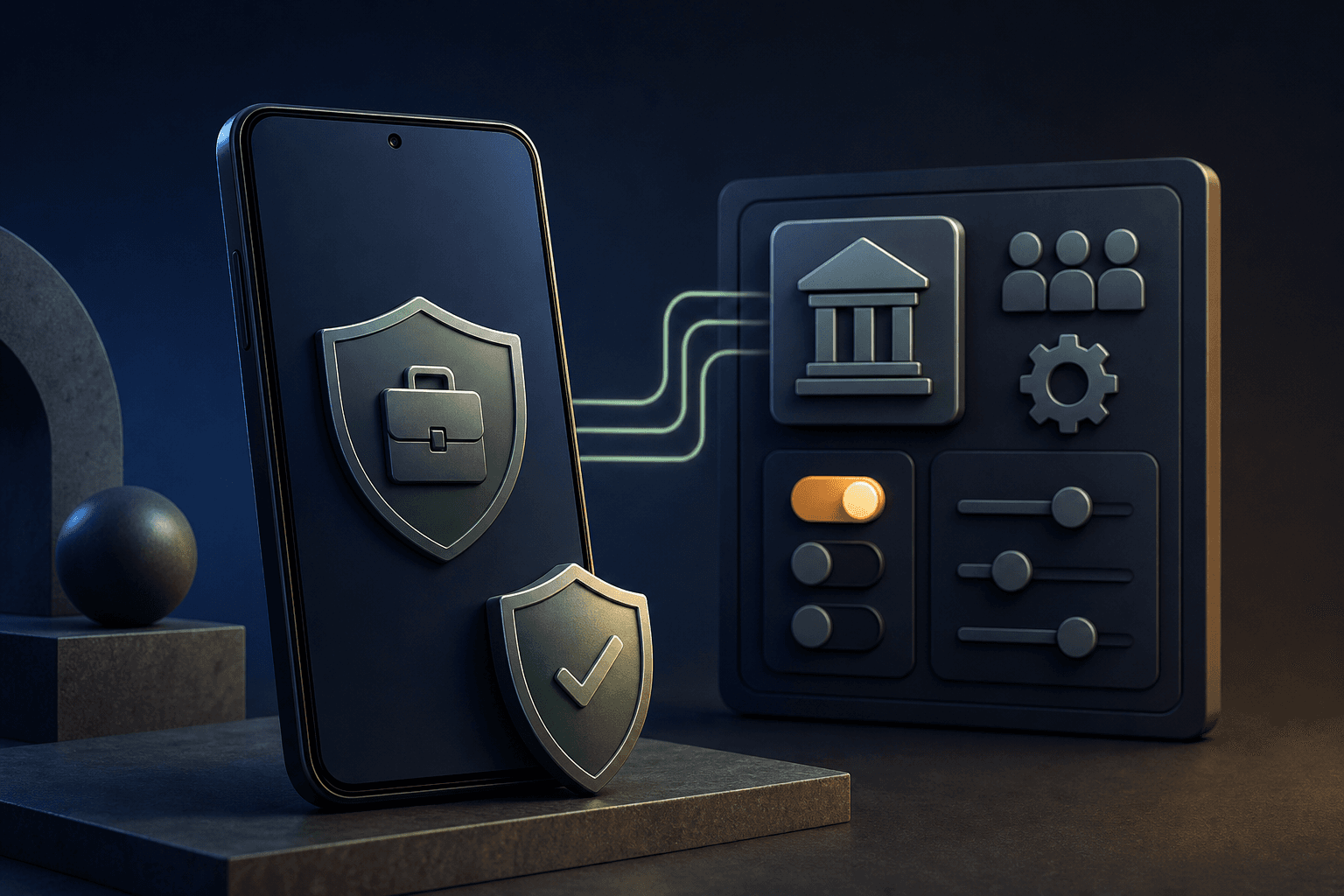
If your Android phone shows a work profile, a device administrator, or a notice that an organization manages the device, that does not automatically mean someone is spying on you. It usually means that an employer, school, or other organization has enrolled some part of the phone in enterprise mobility management (EMM), also called mobile device management (MDM).
The important question is not simply whether the phone is “managed.” It is what kind of management is present, which parts of the phone it applies to, and what the organization’s policy allows it to control or view.
What enterprise mobility management means#
Enterprise mobility management is a group of tools and policies used to administer phones, tablets, applications, accounts, and security settings. An organization may use it to:
- Require a screen lock or encryption.
- Install or approve work applications.
- Apply security settings and compliance rules.
- Separate work information from personal information.
- Remove company data from a lost or departing employee’s device.
- Restrict unsafe features or applications.
- Require a minimum Android version or security standard.
Android device management is the Android-specific part of that process. The phone may be fully enrolled, company-owned, or configured with a separate work profile on a personally owned device.
The wording varies by Android version and manufacturer. You may see terms such as managed device, work profile, device administrator, management profile, or your organization in Settings or on a lock-screen notice.
Managed device versus ordinary Android permissions#
A device administrator and an app permission are different control layers.
| Control | What it generally governs | Example |
|---|---|---|
| App permission | What one app can access | A messaging app requests contacts or microphone access |
| Device administrator or management policy | Security and device-level rules | Requiring a screen lock or restricting factory reset |
| Work profile | A separated work environment | Work apps and data are kept apart from personal apps |
| Remote-access software | A connection that may allow support or interaction | A support app enables an approved technician to assist |
| Spyware | Covert or abusive monitoring | Hidden collection of messages, location, or other activity |
A management notice does not prove that an organization can read every personal message or view every personal photo. The actual capabilities depend on the enrollment model, Android version, manufacturer, management software, and policy.
For app-level access, use the guide to check Android app permissions. That process is useful, but it does not replace checking device-management settings.
How an Android phone becomes managed#
A phone can become an android managed device in several legitimate ways:
- A company-owned phone is enrolled before it reaches the employee. The organization may configure it during setup or after a reset.
- An employee adds a work profile to a personal phone. This normally creates a separate area for work applications and data.
- A school or employer requires enrollment to access systems. Email, Wi-Fi, certificates, or other services may require a management profile.
- A support or reseller process enrolls the device. This should be explained in the purchase, repair, or support documentation.
- A previous owner did not remove management. A second-hand phone may still be associated with an organization.
Unexpected management can also result from a workplace or school account that was added without the user understanding what enrollment involved. It deserves investigation, but it is not by itself evidence of spyware.
What device administrators may control#
The phrase device administrators can refer to Android’s administrative controls or to an organization’s broader management service. Depending on the setup, an administrator may be able to:
- Enforce a passcode, timeout, encryption, or security requirement.
- Require or block certain applications.
- Configure work email, Wi-Fi, VPN, certificates, or other work services.
- Prevent changes to selected settings.
- Lock or wipe a company-owned device.
- Remove a work profile or work data.
- Report limited device and compliance information to the organization.
These controls are not identical on every phone. A fully managed company device generally gives an organization more control than a personal phone with only a work profile.
What management does not automatically prove#
MDM enrollment does not automatically prove that an administrator can:
- Read the contents of all personal text messages.
- Open personal photos or files.
- Turn on the microphone whenever it wants.
- Watch the screen continuously.
- Track a personal device’s live location in every configuration.
- Read data inside unrelated personal applications.
Some organizations may collect device inventory, security status, work-account information, or location-related information under specific policies. The exact answer should come from the employer’s or school’s privacy notice and the management product’s documentation—not from the presence of the word “managed” alone.
How to check whether Android device management is present#
Settings names differ between Google Pixel, Samsung Galaxy, and other Android phones, so treat these as search terms rather than universal instructions.
- Open Settings and use the search field.
- Search for terms such as work profile, device admin apps, device administrators, managed, or organization.
- Look for a briefcase badge on applications. This often identifies work-profile apps.
- Open the relevant management or security page and read the explanation before changing anything.
- Check whether the phone is described as fully managed or whether only a work profile is present.
- Review the organization name, support contact, and any linked privacy or acceptable-use policy.
On Samsung devices, related controls may appear under security, biometrics and security, or other manufacturer-specific headings. On other phones, the same feature may be grouped under passwords, security, accounts, or workplace settings.
Do not remove an administrator or work profile simply because it is unfamiliar. Removal may delete work data, block access to company services, trigger a device reset, or violate an employment or school policy.
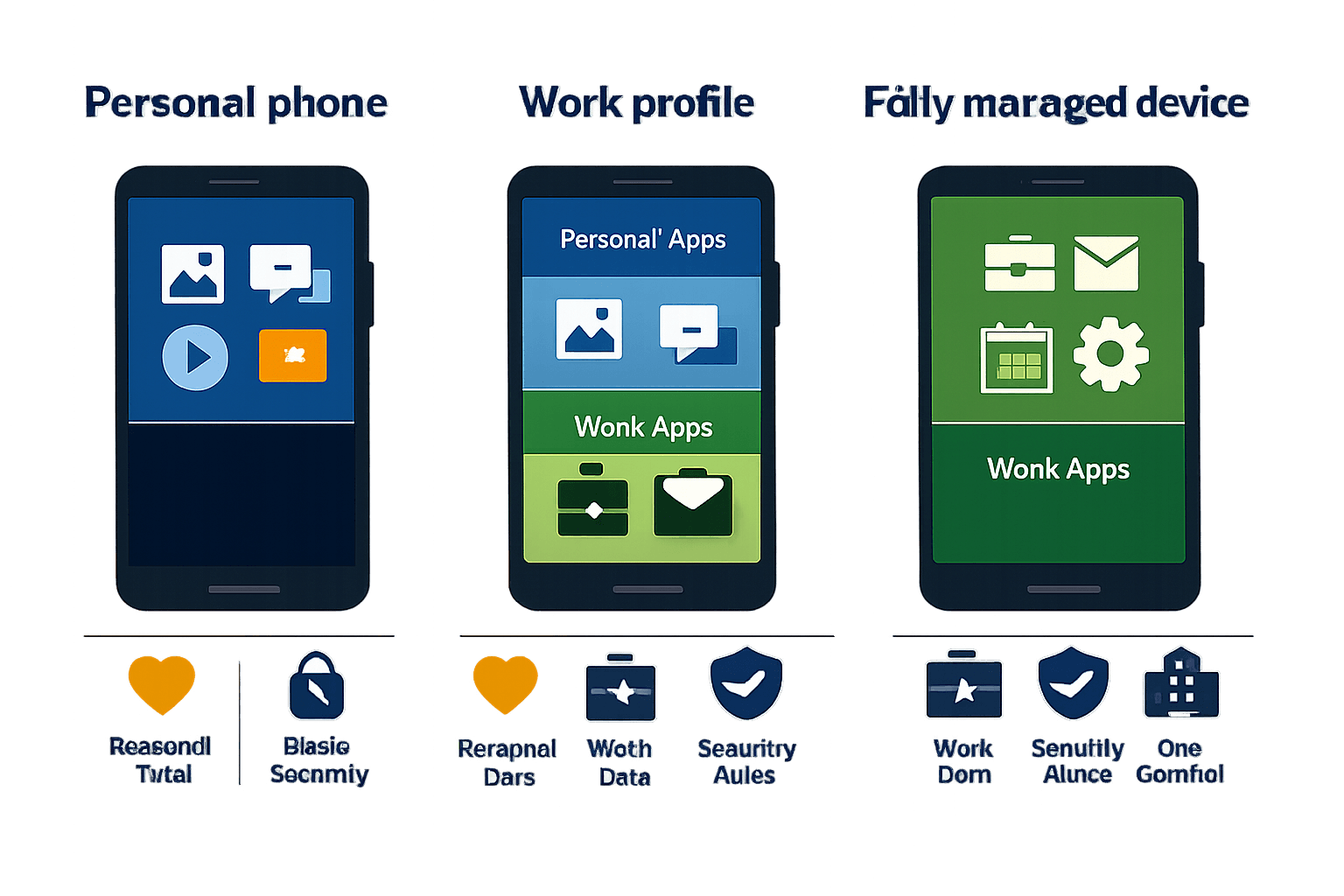
Work profile, fully managed phone, and personal phone: a practical comparison#
Personal phone with a work profile#
A work profile is designed to separate work applications and data from personal applications and data. The organization may control the work side and enforce requirements for accessing work resources. Personal and work areas may have different icons, notifications, and app instances.
This arrangement is usually less intrusive than fully managing the entire phone, but the organization can still apply policies to the work profile and may receive information needed to administer it.
Company-owned, fully managed phone#
A company-owned device may be configured with broader controls. The organization may restrict settings, install required software, enforce security rules, and remotely lock or erase the device under its policy.
Treat such a phone as an organizational asset even if you use it every day. Personal activity on a company-owned phone may not have the same privacy expectations as activity on a personal phone.
Personal phone with no expected enrollment#
If you bought the phone yourself and have no relationship with the organization named in the management notice, pause before making changes. Check whether the phone was purchased used, whether a work or school account was recently added, and whether a repair or reseller configured it.
If the explanation does not fit, contact the seller, employer, school, or manufacturer through a trusted channel. Avoid confronting a person you suspect of monitoring you if doing so could create a safety risk.
MDM versus remote access and spyware#
These technologies can overlap in a workplace, but they are not the same thing.
- MDM or EMM is intended to administer devices and protect organizational data.
- Remote-access software is designed to provide support or remote interaction and may have separate accessibility, screen-sharing, or control capabilities.
- Spyware is generally associated with covert or abusive monitoring and may attempt to hide its presence.
- App permissions govern access requested by individual apps, such as location, camera, microphone, contacts, or files.
If you find a remote-support application that you do not recognize, read how to check for remote-access apps on Android. If the evidence suggests broader unwanted monitoring rather than ordinary workplace enrollment, review the safety-focused guidance on how to detect spyware on Android.
Battery drain, unusual data use, overheating, or an unfamiliar application can have many ordinary causes. None of those signs alone proves that a phone is managed or monitored.
What to ask an employer or school#
If the phone is yours, ask for clear answers before accepting or removing management:
- Is the device fully managed, or does it have only a work profile?
- What information does the organization collect from the device?
- Can administrators see personal applications, files, messages, or location?
- Under what circumstances can the device or work profile be locked or wiped?
- What happens to personal data if the work relationship ends?
- Who should you contact if the management notice is incorrect?
- Can you use a separate company-owned device instead?
A legitimate administrator should be able to explain the purpose of enrollment and provide a privacy or acceptable-use policy. Keep those details for your records, especially if the device contains personal information.
If management appears without an expected reason#
Take a measured approach:
- Photograph or record the notice and organization name if it is safe to do so.
- Write down when you first noticed it and what changed recently.
- Check recent account additions, purchases, repairs, or workplace enrollment requests.
- Contact the organization or seller using a verified phone number or website—not a suspicious message on the device.
- Back up personal information only through trusted methods and within any applicable workplace rules.
- Do not install unofficial removal tools or unknown APK files.
- If you suspect abuse or coercive control, use a safer device to seek help and avoid actions that could alert the person responsible.
A factory reset may not remove enterprise enrollment from a company-owned phone. It can also erase evidence and personal data, so it should not be the first step when the situation is unclear.
The bottom line#
Enterprise mobility management is a legitimate way for employers and schools to protect work devices and data. A managed Android phone may enforce security settings, separate work information, install required applications, or report limited administrative information. The exact scope depends on whether the phone is fully managed or uses a work profile, along with the organization’s policy and the Android management system in use.
Management is not the same as spyware, and an administrator notice does not automatically mean someone can read everything on your phone. Identify the enrollment type, read the organization’s privacy explanation, and ask for clarification before removing anything.