If someone has asked to “help” with your computer through Chrome Remote Desktop, or you have found a remote desktop app on an Android phone, the important question is not simply whether the app is present. You need to establish what device it controls, what access it was granted, who can use it, and whether you authorized it.
Chrome Remote Desktop and similar remote-access software are designed primarily to let one device connect to another computer. Finding the Android app alone does not prove that someone is watching your phone. It may be a legitimate support tool, an app used to connect to a computer, or software you no longer need. However, an unexpected app, unfamiliar account activity, or unexplained special access deserves a careful review.
If Android says that a screen-sharing or remote-access app is currently active, treat that as an indication of a current session or enabled service that needs immediate identification—not automatic proof of spyware. The quickest next step is usually to inspect the notification or active-session indicator and note the app or service it names. Then determine whether the session is authorized and, if it is safe to do so, end it through the app's own controls or revoke the relevant access in Android Settings. The wording and available controls vary by Android version, phone manufacturer, and app.
This guide explains how to investigate without jumping to the conclusion that ordinary remote access is spyware.
What remote access means on Android#
Remote access is the ability to connect to or control another device over a network. A remote desktop app may show a computer's screen and allow actions such as opening files, launching programs, or changing settings, depending on how the computer and account are configured.
Chrome Remote Desktop, sometimes called Google Remote Desktop in searches, is associated with remote connections to computers. An Android phone may be used as the device making the connection. That is different from an app silently controlling the Android phone itself.
A remote-access app on Android can therefore mean several different things:
- You use the phone to access your own computer.
- A family member or technician helped configure access to a computer.
- The app was installed but never used.
- The app is unwanted or was installed by someone with access to the phone.
- Another app, account, or service—not the remote desktop app—is responsible for the concern.
The app's name by itself cannot determine which explanation is correct. Similarly, an installed app, an enabled service, and an active remote session are different conditions. An app can be installed without a session running, while a current screen-sharing warning suggests that some app or service is active and should be identified.
Remote desktop is not the same as location tracking#
Remote desktop software and location-sharing tools solve different problems.
| Capability | What it generally concerns | What it does not prove |
|---|---|---|
| Remote desktop | Viewing or controlling a computer through a network connection | That your Android phone's location is being tracked |
| Location sharing | Sharing a device's or account's location with another person or service | That someone can control your screen |
| App permissions | Access to data or device features such as location, camera, or microphone | That the app is actively using every permission |
| Accessibility access | Ability to interact with parts of the Android interface, depending on the service | That the service is spyware |
| Account access | The ability to sign in to services or manage connected devices | That a remote session is currently active |
If your concern is location sharing, review the account and location settings separately. If you are concerned about suspicious apps, start with an app and permission audit. You can also read this guide to stop or block unwanted phone tracking on Android.
Before reviewing the phone, consider your safety#
If another person may react badly to changes on the device, do not confront them or immediately remove access if doing so could increase your risk. Use a safer device to seek help, document what you find, or change important accounts.
If the phone belongs to an employer, school, or another organization, some management settings may be legitimate. Removing them without permission could disrupt access or violate policy. Ask the organization’s support team through a trusted contact method if you need clarification.
How to check for remote-access apps and related access#
Android menu names differ by manufacturer and Android version. Use the Settings search box when a menu is difficult to find.
If you are responding to a message that says a screen-sharing or remote-access app is active, start by recording the app or service named in that message. Check whether the notification or active-session control offers an option to end the session. If it does not, open the named app's information page or look for its related special access in Settings. Do not assume that uninstalling the app is the same as ending a current session, and do not make changes that could create a safety, workplace, or evidence-preservation problem.
1. Review installed apps#
Open Settings and look for Apps, Apps & notifications, or a similar menu. Review the complete app list rather than only the home screen.
Look for:
- Chrome Remote Desktop or a similarly named remote desktop app.
- Remote support tools you do not recognize.
- Apps installed around the time the problem began.
- Apps with generic names, blank icons, or names that imitate system services.
- Apps you no longer use but that may still have access.
An unfamiliar app is a reason to investigate, not proof of malicious behavior. Search for the app’s exact name in Google Play or the phone manufacturer’s documentation. Avoid downloading replacement APK files from unknown websites just to identify an app.
For a broader process, follow this guide to find hidden apps on Android.
2. Check ordinary permissions#
Open the app’s information page and select Permissions, if available. Depending on the app and Android version, review access to:
- Location
- Camera
- Microphone
- Contacts
- Phone and SMS
- Files and photos
- Notifications
A permission means an app may be allowed to request or use a category of information. It does not establish that the app is currently using it, that a person is watching you, or that the app can control every part of the phone.
For more context, see the guide to checking Android app permissions for location, camera, and microphone.
3. Review special access#
Some powerful Android capabilities are controlled outside the ordinary permission list. In Settings, search for terms such as Special app access, Accessibility, Notification access, Device admin apps, Install unknown apps, and Display over other apps.
The relevant categories vary by device. Pay particular attention to services you do not recognize:
- Accessibility access may allow a service to interact with parts of the interface. This can be legitimate for accessibility features and support tools, but it deserves review when granted unexpectedly.
- Notification access can allow an app to read notifications, which may include message previews or sign-in codes.
- Device administrator or device-management access can provide additional management powers. Work and school devices may use this legitimately.
- Display over other apps allows an app to place content over other apps. This can be useful for some tools but can also create security concerns if granted to an untrusted app.
- Install unknown apps controls whether an app can request installation of software from outside the usual app store workflow.
You can also review the site's guide to checking Android accessibility services safely.
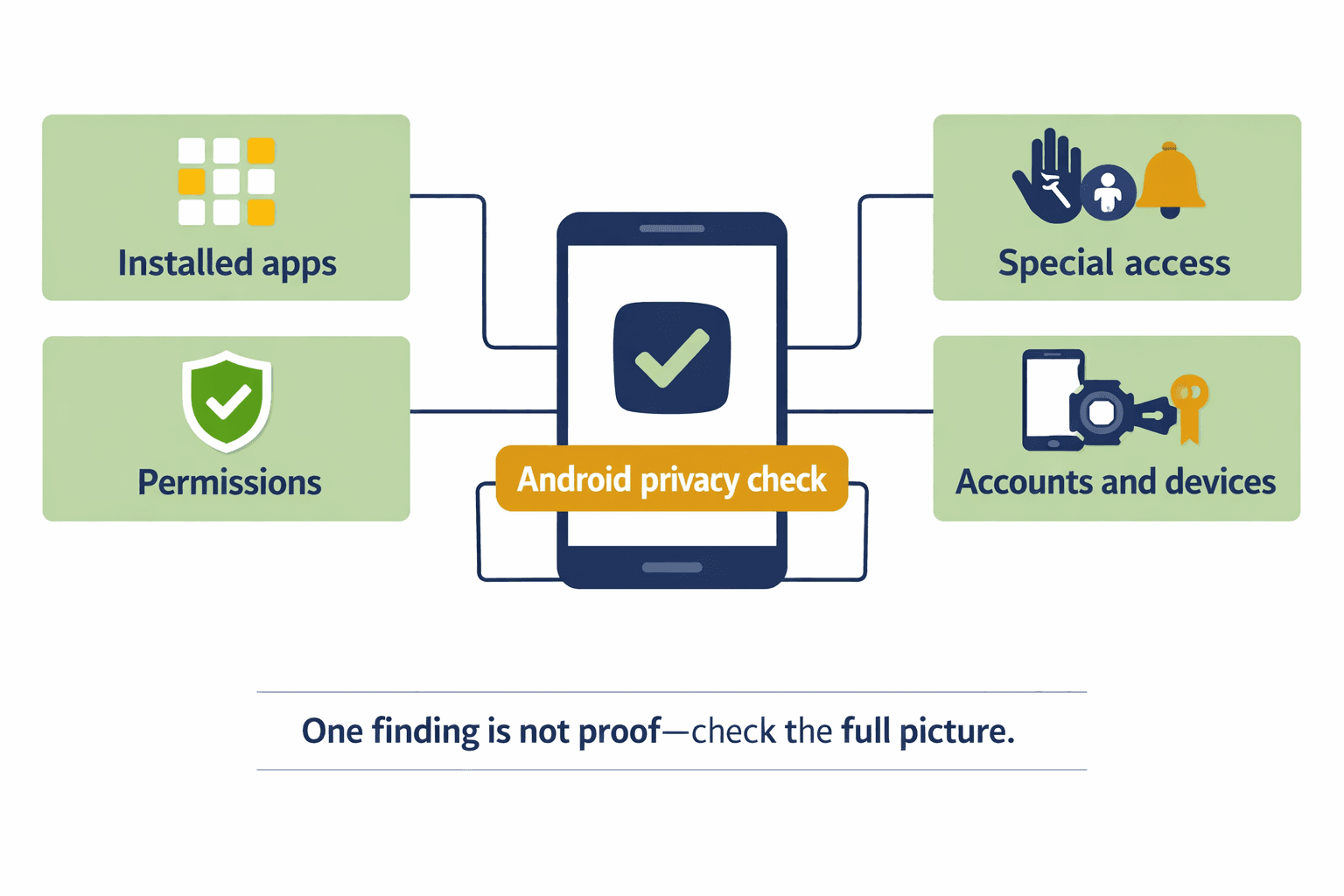
4. Check accounts and connected devices#
An app may be legitimate while the related account is not. Review the Google account and other important accounts signed in on the phone. Look for:
- Devices you do not recognize.
- Recent sign-ins from unfamiliar locations or times.
- Password or recovery-information changes you did not make.
- New forwarding, sharing, or synchronization settings.
- Security alerts you ignored or did not receive.
Do not rely on a location shown in an account alert as exact proof of where a person was. Network addresses and mobile connections can produce approximate or unexpected locations.
If you find suspicious account activity, change the password from a trusted device, sign out unfamiliar sessions where the service allows it, and enable multifactor authentication. Use a unique password and secure the recovery email address or phone number first.
How to distinguish authorized support from suspicious access#
Use the following questions to interpret what you find:
Was the app installed for a known reason?#
A remote desktop app installed during a support appointment, computer setup, or family-help session is more likely to have a benign explanation. Confirm that the person who helped you used the expected app and that the session is no longer needed.
Does the app connect to a computer you recognize?#
A list of your own computers or a known work device is less concerning than an unfamiliar computer. Still, remove old devices and access arrangements that you no longer use.
Is there evidence of account misuse?#
Unknown sign-ins, changed recovery details, or unexpected security notifications are more important than battery drain or an unfamiliar icon alone. Investigate account security separately from the app.
Does the app have more access than its purpose requires?#
A remote desktop client may need network access and account sign-in. Unexpected accessibility, notification, device-management, or overlay access should be explained before you leave it enabled. The exact requirements depend on the product and how it is being used.
Could another explanation fit the symptoms?#
Battery drain, overheating, data use, pop-ups, or slow performance can result from updates, poor signal, battery age, ordinary background activity, or a faulty app. None of these signs alone proves remote control or spyware.
What to do if remote access is unexpected#
If an active warning appears, identify and document the named app or service before changing it, unless an immediate safety concern requires a different response. Ending a session, turning off a special access setting, and uninstalling an app are separate actions. Take only the steps that are authorized and safe in your situation.
- Record what you found. Note the app name, developer, permissions, special access, connected account, active-session message, and approximate dates. Take screenshots if it is safe to do so.
- Avoid opening suspicious links or contacting an unknown operator. Do not provide passwords, verification codes, or screen-sharing consent to an unsolicited helper.
- Revoke unnecessary access. If you are confident the app is not needed and it is safe to make changes, turn off special access and ordinary permissions that do not have a valid purpose.
- Uninstall the app if appropriate. If the phone is managed by an employer, school, or family safety arrangement, confirm the consequences first.
- Secure important accounts. Use a trusted device when possible, change passwords, review active sessions, and enable multifactor authentication.
- Run the phone’s built-in security checks. Keep Android and apps updated, and use the device’s recognized app-store and security features. Do not disable protections to make an unknown tool work.
- Seek trusted help if the evidence remains concerning. A reputable technician, mobile carrier, organization administrator, domestic-abuse advocate, or law-enforcement resource may be appropriate depending on the situation.
If you suspect stalking or abuse, preserving evidence may be safer than immediately deleting an app. A factory reset can remove useful evidence and may not address a compromised account or another device.
What a permission audit can and cannot prove#
A permission review can show which apps have been granted particular forms of access. It can help you spot an app that has more privileges than expected and can support a conversation with a technician or account provider.
It cannot prove that:
- Nobody has accessed your accounts.
- No malicious code exists.
- A remote session is active at this moment.
- A phone has never been monitored through another device or service.
- Location data has not been shared through an account or carrier feature.
For that reason, investigate the phone, accounts, and physical-safety context together. A clean-looking permission list is reassuring, but it is not a guarantee that every form of surveillance or compromise has been ruled out.