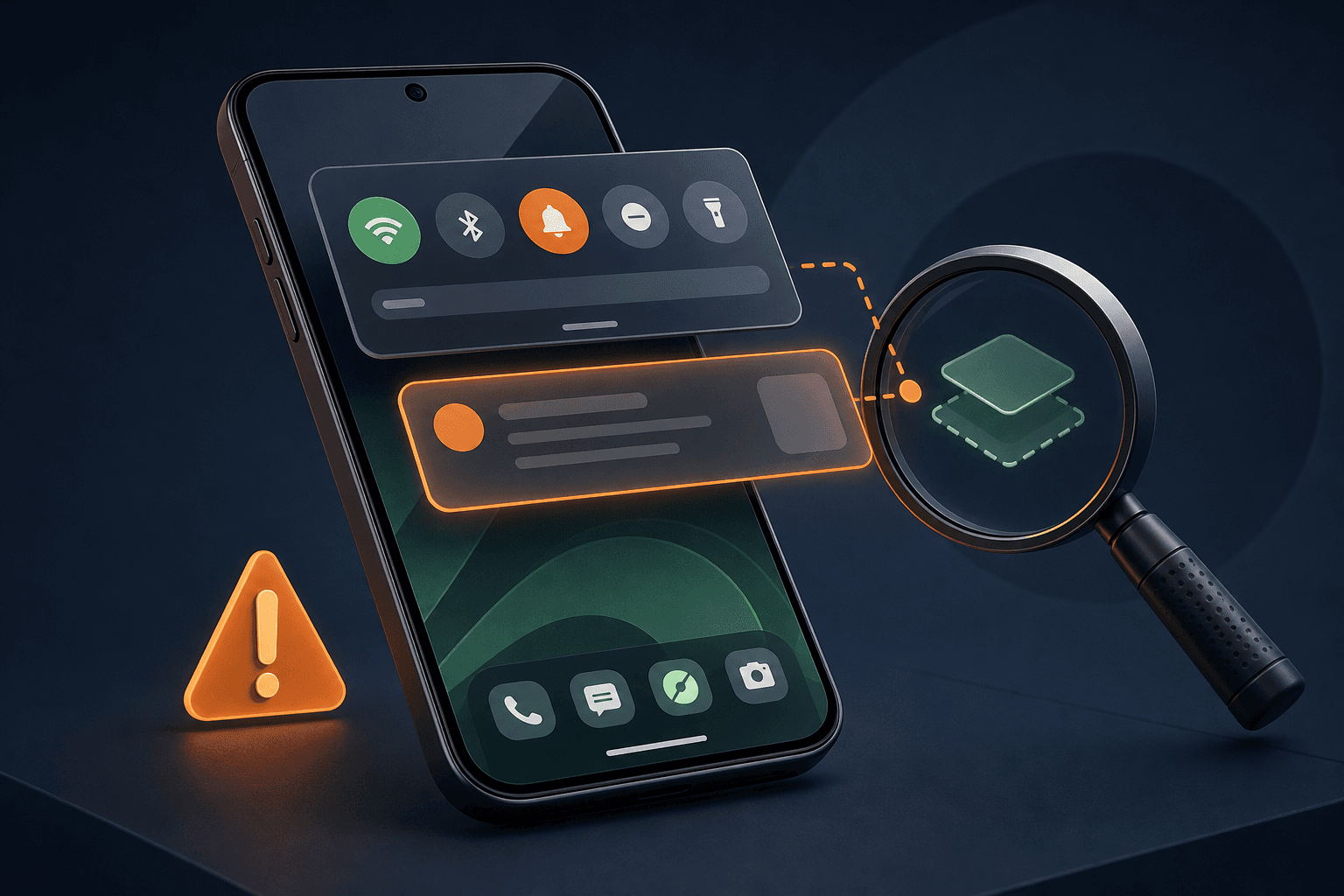
You may see an Android warning that another app is displaying over the screen, or find that a button will not respond while an unfamiliar bubble, filter, or floating control is visible. This is usually a screen overlay condition: one app is drawing content on top of another app.
An overlay can be completely legitimate. Chat bubbles, screen filters, accessibility tools, password managers, and other utilities may need this capability. However, an unexpected app with permission to appear over other apps deserves a closer look because an overlay can obscure what you are tapping or imitate part of another app's interface.
An overlay warning is not automatically a screen-recording warning, and it does not prove that your phone has spyware. A safer approach is to identify which app is using the capability, compare it with changes you recognize, and then review related permissions and account activity if something still seems wrong.
What an Android screen overlay is#
An Android screen overlay is content displayed by one app on top of another app. Depending on the app, it might appear as a floating button, chat head, dimming filter, cursor, assistive control, or small window.
Android may restrict a tap or show a warning when an overlay is active because the system cannot assume that the visible screen represents only the app you opened. A malicious or poorly designed overlay could make it harder to tell which control you are selecting.
The exact warning text and settings names vary by Android version and manufacturer. Recent devices commonly place this capability under a special-access area with a name such as Display over other apps, Appear on top, or Draw over other apps.
What an overlay does—and does not—mean#
An overlay permission means an app can place visual content over another app. By itself, it does not establish that the app can read every message, record your screen, or control the phone.
An overlay warning and a screen-recording indication are not necessarily the same event. Screen recording or screen sharing can involve separate screen-capture or media-projection approval, and Android versions may show those controls or indicators differently. If you are specifically concerned that someone is recording the screen, look for a separate Android screen-recording, casting, or media-projection indication and review the available system controls to identify the app involved. Do not treat the overlay warning alone as confirmation that recording has occurred.
Other capabilities that may matter include:
- Accessibility access
- Notification access
- Screen-recording or media-projection approval
- Device administrator privileges
- Camera, microphone, location, or contacts permissions
- Access to your Google or other online accounts
For a broader review, see our guide to checking Android app permissions for location, camera, and microphone access.
Common legitimate causes of overlays#
Before treating the warning as evidence of an attack, think about apps and features you intentionally use. Common examples include:
- Chat bubbles and messaging tools: A messaging app may show a floating conversation shortcut.
- Accessibility utilities: Assistive controls, switch-access tools, magnifiers, and other services may place controls on the screen. Our guide explains how to check Android accessibility services safely.
- Display filters: Blue-light filters, dimming tools, color-adjustment apps, and reading utilities may draw a layer over the display.
- Password managers and translation tools: Some utilities offer a floating shortcut or help identify fields in another app.
- Screen tools: Recording controls, game tools, floating shortcuts, and device-management utilities may use overlay access.
- Manufacturer features: Samsung, Pixel, and other Android devices may include built-in tools with different names and settings locations.
An app being unfamiliar to you is a reason to investigate, not proof that it is malicious. You may have forgotten installing it, or it may be part of another app's feature set.
When an overlay deserves a privacy check#
Take a closer look when several details do not fit your normal use. Examples include:
- The overlay appears when you are not using a feature that needs it.
- A recently installed or updated app has overlay access without an obvious reason.
- You see a floating control, dimmed screen, or prompt that you did not enable.
- The app has additional sensitive access that its purpose does not seem to require.
- Settings, security notifications, or account activity changed without your knowledge.
- The overlay returns after you disable it, especially after restarting the phone.
Battery drain, overheating, pop-ups, or unusual data use can have many ordinary causes. These symptoms should be considered alongside app details and recent changes, not treated as proof of surveillance.
How to check apps that can appear over other apps#
The setting path differs by device, but the process is usually similar.
- Open Settings.
- Use the Settings search field and search for display over other apps, appear on top, or draw over other apps.
- Open the matching special-access page.
- Review the apps listed as allowed to appear over other apps.
- Start with apps you do not recognize, recently installed apps, and apps whose purpose does not match the permission.
- Select an app to view its switch and turn the access off if you do not need it.
- Return to the original app and check whether the warning or unexpected overlay has stopped.
Some phones place the option under Apps, Special app access, or an advanced permissions section. Samsung devices may use Appear on top, while other manufacturers may use different wording. If the search produces no result, look under the app-management settings or consult the device maker's current support documentation.
Turning off overlay access is generally reversible. It may also disable a useful feature, such as a chat bubble or screen filter, so note what changes afterward.
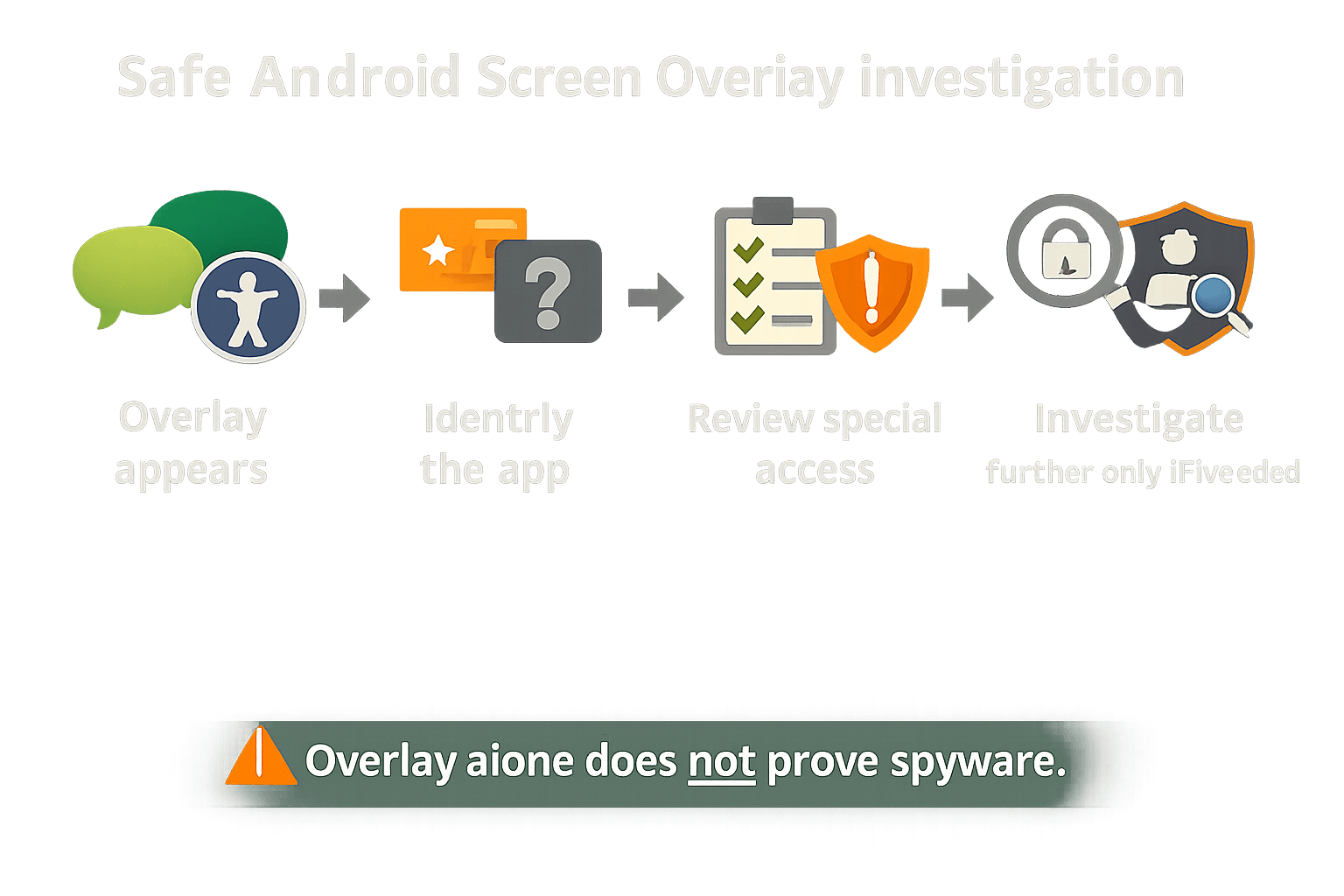
How to investigate without assuming spyware#
Use the overlay list as a starting point rather than a verdict. For each unfamiliar app, record:
- The app's name and developer
- When you remember installing or updating it
- Its stated purpose
- Whether it came from Google Play, your device manufacturer, or another source
- Other sensitive permissions or special access it holds
- Whether disabling overlay access changes the behavior
Then compare the result with your own actions. For example, a screen-dimming utility that stops working after overlay access is disabled is different from an unknown app that continues displaying prompts and also has accessibility access.
You can also review the app's permissions through Android's app settings and compare its behavior with its intended function. If the app is clearly unwanted and you are confident it is safe to remove, uninstalling it through the normal app settings may be appropriate. Do not install an unfamiliar “overlay detector” from an unknown website, and do not disable Android security protections to make an app work.
If you find broader signs of unwanted monitoring, continue with a careful guide to checking for spyware on Android. That process should still be treated as an investigation: no single permission review or security scan can identify every form of surveillance.
What to do if the overlay keeps returning#
If the overlay reappears after you disable access, work through these steps:
- Restart the phone and check whether the behavior returns before opening your usual apps.
- Review recently installed and recently updated apps.
- Check both overlay access and other special access, especially accessibility and notification access.
- Install Android and app updates from trusted sources.
- Run Google Play Protect or the security scan included with your device, if available.
- Save relevant information before removing an app, including its name, permissions, warning text, and approximate times.
- If the issue continues, contact the device manufacturer, your mobile provider, or a trusted security professional.
If you are concerned that another person may react badly to changes on the phone, avoid confronting them based only on an overlay warning. Use a safer device to seek help, protect important accounts, and consider your personal circumstances before changing settings that could be noticed.