If you hear a recording announcement, see a recording control during a call, or discover an audio file you do not recognize, it is reasonable to check what happened. But one sign rarely identifies the cause by itself.
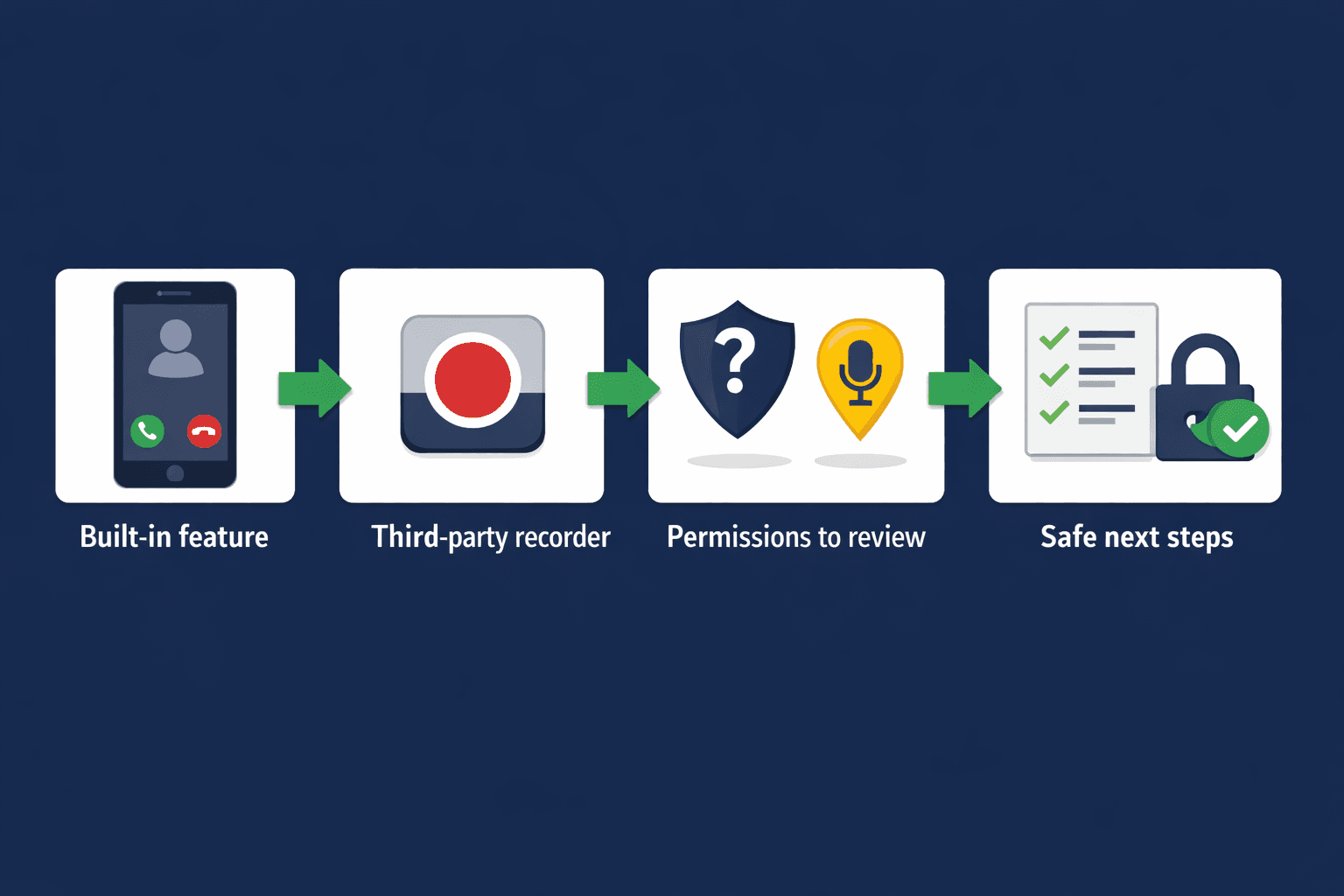
Recording a call on Android can involve the phone’s built-in Phone app, a manufacturer feature, an Android call-recording app, a calling service, or—less commonly—software with intrusive access. The safest investigation starts with the phone’s own call controls and installed apps rather than assuming that spyware is responsible.
This guide explains what to check, what permissions can and cannot prove, and what to do if a recording appears to be unexpected.
What call recording on Android can mean#
There are several different possibilities:
- Built-in call recording: Some Phone apps and manufacturers provide a recording option for certain calls, devices, regions, or account types.
- A third-party recording app: An app may advertise call recording, transcription, voice notes, or business call management.
- A calling or communications service: Calls made through an internet calling service may be handled differently from ordinary carrier calls.
- A shared or managed device: A work profile, family-managed phone, or device administrator may affect which apps and controls are available.
- Suspicious software or account access: This is possible, but it should not be concluded from battery drain, microphone access, or an unfamiliar audio file alone.
Availability and behavior vary by Android version, phone manufacturer, Phone app, carrier, and local law. A recording option may be absent on one phone and available on another.
Built-in recording versus an Android call recording app#
The first useful distinction is whether recording is part of the phone’s normal calling software or comes from an installed app.
| What you notice | More likely explanation | What to check |
|---|---|---|
| A recording button or announcement appears in the call screen | Built-in Phone app or manufacturer feature | Call-screen controls and Phone app settings |
| Recordings are saved in a familiar call-recordings folder | Built-in feature or previously configured app | File name, location, and creation time |
| A recently installed app mentions calls, voice, transcription, or communications | Third-party recording or call-management app | App details, permissions, and developer information |
| The call uses an internet calling service | Service-specific recording behavior | The service’s settings, notices, and account sessions |
| There is no recording control, app, or file, but you are concerned | No proof of recording yet | Review evidence before changing settings or confronting anyone |
A built-in recorder generally appears within the Phone app or the call interface. A third-party app may instead offer its own notification, accessibility access, notification access, or other special access. These clues are useful for narrowing the possibilities, but none proves that a person is secretly listening to every call.
How to check whether call recording is active#
Use these checks in order. Menu names differ, so look for equivalent wording rather than an exact path.
The most useful indicators are:
- A recording announcement or visible recording control during the call. This often points to a supported Phone app or device feature, although it does not by itself prove that spyware is involved.
- A call-recording setting in the Phone app. Check whether recording is enabled automatically or manually and which calls it covers.
- An identifiable audio file. Review its name, location, creation time, and associated app where that information is available.
- An installed app or calling service that handles calls, recording, transcription, or communications. Check its publisher, purpose, permissions, and account settings.
These are stronger clues because they connect recording activity to a specific feature, file, app, or service. Microphone permission, a microphone indicator, battery drain, heating, or increased data use are weaker clues: they may justify further investigation, but they do not establish that a phone call was recorded.
1. Check the call screen and Phone app settings#
During or after a call, look for a recording button, a recording notice, or a call-details option related to recorded audio. Then open the Phone app and review its settings for terms such as:
- Call recording
- Record calls
- Automatic recording
- Recorded calls
- Call recording announcements
If recording is enabled, check whether it applies to all calls, selected contacts, unknown numbers, or only calls started manually. Also check where recordings are stored and whether they can be automatically deleted.
A recording announcement or visible control is not the same as evidence of spyware. In many cases, it indicates a supported feature of the Phone app or device.
2. Look for the recording file without opening unknown apps#
Open the phone’s file manager and search for terms such as record, call, or audio. Review the file’s location, creation date, and associated app if the file manager provides that information.
A file in a standard call-recordings folder is consistent with a built-in feature. A file in an unfamiliar folder may deserve more investigation, but its location alone does not identify the software that created it. Avoid uploading a private recording to an unknown “analyzer” or installing an app that promises to reveal who recorded you.
3. Review recently installed and unfamiliar apps#
Open the installed-apps list in Android Settings. Sort by recently installed or recently updated if your phone offers that option. Pay attention to apps that you do not recognize or that describe themselves as:
- Call recorders
- Voice recorders
- Transcription tools
- Dialers or alternative Phone apps
- Communication or call-center tools
- Remote-support or device-management software
Open an app’s details to check its publisher, installation source, permissions, and whether you actually need it. If the app came from outside Google Play, treat that as a reason for extra caution—not automatic proof of malicious behavior.
For a broader review, use the site’s guide to find hidden apps on Android. Hidden or unfamiliar apps can matter, but a hidden app is not necessarily a call recorder.
4. Review relevant permissions and special access#
Android’s permission manager can show which apps have access to sensitive functions. Review microphone access first, then consider phone, contacts, notifications, accessibility, and other special-access areas that your device exposes.
The exact path varies, but it is commonly found under Settings > Privacy, Security & privacy, or Apps > Permission manager. You can also open an individual app’s details and select Permissions.
A microphone permission means an app may be allowed to use the microphone under certain conditions. It does not prove that the app recorded a phone call, recorded continuously, or sent audio to another person. Some legitimate apps need microphone access for voice messages, video meetings, accessibility features, or voice search.
Use this Android app-permissions guide to review permission decisions more broadly.
5. Check accessibility and device-management access#
Accessibility access can allow an app to read or interact with parts of the screen. Device-management or work-profile controls can also change what an app is allowed to do. These capabilities have legitimate uses, but an unfamiliar app with powerful access deserves attention.
Review Accessibility, Device admin apps, VPN, Notification access, and other special-access menus if they are present on your phone. Do not disable a work, family-safety, or accessibility service until you understand who configured it and what disabling it might affect.
The site’s guide to checking Android accessibility services safely explains why this permission deserves a careful, evidence-based review.
Why microphone access does not automatically prove call recording#
Modern Android privacy controls can show microphone use or display a microphone indicator. That is useful information, but it needs context.
An app using the microphone could be:
- Recording a voice memo
- Handling a video or internet call
- Providing speech-to-text
- Supporting an accessibility feature
- Responding to a voice command
- Recording a call through a supported feature
The indicator does not necessarily tell you what audio was saved, whether a call was included, or where data went. Look at the app’s identity, the time of access, the permission status, and the activity you were performing at that moment.
Likewise, battery drain, heating, increased mobile data, or an unfamiliar process can have many explanations. These signs may justify an Android privacy audit, but they are not proof of call recording or surveillance by themselves.
What to do if recording is unexpected#
If you find a recording or setting you did not expect, take proportionate steps:
- Preserve basic information. Note the app name, file location, date, permission status, and any recording notice. If personal safety is a concern, do this from a safer device or account.
- Check whether another user configured the phone. Shared devices, work profiles, parental controls, and accessibility tools can explain unfamiliar settings.
- Revoke unnecessary permissions. Remove microphone or other access from apps that do not need it. Avoid changing permissions that a trusted service requires without checking the consequences.
- Uninstall an app you do not need. Use Android’s normal uninstall controls. Do not install a “cleaner” or spyware-removal APK from an unknown source.
- Run Google Play Protect and install available security updates. These are useful defensive steps, but neither guarantees that every form of monitoring has been found.
- Secure important accounts if compromise is possible. From a trusted device, change passwords, review signed-in devices, and enable two-step verification where available.
- Ask for help if the situation may involve abuse or retaliation. Do not confront a suspected person or remove software if doing so could make you less safe.
If several unrelated warning signs appear together, read the site’s guide to detecting spyware on Android. It is still important to treat any checklist or scan as one source of evidence, not a guarantee.
Legal and consent considerations#
Call-recording laws differ by country, state, and situation. Some jurisdictions require one-party consent; others require everyone on the call to consent. Workplace, customer-service, and cross-border calls can introduce additional rules.
A phone’s recording announcement may help communicate that recording is occurring, but it does not by itself answer every legal question. Before recording someone else, check the law that applies to the participants and the purpose of the call. If the recording may be used in a dispute, ask a qualified local legal professional for advice.
When to perform a broader Android privacy audit#
A call recording that clearly came from a built-in feature may require only a settings change. A broader audit is more appropriate when you also see multiple unexplained changes, such as:
- An unfamiliar app with powerful permissions
- Unknown accessibility, device-admin, VPN, or notification access
- Account sign-ins or security alerts you do not recognize
- Unexpected changes to call forwarding or other phone settings
- Someone else has had repeated physical access to the phone
Even then, investigate several explanations before concluding that the phone is being monitored. A privacy audit can identify risky configuration and unwanted apps, but it cannot prove that every recording mechanism or account compromise has been eliminated.