If you downloaded an APK outside Google Play, do not install it just to find out whether it is safe. An APK can be inspected before installation, but no single APK virus scanner can prove that a file is harmless.
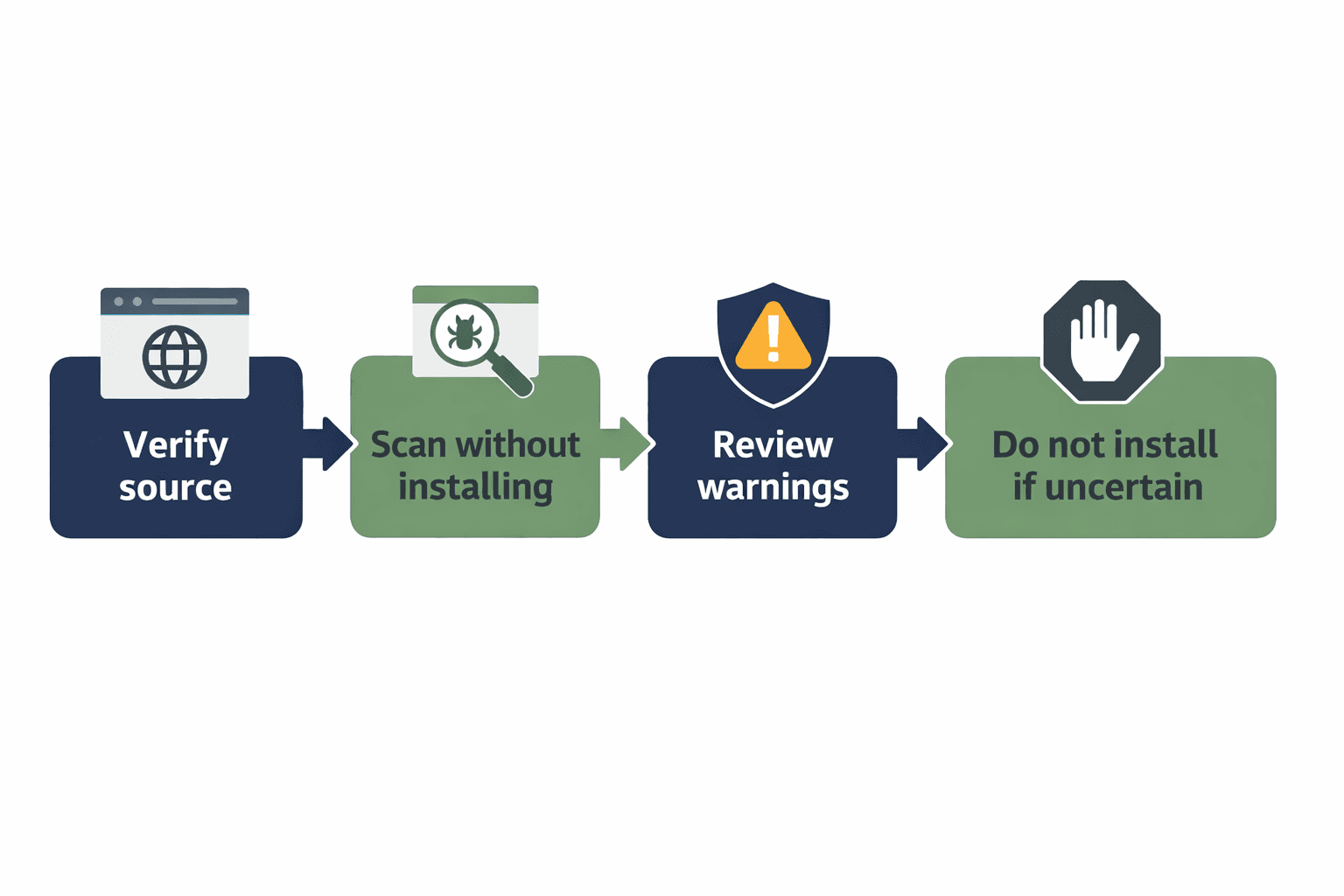
The safest approach is to combine several checks: consider where the file came from, scan it without opening or installing it, review the requested permissions, and let Android's built-in protections evaluate the app when available. If the source or behavior seems suspicious, deleting the file is safer than trying to make it work.
What an APK scan can and cannot reveal#
An APK is the package file used to install an Android application. A scanner may compare the file with known malware signatures, examine its code, or submit it to multiple detection engines. These checks can identify known threats and suspicious characteristics.
They cannot reliably prove that:
- The developer is trustworthy.
- The app will behave safely after a future update.
- The file has not been modified after it was scanned.
- The app will not collect more data than you expect.
- A clean result means the phone is free of spyware or other compromises.
A file scan is about the file. It is not the same as a full privacy audit or an investigation of an app that is already installed. If you already installed something suspicious, review our guide to finding hidden apps on Android and look for changes in permissions, accessibility access, device administration, or other sensitive settings.
Start with the download source#
The source is often more important than the file name. An APK from an official developer website may be legitimate, but even then you should confirm that the website and developer are genuine. Files shared through an unknown message, an unofficial mirror, a cracked-app forum, or a shortened link deserve much more caution.
Before scanning, ask:
- Did you expect this download?
- Does the website belong to the developer or a recognized distributor?
- Does the app have a normal product page, privacy policy, and support information?
- Is the file being advertised as a modified, paid, or unlocked version?
- Is someone pressuring you to install it urgently?
- Does the file name contain a random string, misleading brand name, or unusual extension?
A familiar icon or convincing app name is not proof of authenticity. Attackers can copy both.
How to check an APK before installing it#
1. Keep the file unopened and uninstall nothing yet#
Do not tap the APK and do not approve an installation prompt while you are still deciding whether to trust it. If Android asks you to allow a browser or file manager to install unknown apps, treat that as an installation permission, not a safety check.
Android settings names vary by version and manufacturer. The relevant control is usually associated with Install unknown apps and is listed per source app, such as a browser or file manager. You should not enable it merely to scan a file.
2. Check the file name, size, and location#
Use your file manager to inspect basic details without launching the APK. A file in your normal Downloads folder is not automatically safe, but a file that appeared unexpectedly or was saved by an unrecognized app deserves extra scrutiny.
Be cautious if:
- The extension is hidden or does not end in
.apk. - The file claims to be an image, invoice, or document but behaves like an installer.
- Several copies have slightly different names.
- The download came from a pop-up, unsolicited message, or redirected page.
- The app is much larger or smaller than the developer's official version without a clear reason.
These signs are clues, not malware findings. A normal-looking file can still be dangerous, and an unusual file name can be harmless.
3. Scan the file without installing it#
A reputable malicious file scanner may allow you to submit an APK for analysis. Some services use several detection engines; others perform one vendor's local or cloud-based analysis. Follow the service's instructions and confirm that it accepts APK files.
Think about privacy before uploading. An APK may contain proprietary code, private test software, embedded credentials, or information about an organization. Do not upload confidential files to a public scanning service unless you understand how submissions are stored and shared.
A scanner result needs interpretation:
| Result | What it means | Sensible next step |
|---|---|---|
| Multiple engines detect malware | Strong reason to treat the file as unsafe | Do not install it; delete it and report the source if appropriate |
| One engine detects a threat | Could be malware, a false positive, or a potentially unwanted component | Do not install until the detection and source are independently clarified |
| No engines detect a threat | No known detection was returned at that time | Continue checking the source, permissions, signature, and app behavior |
| The scanner cannot analyze it | The file may use an unsupported format or be damaged | Do not bypass protections just to install it |
4. Let Google Play Protect evaluate the installation#
Google Play Protect is Android's built-in app security service. It can warn about or block some harmful applications and may check apps installed from outside Google Play. The exact screens and available controls depend on the Android version, device manufacturer, account, and Google services installed.
Look for Play Protect through the Google Play Store's security section or your phone's security and privacy settings. Keep its scanning features enabled unless a qualified support professional has given you a specific reason to change them.
Play Protect is an additional layer, not permission to ignore the source of an APK. A new or targeted threat may not yet be detected, and Play Protect does not turn an unknown developer into a trusted one. For more background, see our explanation of what Google Play Protect does and where its limits are.
5. Review permissions after installation only if the source is trusted#
Permission review is useful when you are evaluating an app you have decided is legitimate. It is not a substitute for scanning an untrusted APK.
A calculator that requests continuous location, SMS access, accessibility access, or permission to install other apps needs a clear explanation. Some legitimate apps have unusual requirements, but the request should match the app's purpose and documented features.
You can use our guide to check Android app permissions for location, camera, and microphone access when reviewing an installed app. Remember that permissions show what an app can request or access; they do not reveal every form of data collection or prove that spyware is present.
What to do if the APK looks suspicious#
If a scan detects malware or the source cannot be verified:
- Do not install the APK or enter information into an app that came from it.
- Delete the file from Downloads and empty the file manager's trash if it has one.
- Remove the message, browser download, or website shortcut that led to it if appropriate.
- Run the available Play Protect check and install Android security updates through the normal system settings.
- If you installed it already, disconnecting from sensitive accounts may be prudent while you investigate, but avoid actions that could increase personal risk.
- Change passwords from a different trusted device if you entered them into the suspicious app.
- If you suspect targeted monitoring or domestic abuse, prioritize your safety and seek help from a trusted support service before confronting anyone or removing evidence.
An unfamiliar app, battery drain, overheating, or increased data use alone does not prove that someone is spying on you. These symptoms can have ordinary causes, including updates, poor reception, backup activity, or a misbehaving app.
Why a clean result is not proof of safety#
Malware scanners work from the evidence available to them. A threat may be too new, hidden behind server-controlled behavior, packaged in a way the scanner cannot fully inspect, or absent from the scanner's detection data. The scan may also evaluate the uploaded file rather than the exact file later downloaded or modified on the phone.
Treat a clean result as one favorable signal, not a guarantee. The strongest decision is usually to avoid an APK when the download source is questionable, the app is a cracked or modified version, or the requested access does not fit its purpose.
When a broader Android privacy check is appropriate#
An APK check answers one narrow question: “Is this particular file safe enough to consider?” It does not answer whether your accounts, installed apps, location sharing, or phone settings are secure.
If you are investigating an existing concern, start with a broader review of installed apps and permissions. Our guide to detecting spyware on Android explains why no single symptom or detector identifies every kind of surveillance.
If the concern involves an account, review sign-in activity and enable strong account protection. If it involves a physical tracker, that requires a different process from scanning an APK. Keep those situations separate so that a file scanner does not create false reassurance.