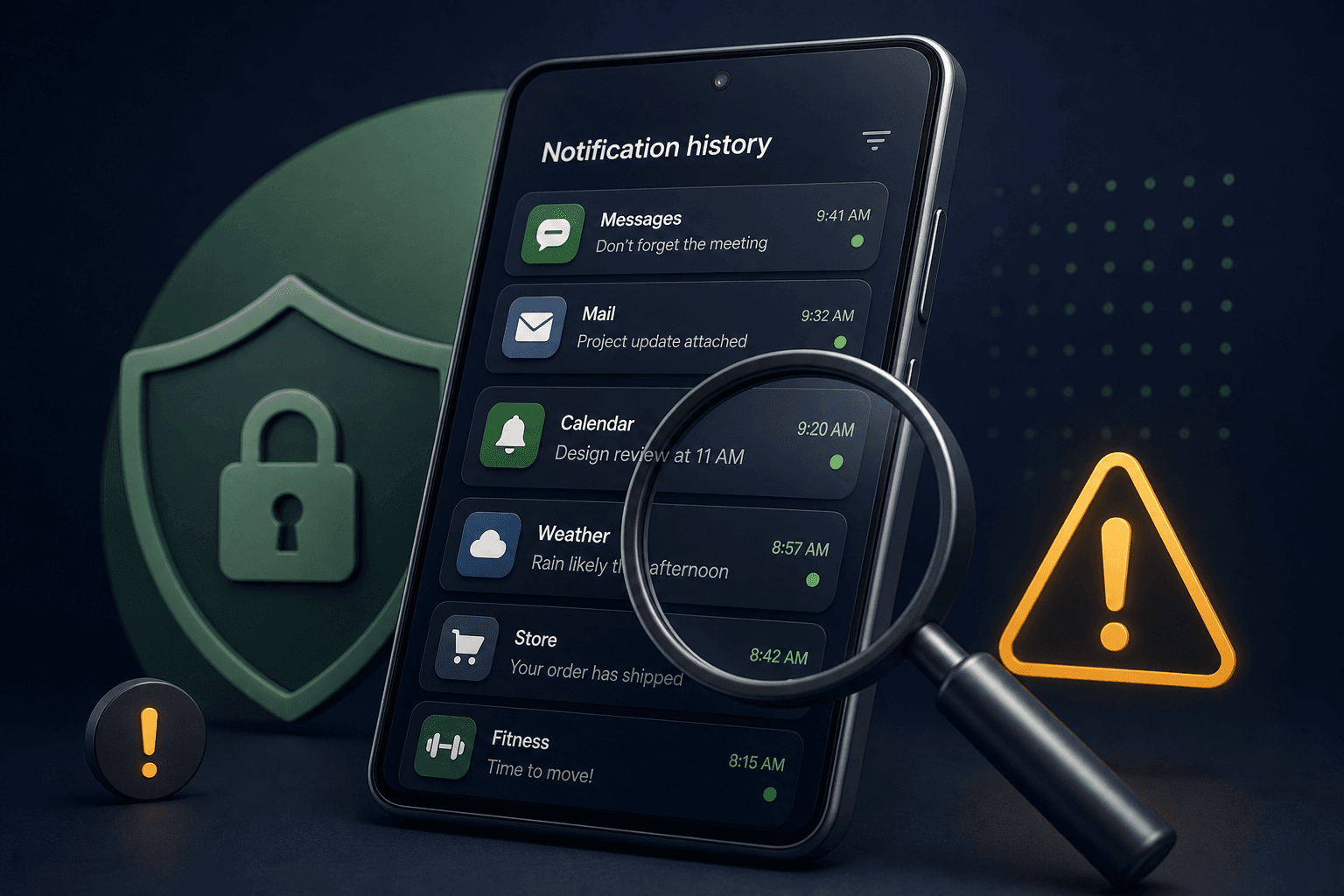
If a notification disappeared before you could read it, Android may be able to show it again through Notification history. The feature keeps a recent record of notifications from apps, although the exact menu name and retention period can vary by Android version, phone manufacturer, and app.
On many Android phones, open Settings, search for Notification history, and open the matching result. Turn on Use notification history or a similarly named switch. After it is enabled, return to this screen to review recent notifications.
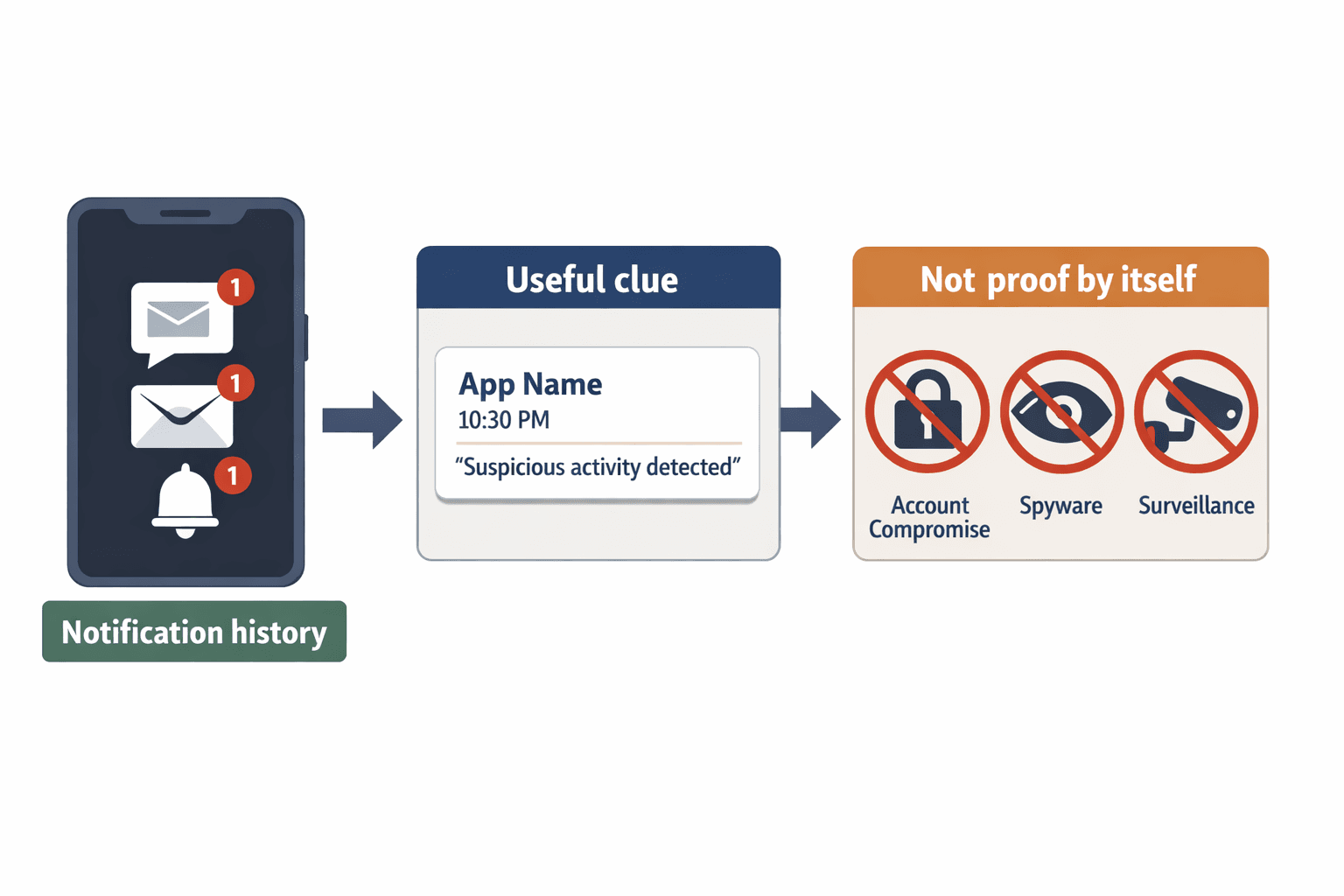
One important limitation: enabling notification history usually does not recreate notifications that disappeared before the feature was turned on. The log is also evidence that a notification was generated—not proof that someone is monitoring your phone or accessing your accounts.
What Android notification history records#
Depending on the phone and Android version, the notification history log may show:
- The app that posted the notification.
- The notification title and some of its text.
- A time or approximate order for recent notifications.
- Notifications that were dismissed or cleared.
- Notifications from apps that are no longer visible in the notification shade.
Some notifications may appear with limited text because of privacy settings, sensitive-content controls, notification-channel settings, or the way the app created the notification. A notification history log is not a complete activity timeline and does not necessarily show every event inside an app.
How to view notification history on Android#
Menu labels differ, so the Settings search tool is often the quickest route.
- Open Settings.
- Tap the search icon or search field.
- Search for Notification history.
- Open the result with that name or a closely related name.
- Turn on the notification-history switch if it is disabled.
- Return to the same page later to review recent entries.
On some phones, the path may be similar to Settings > Notifications > Notification history. If you cannot find it, search Settings for history, notifications, or recent notifications.
The feature may only begin recording after you enable it. Do not assume that an empty screen means no notifications were ever sent.
Where Samsung notification history may appear#
Samsung Galaxy phones use Samsung’s version of the Android settings interface, so the path can vary between One UI releases and models. Start with:
Settings > Notifications > Advanced settings > Notification history
If that path is not present, use the Settings search field and search for Notification history. A Samsung phone may also show related controls for notification pop-ups, notification categories, or recently sent notifications. Those controls are useful, but they are not always the same as a complete notification-history log.
What to do when notification history is unavailable#
Notification history may be missing or behave differently for several ordinary reasons:
- The phone runs an Android version or manufacturer interface without the feature.
- The feature is disabled and has not collected any entries.
- The device has recently been reset or the history was cleared.
- The phone’s Settings app uses a different label or menu location.
- Battery or system-management software has changed how notifications are displayed.
- The app sent an in-app message rather than a system notification.
First, update the phone through its normal system-update screen, then search Settings again. Avoid installing an unknown notification-history app merely because the built-in feature is unavailable. Third-party apps that promise to capture every notification may need broad notification access, which can expose the content of messages, two-factor authentication codes, and other private alerts.
If an unfamiliar app appears in the log, do not immediately conclude that it is spyware. Use Android’s app settings to inspect its permissions, installation source, notification access, and recent activity. Our guide to checking Android app permissions explains how to review access to location, the camera, the microphone, and other sensitive features.
How long does Android keep notification history?#
Notification history is intended as a short-term convenience feature, not a permanent archive. The amount of history retained can depend on the Android release, device maker, and system implementation. Older entries may disappear automatically, and clearing device data or resetting the phone can remove them.
For that reason, save or document a concerning entry when you see it. Record the app name, approximate time, notification wording, and what action you took. Do not forward private notification content unnecessarily, especially if it includes account codes or personal messages.
How to interpret an unfamiliar notification safely#
A notification can provide a useful clue, but it needs context. Work through these questions:
- Which app posted it? Check the app name and its installed-app entry.
- Was the wording expected? Password-reset alerts, sign-in warnings, and delivery notices can be legitimate—or can indicate an account problem.
- Does the app have a reasonable explanation? A calendar, messaging, banking, or device-management app may generate alerts that look unfamiliar at first.
- Were you expecting an action at that time? Consider shared devices, automatic updates, scheduled tasks, and account sessions on another device.
- Does the app have unnecessary access? Review permissions and special access rather than relying on the notification alone.
If the notification identifies an app you do not recognize, you can also read our guidance on how to find hidden apps on Android. Do not confront another person based only on an ambiguous notification if doing so could put you at risk.
Notification history is not the same as spyware evidence#
These clues are related but different:
| Finding | What it may tell you | What it does not prove |
|---|---|---|
| Notification history entry | An app or service generated a notification | That someone read your phone or is monitoring you |
| Sensitive app permission | An app can access a protected feature | That it actually misused the permission |
| High data usage | An app transferred more data than expected | That the transfer was surveillance |
| Unknown account-security alert | An account may have experienced a sign-in or security event | Who caused it without checking account records |
| Spyware indicator | A combination of technical and behavioral evidence may warrant investigation | That one symptom identifies spyware |
Battery drain, overheating, unfamiliar apps, and notification history should be evaluated together with stronger evidence. For a broader, cautious checklist, see how to detect possible spyware on Android. No single setting, scan, or notification log can guarantee that a phone is safe.
What to do if a notification suggests account misuse#
If you see a sign-in warning, password-reset message, or security alert that you did not initiate:
- Do not tap links in the notification until you confirm the alert through the official app or by typing the service’s known website address yourself.
- Change the account password from a device you trust.
- Review active sessions, recovery details, and two-factor authentication settings.
- Contact the service through its official support channel if access has changed.
- Preserve the notification details without sharing authentication codes publicly.
Our guide to Google account security and two-factor authentication on Android can help with the account-review side of this process.
If you believe another person may react dangerously to your investigation, prioritize your physical safety. Consider using a trusted device, a private account, or help from a qualified local support organization before making changes that could alert someone else.