If you reuse passwords, store them in notes, or rely on memory for every account, a password manager for Android can make your accounts easier to protect. It stores encrypted credentials in a password vault, creates strong unique passwords, and can fill them into websites and apps when you approve the request.
The important limitation is that a password manager protects credentials; it does not prove that your phone is free of spyware, stop every form of phishing, or secure an account after someone has already obtained access. Choosing a provider carefully and configuring Android's autofill and recovery options matters just as much as installing the app.
What a password manager does on Android#
A password manager is an app or service that stores login details in an encrypted vault. You normally unlock the vault with a master password, device authentication, or another approved method. The manager can then help you:
- Create a different password for every important account.
- Store usernames, passwords, passkeys, recovery codes, and secure notes.
- Fill credentials into supported websites and applications.
- Warn you when you are about to save or use a credential in an unexpected place, depending on the provider.
- Synchronize your vault across approved devices, if you enable synchronization.
The main security benefit is reducing password reuse. If one website suffers a breach, a unique password limits how far that exposed credential can be reused elsewhere. This does not eliminate the need for two-factor authentication, software updates, or careful account recovery.
A password manager may be cloud-based, locally stored, or a combination of both. Cloud synchronization is convenient, but it means you should understand what data leaves the phone, how it is encrypted, and how a new device can regain access.
Password manager versus Android's other security tools#
These tools solve different problems. Confusing them can leave an important gap.
| Tool | What it primarily protects | What it does not do |
|---|---|---|
| Password manager or Android password vault | Login credentials, passkeys, recovery codes, and secure notes | Detect every malicious app or secure a compromised account automatically |
| App lock | Access to selected apps after the phone is unlocked | Replace strong account passwords or protect credentials already copied elsewhere |
| Secure Folder | A separated space for selected apps and files on supported devices | Act as a dedicated password manager for every account |
| Google Account security controls | Account sign-in, devices, sessions, and additional verification | Manage all passwords stored in third-party services |
| Permission settings | What installed apps can access, such as location or the microphone | Prove that an app is trustworthy or detect every form of surveillance |
For a broader account review, use the existing guide to review Google Account security and two-factor authentication on Android. If you are concerned about an app rather than a password, the Android app permissions guide is a better starting point.
How Android autofill and credential storage work#
Android can allow a selected credential provider to offer saved passwords or passkeys in apps and browsers. The exact labels and menu locations vary by Android version, phone manufacturer, browser, and the provider you install. Look in Settings for terms such as Autofill, Passwords, Passwords and accounts, or Credential Manager.
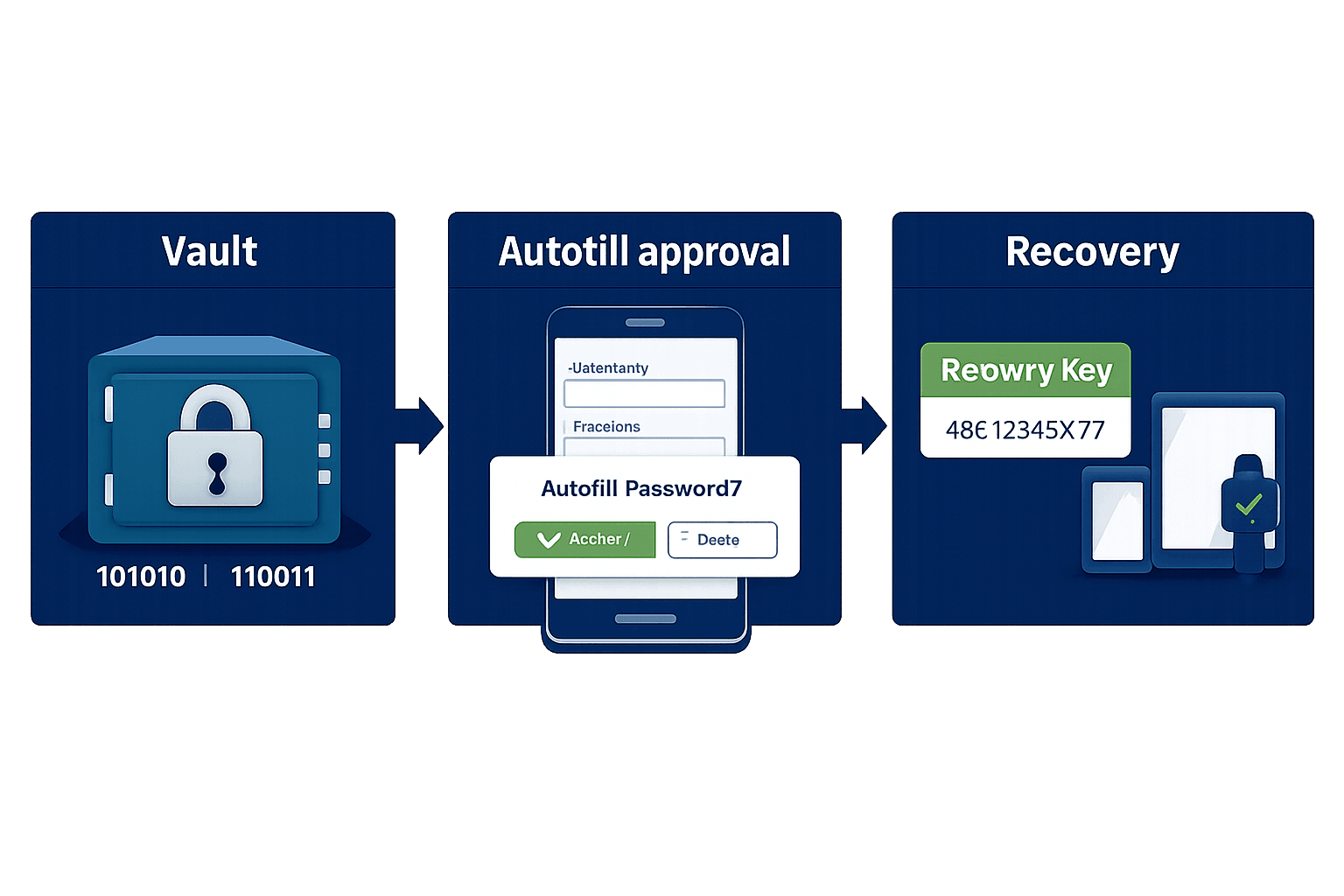
When autofill is working, you may see a suggestion above the keyboard or beside a sign-in field. The provider may ask you to confirm with a fingerprint, face unlock, device PIN, or vault password before filling the credential.
Treat autofill as a convenience that needs supervision:
- Install the password manager only from a trusted official store or the provider's verified distribution channel.
- Open Android Settings and check which service is selected for passwords or autofill.
- Remove old or unfamiliar autofill services that you no longer use.
- Keep the password manager, browser, Android system, and Google Play system components updated.
- Confirm the app or website name before accepting a fill suggestion.
- Test the process with a low-risk account before moving all credentials into the vault.
A password manager should not need unrestricted access to everything on your phone simply because it stores passwords. Review the permissions and special access it requests. A provider may explain why a particular access is needed, but you should still be able to make an informed choice.
What to evaluate before choosing a password manager#
There is no single provider that is right for every Android user. Compare the security model, recovery options, usability, and privacy policy rather than choosing solely because an app has a familiar name.
1. Encryption and vault access#
Look for a clear explanation of how your vault is encrypted, where encryption and decryption occur, and which information the provider can access. Marketing terms such as “military-grade encryption” are not enough by themselves.
You should also understand what happens if you forget the master password. A service that cannot recover your vault may provide stronger protection against provider-side access, but it can also make permanent lockout possible. A service with account recovery may be easier to use while creating another security consideration.
2. Account recovery#
Recovery is part of the security design, not an afterthought. Before importing every password, find out whether recovery depends on:
- A recovery code.
- A trusted device.
- An email address or phone number.
- A separate account password.
- A designated emergency contact.
- A support-assisted process.
Store recovery information somewhere safe and separate from the phone when appropriate. Do not take a screenshot of a recovery code and leave it in an automatically synchronized photo library unless you understand who can access that library.
3. Autofill behavior#
A good Android password manager should make it clear when it is about to fill a credential. Check whether you can require biometric or device authentication, disable autofill for selected apps, and review saved entries.
Do not approve a prompt simply because it appears near a familiar-looking sign-in screen. Phishing pages can imitate legitimate services. Open the service from a trusted bookmark or the official app when you need to verify where you are signing in.
4. Transparency and maintenance#
Look for understandable documentation, a privacy policy that explains data collection, a way to export your data, and a history of security updates. Independent security reviews can be useful, but check what was actually assessed and when. A review of a mobile app may not cover the provider's servers, browser extensions, desktop applications, or recovery process.
5. Portability#
You should be able to export or migrate your data in a documented format. Before relying on a service, learn whether export is available, whether the export is encrypted, and how to delete the unprotected export afterward.
How to set up a password manager safely#
Use this sequence instead of immediately importing every account.
- Update the phone first. Install available Android and app security updates from trusted sources.
- Create a strong vault password. Make it long and unique. Do not reuse it for email, banking, or the account that controls recovery.
- Secure the recovery channel. Protect the email account or phone number used to recover the password manager.
- Enable two-factor authentication where available. Prefer a security key or authenticator-based method when it fits your situation.
- Turn on device protection. Use a strong screen lock and keep biometric unlock enabled only if it is appropriate for your circumstances.
- Add the most important accounts first. Start with email, financial accounts, cloud storage, and social accounts that can reset other passwords.
- Replace reused passwords. Generate unique credentials rather than changing every password to a small variation of the old one.
- Save recovery codes carefully. Keep an offline copy in a secure place if the service provides them.
- Review autofill. Confirm the selected provider and test it with a noncritical account.
- Remove temporary copies. Delete password lists, screenshots, exported files, and notes that are no longer needed.
Your primary email account deserves special attention because it can often reset other accounts. Secure it before using it as the recovery address for a new password vault.
What if the phone may be compromised?#
Do not assume that installing a password manager will clean or secure a phone that may already be compromised. If you suspect unauthorized access, avoid typing new sensitive passwords into the device until you have considered a safer device or a trusted support channel.
Use a separate trusted device, if available, to:
- Change the most important account passwords.
- Review active sessions and signed-in devices.
- Revoke unfamiliar third-party access.
- Confirm recovery email addresses and phone numbers.
- Enable or replace two-factor authentication methods.
- Contact financial institutions directly if financial information may be exposed.
For concerns about spyware or unusual access, follow the separate guide on how to detect spyware on Android. Battery drain, overheating, unusual data use, or an unfamiliar app can have ordinary explanations and do not prove surveillance on their own.
If there may be a controlling or abusive person with access to the phone, changing passwords or removing an app can alert them or remove evidence. Consider personal safety first and use a safer device or a local domestic-abuse or digital-safety service for confidential planning.
What a password manager cannot detect or prevent#
A password manager is not a complete phone-security scanner. It generally cannot determine by itself whether:
- A phone has spyware or a malicious accessibility service.
- Someone is physically tracking you with a Bluetooth device.
- Your mobile carrier account has been taken over.
- Your location is being shared through a separate account or app.
- A website or app is fraudulent simply because autofill is available.
- Another person knows your device PIN or can unlock the phone.
It also cannot undo a password that was already exposed. If you believe a credential was copied, change it from a trusted environment, end other sessions, and review account recovery settings.
A practical Android password-security checklist#
Use this checklist after setup:
- The vault password is long, unique, and recorded only in a safe place.
- Your main email account has a unique password and two-factor authentication.
- Android, the browser, and the password manager receive updates.
- You know which autofill or credential provider Android is using.
- Autofill requires appropriate confirmation before sensitive credentials are filled.
- Important accounts use unique passwords rather than reused variations.
- Recovery codes are stored separately from the unlocked phone.
- You know how to revoke sessions and recover the vault.
- Old password lists, screenshots, and exported files have been deleted.
- You know which separate troubleshooting step to use if the concern is spyware, account compromise, or physical tracking.
A password manager for Android is most useful when it becomes part of a layered plan: unique credentials, strong account recovery, two-factor authentication, updated software, and careful review of unexpected sign-in prompts. It is a secure storage and access tool—not proof that the phone or every account around it is safe.