If an unfamiliar app has camera access, it is reasonable to investigate—but that finding does not prove that the app is secretly taking pictures or recording you. Camera permission can be needed by ordinary apps such as video callers, barcode scanners, social networks, document scanners, and accessibility tools.
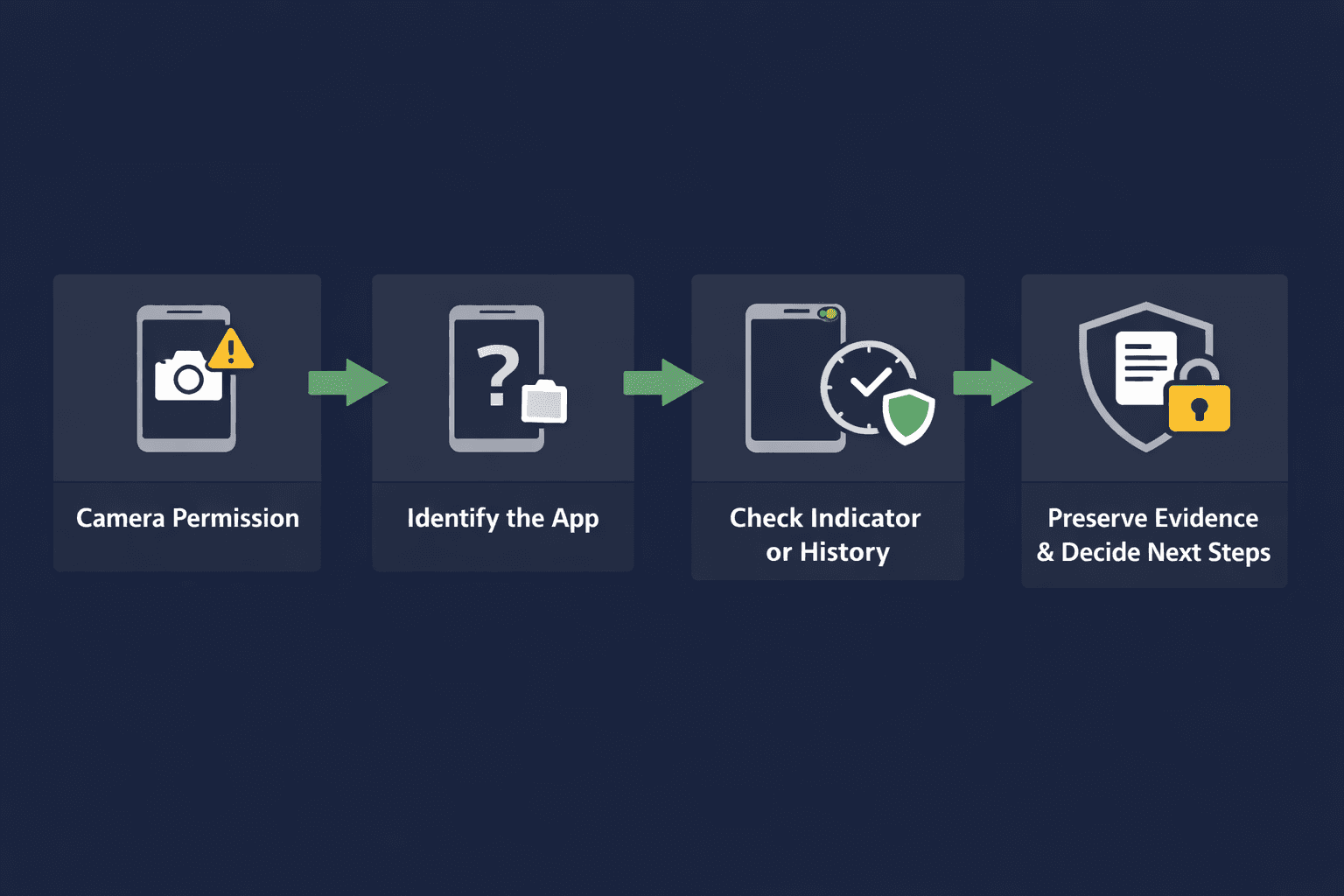
A safer approach is to identify the app, review why it needs the camera, check recent access and other powerful settings, and look for several findings that support the same explanation. Do not confront another person or delete evidence if you think someone may be monitoring your phone.
What people mean by a spy camera app#
The phrase spy camera app can describe several different concerns:
- An ordinary camera app that you do not recognize.
- A legitimate app with more camera access than it needs.
- A hidden or disguised app that may collect information without clear consent.
- A remote-access or account-compromise problem that is being mistaken for a camera problem.
- A physical camera or tracking device that is not installed on the phone at all.
These situations require different responses. An app with camera permission is not automatically a spy app, and a clean permission list cannot rule out every form of surveillance.
If your concern involves broader spyware behavior, start with this guide to detect possible spyware on Android. It covers signs that extend beyond camera access.
Camera permission is not proof of camera capture#
Android permissions describe what an app is allowed to request. They do not, by themselves, establish what the app actually did, when it did it, or whether a person viewed the resulting data.
For example, a video-calling app may need camera access only when you join a call. A document-scanning app may request the camera when you scan a receipt. A social app may offer camera features even if you rarely use them.
Treat these as clues that deserve context rather than proof:
| Finding | What it may mean | What it does not prove |
|---|---|---|
| Camera permission is allowed | The app can request camera access under the relevant Android rules | That it is currently using the camera secretly |
| A green camera indicator appears | An app or system feature may be using the camera | That the app is spyware |
| Battery use increases | A background task, poor signal, update, or malfunction may be involved | That the camera is being used |
| Data usage increases | Photos, video, backups, ads, or normal syncing may be responsible | That camera footage is being sent to someone |
| An unfamiliar app appears | You may not recognize its developer or system role | That it is malicious |
How to review apps with camera access#
Menu names differ between Android versions and manufacturers. Look for the following settings, using the Settings search box if necessary.
- Open Settings and search for Permission manager, App permissions, or Privacy dashboard.
- Choose Camera to view apps that have requested or received camera access.
- Select an unfamiliar app and read its permission choices. Depending on the device, you may see options such as allowing access while using the app, asking every time, or denying access.
- Check the app's name, icon, developer, installation source, and stated purpose.
- If the app does not need the camera for a feature you use, choose the most restrictive reasonable option or deny access.
- Open the app's store listing separately and review its description, developer, update history, and requested permissions.
For detailed background on changing access to the camera, microphone, and location, see this Android app permissions guide.
Do not disable security protections or install an unknown APK simply because an app looks suspicious. If you cannot identify an app, record its details first and research the exact package name through a trusted source.
How to investigate an unfamiliar camera app without opening it#
You do not need to launch a suspicious app to begin checking it. Opening it could grant an opportunity to request more permissions or could change useful evidence.
Check these details from the installed-app list:
- Exact app name and icon: Look for spelling variations, generic names, or an icon that does not match the app's stated purpose.
- Developer: Compare the developer with the official website or store listing.
- Install source: An app installed through an official store has a different history from one installed through a file or an unknown store.
- Permissions: Camera access is more concerning when combined with unrelated access that the app cannot reasonably explain.
- Recent installation: Compare the installation date with when the concern began, while remembering that dates can change after updates or restoration.
- App status: A disabled, archived, or system-linked app may not behave like an ordinary user-installed app.
An unfamiliar package may also be part of the phone's operating system, a manufacturer feature, or a service used by another app. Do not remove system software based only on an unfamiliar name.
What Android camera indicators can and cannot tell you#
Many recent Android devices provide a visual privacy indicator when the camera or microphone is active. The exact appearance, timing, and history options vary by Android version and manufacturer.
If an indicator appears unexpectedly:
- Note the time and what you were doing.
- Check the notification shade or privacy controls for an app attribution, if your device provides one.
- Close apps that may use video, scanning, augmented reality, or camera features.
- Review camera access again if the indicator returns when no camera-related feature is in use.
- Update the phone and apps through trusted update channels.
An indicator is useful evidence to investigate, but it is not a verdict. System functions and legitimate apps can also access sensors during normal operation. A single brief event should be interpreted alongside the app's purpose and access history.
Check special access and device-management settings#
Camera access is only one part of an Android privacy investigation. A suspicious app may also rely on other capabilities, or the real problem may involve account access rather than the camera.
Review, where available:
- Accessibility services.
- Device administrator or device-management apps.
- Notification access.
- Display-over-other-apps access.
- VPN settings.
- Unknown app installation permissions.
- Battery and mobile-data usage.
- Google or manufacturer account sessions.
Use the site's guide to check Android accessibility services safely if an unfamiliar service is enabled. Accessibility access can be legitimate, but it deserves careful review because it may give an app broad ability to interact with the screen.
If you suspect that an app is hidden rather than merely camera-capable, use the separate guide to find hidden apps on Android. A hidden-app investigation and a camera-permission review answer different questions.
Findings that deserve follow-up#
Give the issue more attention when several independent findings point in the same direction, such as:
- An app you did not install has no clear purpose.
- Its developer or installation source cannot be verified.
- It has camera access plus unrelated powerful access.
- The camera indicator appears repeatedly during times when no camera feature is in use.
- The app resists removal or is associated with an unfamiliar device-management setting.
- Your accounts show unfamiliar sign-ins or recovery changes.
These signs still do not identify a specific person or prove covert recording. They indicate that you should preserve information and seek help rather than guessing.
Preserve evidence safely#
Before changing settings, write down the app name, developer, package name if visible, permissions, dates, and relevant notifications. Take screenshots when safe. Store copies somewhere the person you are concerned about cannot access.
If you share a phone plan, Google account, family account, or managed device with another person, changing permissions may alert them. If this concern involves stalking, domestic abuse, or personal safety, use a safer device to contact a trusted support service or local authority. Avoid direct confrontation based only on an app finding.
After preserving evidence, you can revoke camera access, uninstall a clearly unwanted app, update the device, run Google Play Protect, and change account passwords from a trusted device. If the phone is managed by an employer or school, contact the administrator before removing software.