If someone can unlock your phone, they may also be able to open your messages, photos, email, banking app, or password manager. An app lock on Android adds another access check before a selected app opens.
The important limitation is that Android does not offer one universal app-lock menu on every phone. Some manufacturers include an App Lock feature, some provide a protected space such as Samsung Secure Folder, and some phones may require a carefully chosen third-party app. The names and menu paths can change with the phone brand, Android version, and software update.
For a quick start, open Settings, search for App Lock or a related privacy feature, enable it, choose an authentication method, select the apps to protect, and test the lock. If your phone does not show an App Lock option, look for a protected space such as Secure Folder or Private Space before considering third-party software.
What an Android app lock does#
An app lock protects access to a particular app after the phone itself has already been unlocked. Depending on the device, the second check may use a PIN, password, pattern, fingerprint, or face authentication.
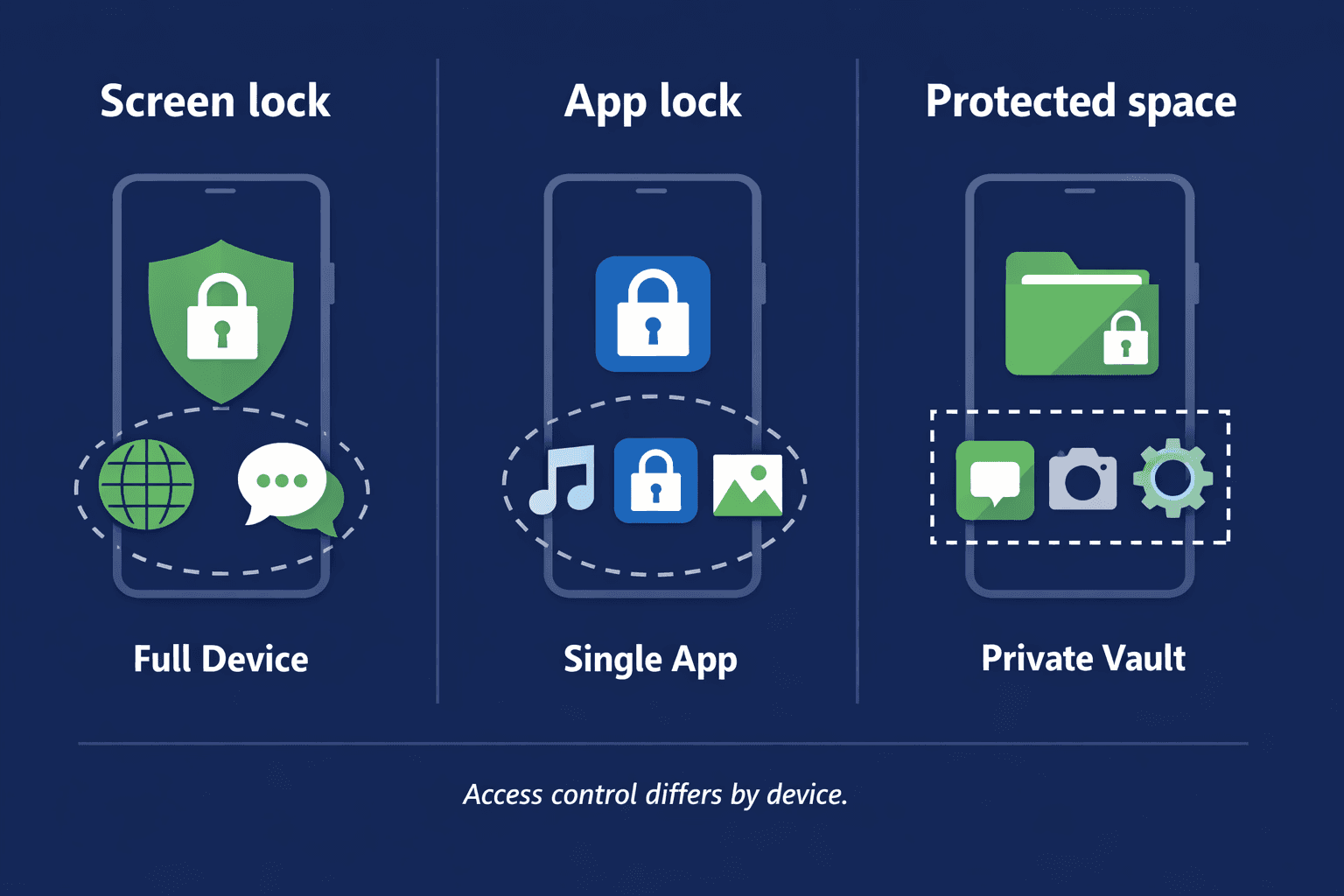
An app lock normally adds a check before opening the existing app in the phone's ordinary app area. A protected space such as Secure Folder or Private Space may instead provide a separate protected copy or area for apps and files. That difference matters if you want to lock an existing app rather than create a separate space.
For example, you might require an additional check before opening:
- A messaging or social media app
- A gallery or file manager
- A banking or payment app
- An email account
- A password manager
This is useful when you occasionally lend someone your unlocked phone, when a family member shares a device, or when you want an extra barrier around sensitive information.
An app lock is access control. It does not automatically detect spyware, remove malicious software, stop location sharing, or secure an account that has already been compromised.
If you are investigating unexpected access rather than simply adding a lock, review Android app permissions for location, camera, and microphone as a separate step. Permissions control what an app can access after it runs; an app lock controls who can open it.
First check whether your phone has a built-in app lock#
The safest option is normally a feature supplied by your phone manufacturer. It avoids granting a newly installed app broad privileges simply to protect other apps.
Try this:
- Open Settings.
- Use the Settings search field and search for App Lock, Lock apps, Privacy, Private Space, or Secure Folder.
- If a matching feature appears, read its description and confirm which apps it protects.
- Set a strong PIN, password, or biometric check when prompted.
- Select the apps you want to protect.
- Lock and unlock one selected app yourself so you understand how the feature behaves.
The exact result depends on the phone. A search that produces no result does not prove that the phone lacks every privacy feature; the manufacturer may use a different name or provide a protected container instead of a per-app lock.
Manufacturer differences matter#
App-lock features are not standardized across Android phones. Some devices include a direct list of apps to lock. Others isolate selected apps and files inside a separate protected area. On some phones, there may be no built-in individual app lock at all.
Use this decision path when the Settings search produces different results:
- If you find App Lock or Lock apps, use that feature to protect the existing apps you select.
- If you find Secure Folder, Private Space, or a similar protected area, decide whether you need to protect an existing app or create a separate protected copy and account.
- If no relevant feature appears, check documentation for your exact phone model, Android version, and software version before installing third-party software.
There is no single Android menu path that applies to every phone. Look for instructions written for your exact manufacturer, model, Android version, and software version. Avoid following a menu path from another phone if the labels do not match yours.
App lock vs. Secure Folder vs. screen lock#
These features solve related but different problems:
| Feature | What it protects | Best use | Main limitation |
|---|---|---|---|
| Screen lock | The phone as a whole | Preventing access when the phone is locked | Anyone who knows the unlock method may reach your apps |
| App lock | One or more existing apps | Adding a second check to selected apps | Availability and behavior vary by manufacturer |
| Secure Folder or similar protected space | A separate area for selected apps and files | Keeping a private copy of apps, files, or accounts apart from the main profile | It may not lock the original app or data outside the protected space |
| Private Space or work profile | A separate Android space for selected apps | Separating sensitive or work-related apps | Availability depends on Android version and device configuration |
Samsung users can read the site's explanation of what Secure Folder protects and what it does not. A protected folder is not automatically the same thing as placing a lock on an app already installed in the phone's ordinary app area.
How to choose a safe app-lock method#
Use this decision guide:
Choose a built-in App Lock when it is available#
A built-in feature is usually the simplest choice for protecting selected apps. Check what it locks, which authentication methods it accepts, and whether notifications or recent-app previews can still reveal sensitive information.
Choose a protected space when you need separation#
A protected space can be useful when you want a separate copy of an app, private files, or a separate account. Confirm whether the original app remains visible and whether data is duplicated outside the protected area.
Be cautious with third-party app-lock software for Android#
If your phone has no built-in option, research any third-party app-lock software carefully before installing it. An app that locks other apps may request powerful access, such as accessibility access, device-administrator privileges, or permission to appear over other apps.
Those permissions can be legitimate for a specific function, but they also increase the consequences of choosing an untrustworthy app. Before installing one:
- Use a reputable app store and check the developer identity.
- Read the requested permissions and decide whether they make sense.
- Review recent updates and independent security information.
- Avoid unknown APK files offered through messages, pop-ups, or unofficial download sites.
- Do not disable Play Protect or other built-in security controls to make the app work.
- Prefer a device feature that performs the same task without additional privileged access.
An app lock should reduce exposure, not create a new app with unnecessary control over your phone.
What to do if apps are locked unexpectedly#
Seeing an app request a PIN or biometric check is not, by itself, evidence of spyware. A manufacturer feature, a protected profile, a work-management policy, or a third-party utility can all cause apps to appear locked.
Work through these checks:
- Identify which apps are affected. One selected app suggests a local app-lock setting; many work-related apps may point to a managed profile or device policy.
- Search Settings for App Lock, Secure Folder, Private Space, Work Profile, or Device Management. The wording varies by phone.
- Check recently installed apps. Pay attention to utilities you do not recognize, but remember that an unfamiliar app is a lead to investigate, not proof of surveillance.
- Review accessibility and overlay access. These are powerful permissions and deserve attention when a third-party locking utility is installed.
- Ask whether another person with access to the phone changed the setting. A forgotten PIN or altered privacy feature can have an ordinary explanation.
- Do not repeatedly guess a lock code if the feature warns about deletion or lockout. First look for the official recovery process and determine whether protected data could be removed by a reset.
If your concern is broader than a locked app, use the site's guide to check an Android phone for possible spyware. A review can identify suspicious settings or software, but no single check can prove that every form of surveillance is absent.
What app locks cannot prevent#
An app lock is narrower than many people expect. It generally cannot:
- Prevent someone from seeing notifications that display message content
- Protect information copied into screenshots, downloads, backups, or another app
- Stop an account from being accessed on another device
- Revoke location sharing or fix an account-security problem
- Detect every form of spyware or unwanted monitoring
- Stop a person who knows the app-lock credential
- Protect the phone if the lock feature itself is removed or bypassed
- Secure data that is already exposed through the lock screen, notification shade, widgets, or recent-app previews
For stronger protection, use a unique phone screen-lock credential, keep Android and apps updated, secure your Google account with two-step verification, and review sensitive notification previews. If you suspect someone else has access to your Google account, review Google Account security and two-factor authentication on Android.
A practical privacy setup#
For most people, a sensible setup looks like this:
- Use a strong screen lock that other people cannot easily guess.
- Turn on the phone's built-in app lock or protected space if it fits your needs.
- Protect especially sensitive apps, such as messaging, email, banking, and password management.
- Hide sensitive notification content from the lock screen when appropriate.
- Review app permissions separately from app-lock settings.
- Keep Android, Google Play system components, and apps updated.
- If you find an unfamiliar app or setting, investigate its permissions, installation source, and account activity before assuming surveillance.
This layered approach is more useful than treating an app lock as a complete privacy solution.