If Google Play Services appears near the top of your Android battery report, mobile-data screen, or list of active apps, that does not automatically mean your phone has spyware. Google Play Services is a built-in Android software component that supports many Google and app functions behind the scenes.
It can help apps use services such as account sign-in, location, notifications, maps, device security, and background communication. The exact functions vary by Android version, phone manufacturer, installed apps, and the Google account settings on the device.
The important distinction is this: seeing Google Play Services in a report is evidence of system activity, not proof of unwanted tracking. To understand a privacy concern, you need to examine what happened, which app or account requested it, and whether the behavior matches a feature you use.
What Google Play Services is#
Google Play Services is a system component supplied by Google for Android devices that include Google’s mobile services. It provides shared software interfaces that apps can use instead of each app implementing the same functions independently.
For example, an app may rely on Google Play Services for:
- Google account sign-in or account-related features
- Location-related functions
- Push notifications and background communication
- Map or location features
- Device and app security checks
- Connections between apps and Google services
- Compatibility features that help apps work across Android versions
It is not usually an app that you open like a messaging or camera app. It can perform work in the background, so Android may attribute battery, network, or activity to it even when you did not deliberately launch it.
Google Play Services is also different from the Android operating system itself. Some Android functions are provided by Android or the phone manufacturer, while other functions are provided by Google Play Services or separate Google apps.
Google Play Services versus the Play Store and Play Protect#
These names are easy to confuse because they appear together on many Android phones.
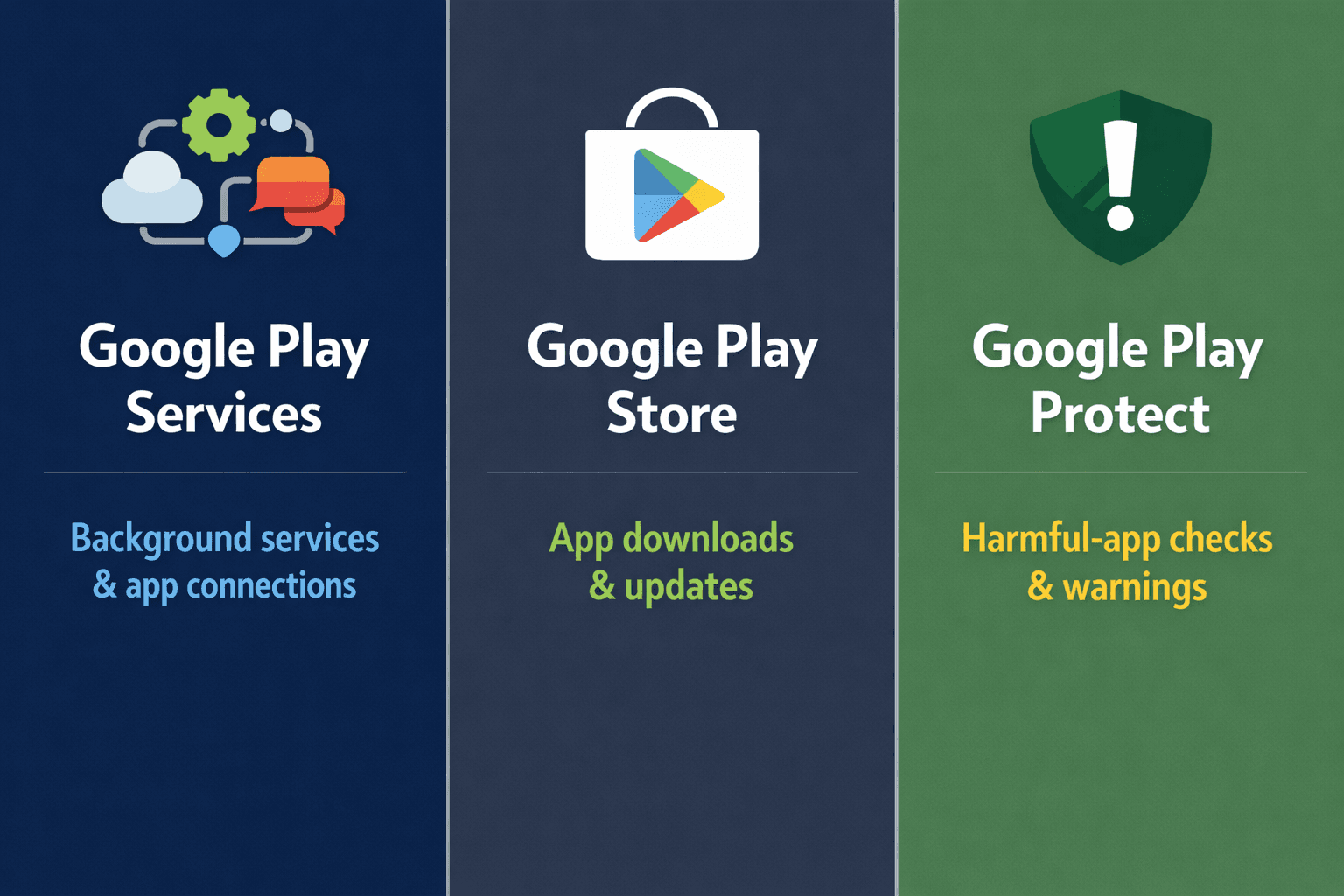
| Component | Main purpose | What you may notice |
|---|---|---|
| Google Play Services | Shared background services and APIs used by Android apps and Google features | Battery use, data use, permissions, or background activity |
| Google Play Store | Finds, installs, updates, and manages apps and digital content | App downloads, updates, subscriptions, and store notifications |
| Google Play Protect | Security checks for potentially harmful apps and related threats | Security warnings, scans, or verification messages |
Google Play Services does not mean the same thing as the Play Store. The Play Store is the storefront. Google Play Services is a background component that other software may use. Play Protect is a security feature associated with Google Play that checks apps for potentially harmful behavior.
For a more focused explanation of the security feature, see this guide to Google Play Protect on Android.
Why it may appear in battery, data, or activity reports#
A system component can appear in a report for several ordinary reasons:
- An installed app requested a Google-backed service.
- Your phone synchronized account or device information.
- A notification or background message was delivered.
- A location-related feature was used by an app or system process.
- Google components or other apps were updated.
- Android grouped work under the shared service rather than showing the individual app first.
- A temporary task ran in the background and consumed some network or battery resources.
A single entry is difficult to interpret without context. Battery use can be affected by signal strength, screen time, background synchronization, navigation, media playback, and software updates. Similarly, data use may reflect legitimate syncing or an app that uses Google Play Services as part of its normal operation.
If your phone is using unusually large amounts of mobile data, start with the phone’s data-usage breakdown and identify which apps are responsible. This Android data-usage guide can help you work through that process.
What permissions and system access can mean#
Google Play Services may appear to have access to sensitive categories because it supports features that involve location, accounts, nearby devices, notifications, or other system functions. The label shown in Settings is not always a simple explanation of what happened at a specific moment.
A permission generally means that a component may access a category of information or perform an action under defined conditions. It does not, by itself, show:
- Which app initiated a request
- How often the information was used
- Whether data left the phone
- Whether the activity was necessary for the feature you enabled
- Whether another app or account was involved
Android settings also differ by manufacturer and version. You may find related controls under Settings > Apps, Settings > Privacy, Settings > Location, Settings > Security and privacy, or a similarly named menu. Use the Settings search field if the labels on your phone do not match these examples.
For a broader review, follow a guide to checking Android app permissions. Review the permissions of the apps that actually provide the feature you are concerned about, not only the Google Play Services entry.
What Google Play Services can and cannot prove about tracking#
Google Play Services can be involved in legitimate location, account, notification, and device-management functions. That means its presence may be relevant to a privacy review, but it is not a diagnosis.
Seeing it in a report does not prove that:
- Someone is secretly watching your phone
- Spyware is installed
- Your location is being shared with another person
- A particular app is collecting more data than necessary
- Your Google account has been compromised
Conversely, a normal-looking Google Play Services entry cannot prove that every privacy concern is resolved. Privacy questions may involve account access, location-sharing settings, individual apps, browser activity, physical tracking devices, or an attacker with access to the phone.
Look for a pattern rather than one isolated signal. A sudden change after installing an unfamiliar app, an unexpected account sign-in, unexplained location sharing, or repeated activity that matches no feature you use deserves closer review. Battery drain or heat alone is not enough to identify surveillance.
If you suspect broader unwanted software, use a proportionate process described in this guide to check for spyware on Android. Do not confront a person you suspect of monitoring the device if doing so could put you at risk.
How to review Google Play Services safely#
1. Confirm what the entry is#
Open the item from the relevant battery, data, or app-activity screen and check its exact name. Make sure you are looking at Google Play Services rather than the Play Store, a similarly named Google app, or a manufacturer service.
2. Check the timing and scale#
Ask when the activity occurred and whether it coincided with navigation, account setup, app installation, a system update, video calling, notifications, or other normal use. Compare the amount with your usual pattern rather than treating any nonzero value as suspicious.
3. Review related apps and features#
Think about which apps recently used location, maps, sign-in, notifications, nearby-device functions, or background syncing. An app that depends on Google Play Services may be the more useful place to investigate.
4. Review account and location-sharing settings#
If your concern is location exposure, check Google account activity and any location-sharing features you use. Also review the location permissions of individual apps. A Google Play Services entry alone does not tell you whether another person can see your location.
5. Install updates from trusted sources#
Keep Android, Google Play system components, and apps updated through the phone’s normal update mechanisms. Do not install an unknown APK or disable security protections just because a website claims it will reveal hidden tracking.
6. Recheck after making one change#
If you disable an unnecessary app permission or stop using a feature, observe whether the relevant activity changes. Change one thing at a time so the result is easier to interpret. Avoid disabling Google Play Services as a first response; doing so can break sign-in, notifications, location features, updates, or other apps.
When a wider privacy audit makes sense#
Consider a broader review when several independent signs appear together, such as:
- An unfamiliar app with sensitive permissions
- An unexpected Google account sign-in or security alert
- Location sharing that you did not enable
- Repeated high data use with no matching activity
- Settings changing without your knowledge
- A person having had physical access to the unlocked phone
- A suspicious profile, accessibility service, device administrator, or remote-access app
These signs still have innocent explanations, so verify each one. If there is a personal-safety concern, use a safer device to seek help and avoid actions that might alert someone monitoring the phone.
For concerns about remote control, you can also review this guide to checking remote-access apps on Android.
The practical takeaway#
Google Play Services is a normal Android system component that supports many apps and Google features. It can legitimately appear in battery, data, permission, and activity reports. Its presence is worth understanding, but it is not proof of spyware or secret tracking.
Start with context: identify the report, review the timing, check the individual apps and account settings involved, and look for a pattern. That approach is safer and more informative than disabling an essential system component or treating one background entry as a diagnosis.