If you are worried that a secret screen recorder is running on your Android phone, start with one important distinction: screen recording is a normal feature used by legitimate apps, but an unfamiliar recording event deserves investigation. Battery drain, warmth, unusual data usage, or a notification by itself does not prove that someone is watching your screen.
Android screen capture normally involves a user-visible confirmation or an active recording indication, although the exact wording and location vary by Android version and phone manufacturer. A suspicious app, unexpected recording notification, or unfamiliar accessibility or remote-control service may justify a broader privacy check. No single sign proves spyware.
This guide explains what to check, how to interpret what you find, and when to take stronger steps.
What Android screen recording can do#
Screen-recording software for Android can capture what appears on the display. Depending on the app and the recording session, it may also record device audio, microphone audio, touch indicators, or video from a camera overlay. A recording app may save the result locally, offer editing tools, or share the file through another service.
Screen capture is different from several other types of access:
- Screen recording: captures visible content from the display.
- Camera access: captures the surroundings through one or more cameras.
- Microphone access: captures sound, including conversations near the phone.
- Accessibility access: can allow an app to observe or interact with parts of the interface, depending on its service and configuration.
- Remote access: may allow another person or service to view or control the device, sometimes through a support or administration tool.
- Account access: may expose cloud-synced data even when the phone is not being recorded.
These categories can overlap in a harmful app, but they are not interchangeable. An app with microphone access is not automatically a screen recorder, and a screen recorder is not automatically spyware.
Why a legitimate app may record your screen#
People use Android screen recording for ordinary reasons, including:
- Creating a tutorial or gameplay clip.
- Recording a video call when all participants have agreed.
- Demonstrating a technical problem to support staff.
- Saving a presentation, livestream, or other content when the service permits it.
- Capturing evidence of an on-screen error for troubleshooting.
You may also see recording-related activity from a built-in phone feature, a video editor, a meeting application, a casting tool, or a remote-support app. An app's name may not contain the words “recorder” or “screen capture.”
Before removing an unfamiliar app, consider whether it was installed by you, supplied by your employer or school, added by another authorized device user, or included by the manufacturer. If you do not recognize it, continue with the checks below rather than opening it or granting more access.
What hidden or unexpected recording may look like#
An Android warning that someone or something is recording the screen generally means that a screen-capture session, recording control, or related system notification has been triggered. The warning does not by itself identify who initiated the session, show that another person is watching, or prove that the recording was saved or uploaded.
If you see the warning, first inspect the notification or active recording control for the displayed app or service name. If it is safe and you recognize the session, stop it using the available control. Then review the responsible app and the access it has been granted. Exact wording, icons, and controls vary by Android version, manufacturer, app, and managed-device policy.
A recording session may be worth investigating when:
- A recording notification appears when you did not start one.
- A recording control remains active after you believe the session ended.
- An unfamiliar app is associated with the event.
- An app requests access that does not fit its stated purpose.
- A remote-support or device-administration app appears without a clear reason.
- Someone with physical access to the phone may have installed or configured an app.
These are investigation triggers, not proof. A stuck notification, a built-in service, a work profile, or a previously started session can have benign explanations. Likewise, battery drain, overheating, crashes, or high mobile-data usage can result from updates, poor reception, video streaming, a failing battery, or many other causes.
How to check for a screen recorder safely#
1. Stop an active recording if it is safe to do so#
Expand the recording notification or open the active recording control, such as a status-bar control or quick-settings tile. Note the displayed app or service name if doing so is safe. Use the available stop command if you recognize the session and stopping it will not create a safety problem. The exact control may differ across devices.
Do not confront a person you suspect of monitoring the phone if doing so could put you at risk. If the phone is shared, managed by an organization, or needed as evidence, document what you see before changing settings when appropriate.
2. Review recently used and installed apps#
Open Settings and look for Apps, App management, or a similar section. Review the complete installed-app list, not only the apps on the home screen. Menu names differ across manufacturers and Android versions.
Pay attention to:
- Apps you do not remember installing.
- Apps with vague names or icons that imitate system components.
- Remote-support, casting, recording, administration, or parental-control tools.
- Apps installed around the time the unexpected behavior began.
- Apps that have no clear reason to interact with sensitive content.
Do not assume that an unfamiliar package is malicious solely because its name looks technical. Search for the developer and package details using a trusted source, and avoid downloading replacement APK files from unknown websites.
If you also suspect that an app is hiding from the launcher, see the existing guide on how to find hidden apps on Android. A hidden icon alone still does not establish that the app is recording your screen.
3. Check app permissions and special access#
Review the suspicious app's permissions from its App info page. Depending on the device, you may find categories such as microphone, camera, notifications, nearby devices, files and media, or phone access.
Also look for a Special app access section. Relevant areas may include:
- Display over other apps: allows an app to place content above other apps. This is not screen recording, but it can be abused for deceptive prompts or overlays.
- Install unknown apps: allows an app to request installation of packages from outside the usual app store. It does not itself mean the app is recording.
- Notification access: can allow an app to read notifications, which may expose sensitive messages.
- Accessibility: can provide powerful interface-reading or interaction capabilities and should be granted only to apps you trust and understand.
- Device admin or work-management controls: may be legitimate on a managed phone but require careful review on a personal device.
For a broader walkthrough, use the site's guide to check Android app permissions safely. Permission labels and menu paths can change, so treat the names above as general signposts rather than universal instructions.
4. Check accessibility and remote-access services separately#
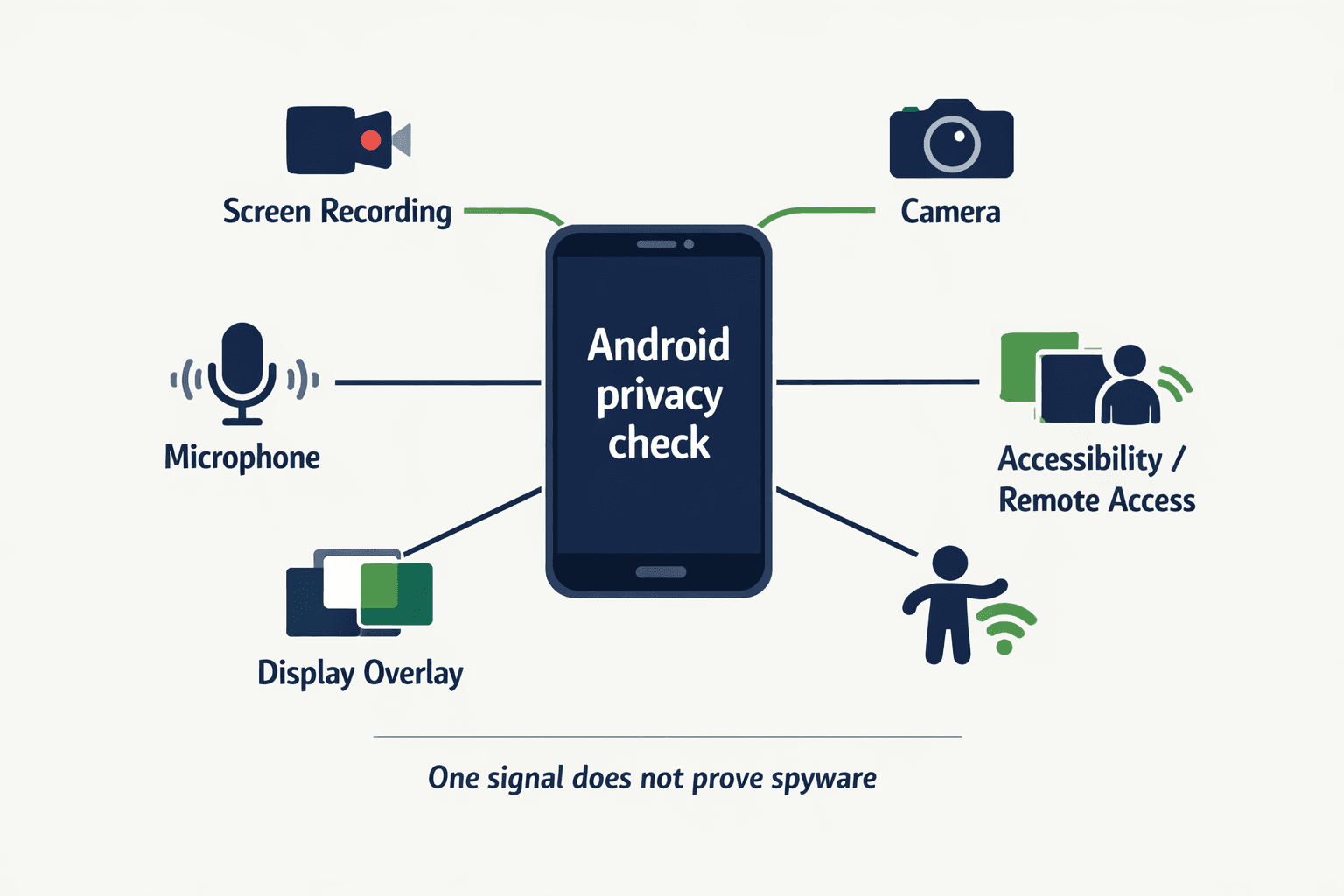
Screen recording and accessibility access are different capabilities, but a malicious app may try to combine several permissions. Review enabled accessibility services and any remote-control or support applications you do not recognize.
The site's guide to checking Android accessibility services safely explains why this setting deserves attention. You can also review remote-access apps on Android if another person may have been able to view or control the device.
Do not disable a service blindly if the phone depends on it for an assistive technology, workplace management, or another accessibility need. First identify what it does and who configured it.
5. Review Play Protect and update status#
Use the security scanning and update features already provided by the phone where possible. Keep Android and installed apps updated through trusted channels, and review warnings from the device's built-in security tools.
A clean scan does not prove that every form of surveillance is absent. Security tools have limits, and account compromise, authorized access, or a physically installed tracking device may not look like a conventional screen-recording app. The site's Google Play Protect guide provides related context.
How screen recording differs from camera or microphone access#
A person who sees a microphone or camera indicator may reasonably wonder whether the screen is also being captured. These are separate questions:
| Finding | What it may indicate | What it does not prove |
|---|---|---|
| Screen-recording control or notification | A capture session may be active or recently active | That the recording was covert or uploaded |
| Microphone indicator | An app may be using the microphone | That the screen is being recorded |
| Camera indicator | An app may be using a camera | That someone is viewing the screen |
| Overlay permission | An app may place content above other apps | That it can capture the full screen |
| Accessibility service | An app may read or interact with interface elements | That it is spyware |
| High battery or data use | An app or service may be active | That surveillance is occurring |
Use the finding to choose the next check, not to reach a conclusion too quickly.
What Android privacy indicators can and cannot prove#
Privacy indicators and notifications are useful clues because they can show that a sensitive feature is active. They are not a complete audit of the phone. Indicators may vary by Android version, manufacturer, permission type, managed-device policy, and the software responsible for the activity.
A screen-recording warning may establish that capture activity or a related notification was triggered, but it does not establish who initiated it, whether the content was saved or uploaded, or whether another person viewed it. A notification can tell you that a session or service is active, but it may not tell you:
- What content was saved.
- Whether the content was uploaded.
- Who can access it.
- Whether a legitimate recording tool or a broader monitoring system caused it.
- Whether the activity continued after the visible session ended.
For this reason, combine the visible clue with the app list, permissions, special access, account security, and physical-access history.
When to use a broader spyware or privacy audit#
Consider a wider review when several independent signs point in the same direction, such as an unknown app plus unexplained accessibility access, remote-control software, account-security alerts, or changes made while another person had access to the phone.
The site's guide on how to detect spyware on Android can help organize that broader review. It should not be treated as a guarantee that one checklist or scan can find every type of monitoring.
If you believe an abusive partner, stalker, employer, or other person may be monitoring the device, prioritize personal safety. Use a safer device to seek help if possible. Avoid deleting evidence or confronting the suspected person when that could increase danger. A domestic-abuse advocate, trusted security professional, or relevant local authority may be able to help you make a safer plan.
What to do if recording is unexpected#
Use this proportionate sequence:
- Record the date, time, notification wording, app name, and visible settings if doing so is safe.
- Stop the session or revoke unnecessary access if you understand the consequence.
- Check the app's source, developer, permissions, accessibility status, and remote-access features.
- Run the phone's built-in security checks and install pending updates from trusted sources.
- Change important account passwords from a trusted device if account compromise is also possible, and enable two-factor authentication.
- If the app remains unexplained or the phone may be compromised, back up essential personal data and consider professional help or a factory reset after planning for account recovery.
A factory reset can remove many unwanted apps, but it does not fix a compromised online account, an unsafe backup, or a separate physical tracking device. Plan before resetting, especially if you need contacts, authentication codes, or evidence.